Each time an employee clocks in and out of work in vTime, a time card lands on the Time Tracking page for someone in the office to approve. (Travel has its own page; see Reviewing Travel Time.)
Who can do this: admins and members of your organization can review, approve, deny and undo work time. Only admins can create an entry for an employee.
TABLE OF CONTENTS
- Opening Time Tracking
- Reading a time card
- Approving one entry
- Approving several entries at once
- After you approve
Opening Time Tracking
Open the menu on the right side of the screen and click Time Tracking. The page opens on the Pending tab: every finished shift waiting for a decision. Pending time-correction requests appear at the top (see Reviewing Time Correction Requests).
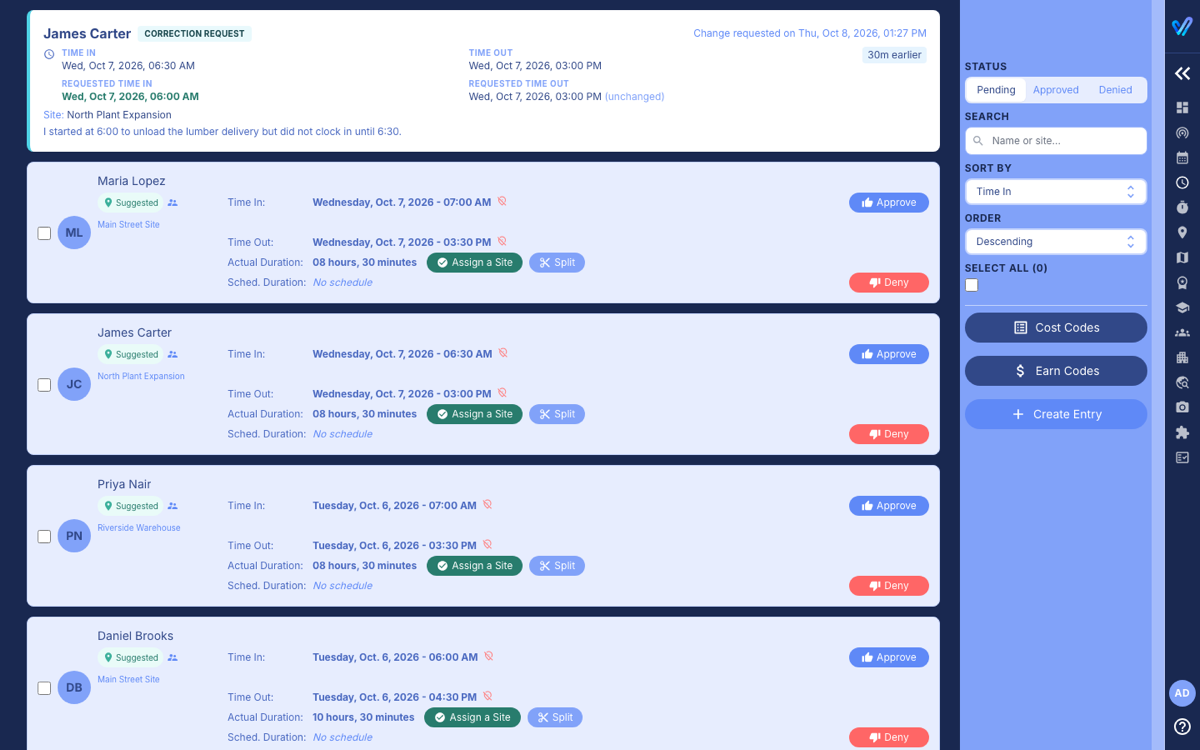
Only finished shifts appear here. Someone who is still clocked in shows on the Dashboard instead.
Reading a time card

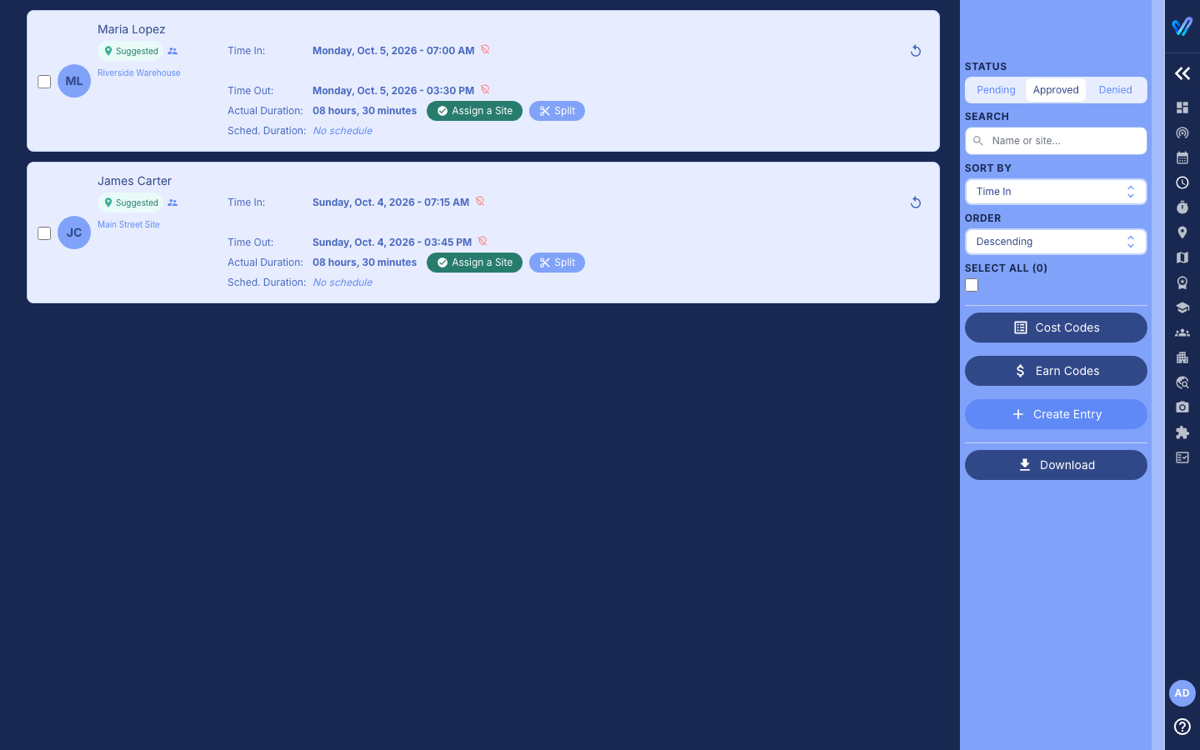
- Time In / Time Out and Actual Duration: the shift as clocked. A crossed-out pin means no location was recorded for that punch.
- Sched. Duration: the scheduled shift length, or No schedule.
- Matched (linked to a scheduled shift), Suggested (vTime found a likely site from the schedule or where the employee clocked in) or Unscheduled (no site at all).
- Needs Attention: one of the punches failed vTime's checks. The card explains why.
- Supervisor icon: someone in the office entered this shift for the employee. Clipboard icon: the employee entered it by hand. Hover over either to read the reason.
- Cost Code and Earn Code (if your company uses them): pick these before approving.
Need to change the site or break a shift in two first? See Fixing A Work Entry Before Approving.
Approving one entry
- Click Approve on the card.
- Check the details, then click Approve in the window.
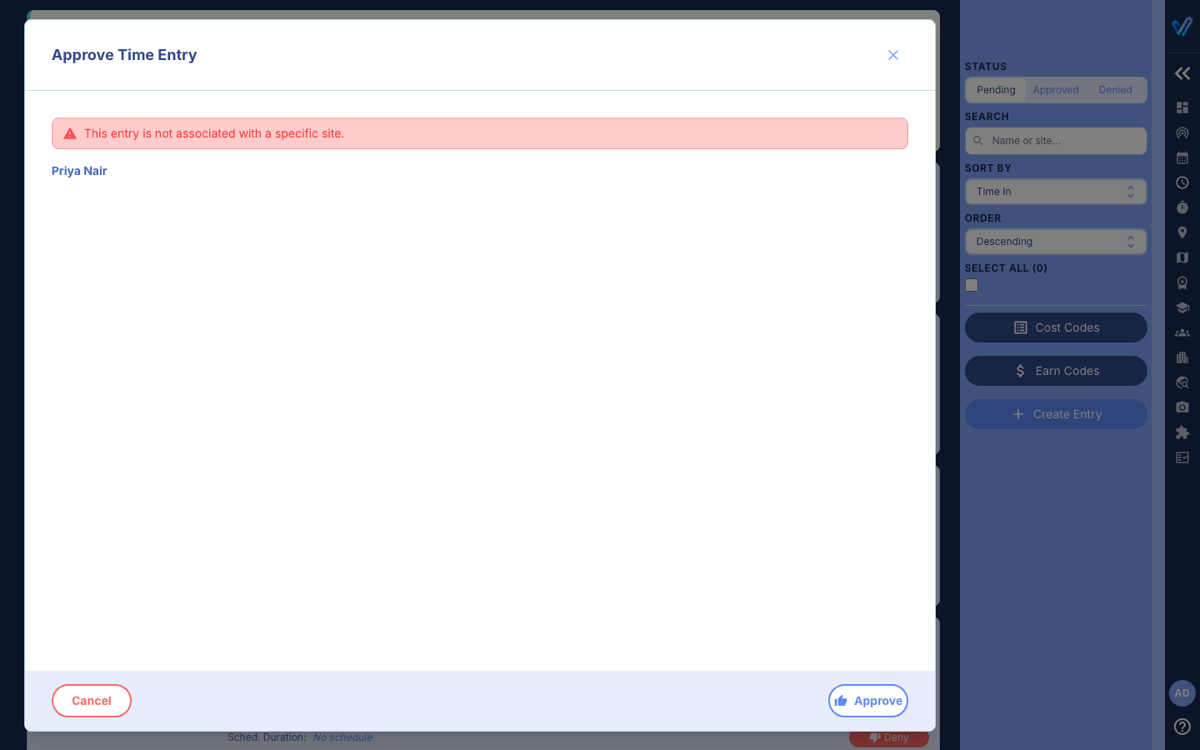
If the window says This entry is not associated with a specific site, the shift is not linked to a scheduled shift. You can still approve it, but to make sure it is billed to the right site, cancel, use Assign a Site on the card first, and tick Also approve this entry there. See Fixing A Work Entry Before Approving.
If your company uses cost or earn codes, Approve stays unavailable until each code is picked on the card.
Approving several entries at once
- Tick the box on the left of each card, or tick Select All in the right-hand panel. Bulk Approve and Bulk Deny appear in the panel.
- Click Bulk Approve, check the list, and confirm.
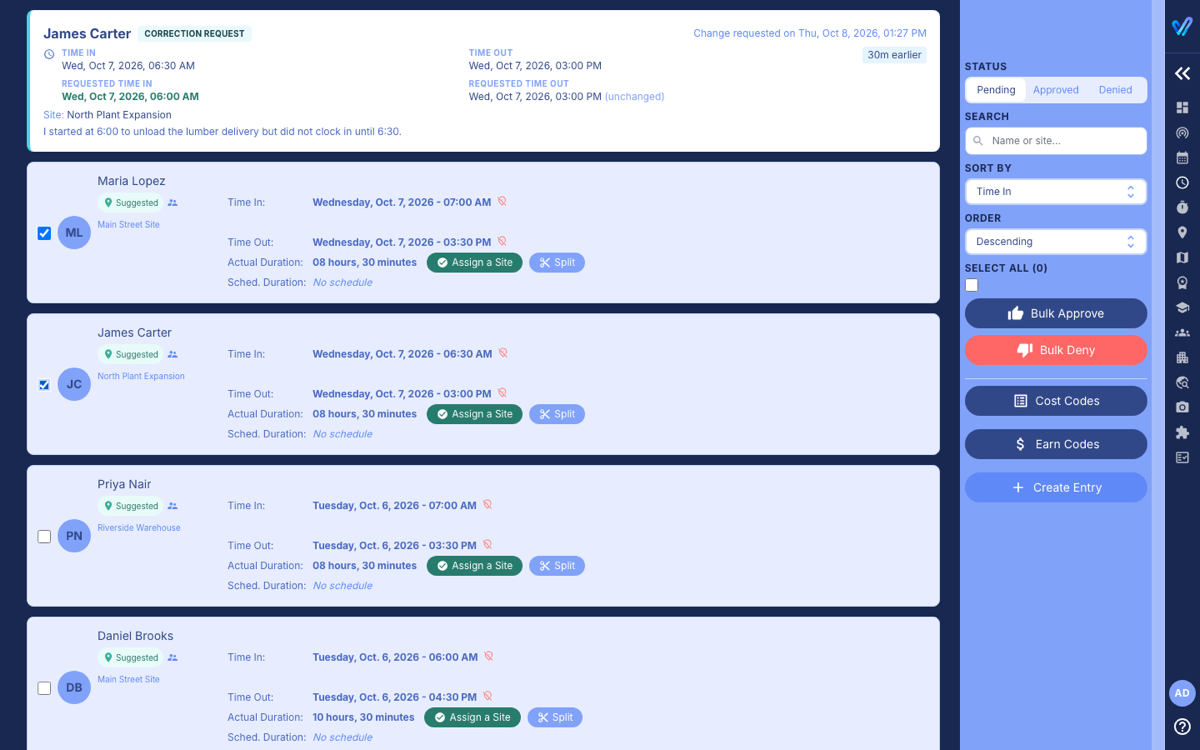
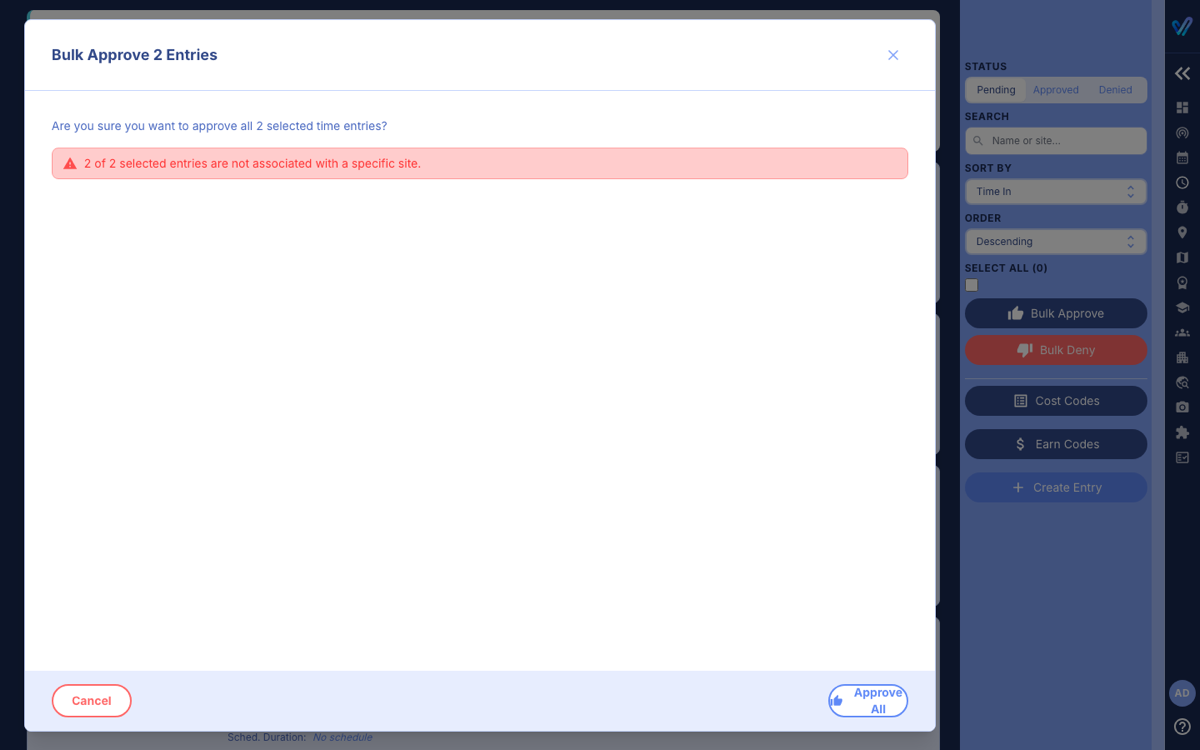
While cards are ticked, each card's own Approve and Deny buttons are hidden. If some entries fail, vTime tells you how many and leaves them ticked so you can try again.
After you approve
The entry moves to the Approved tab. To export approved hours for payroll, see Downloading The Timesheet Report. Approved by mistake? See Denying Work Time And Undoing A Decision.
Was this article helpful?
That’s Great!
Thank you for your feedback
Sorry! We couldn't be helpful
Thank you for your feedback
Feedback sent
We appreciate your effort and will try to fix the article