Download approved work time as a spreadsheet (CSV) for payroll. Only approved entries are included; travel time has its own report (see Downloading The Travel Time Report).
Who can do this: admins and members of your organization can review, approve, deny and undo work time. Only admins can create an entry for an employee.
TABLE OF CONTENTS
Step 1: Open the download
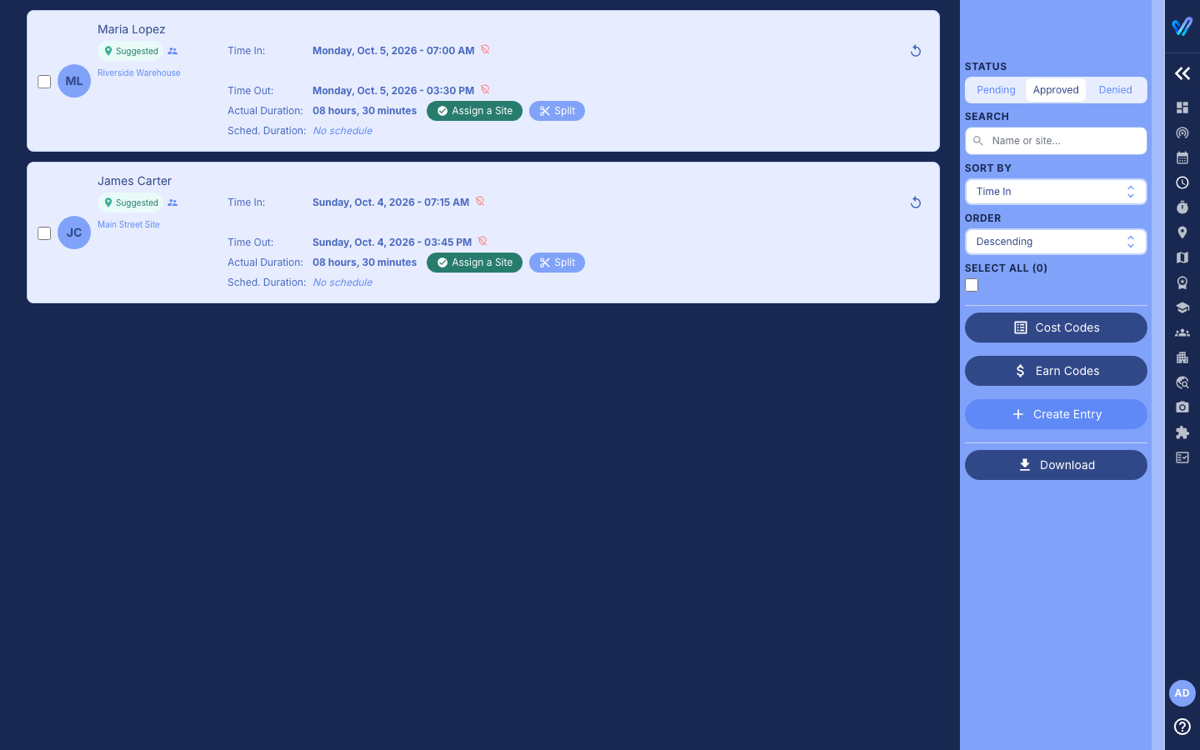
Open Time Tracking, click the Approved tab, then click Download in the right-hand panel.
Step 2: Choose the entries
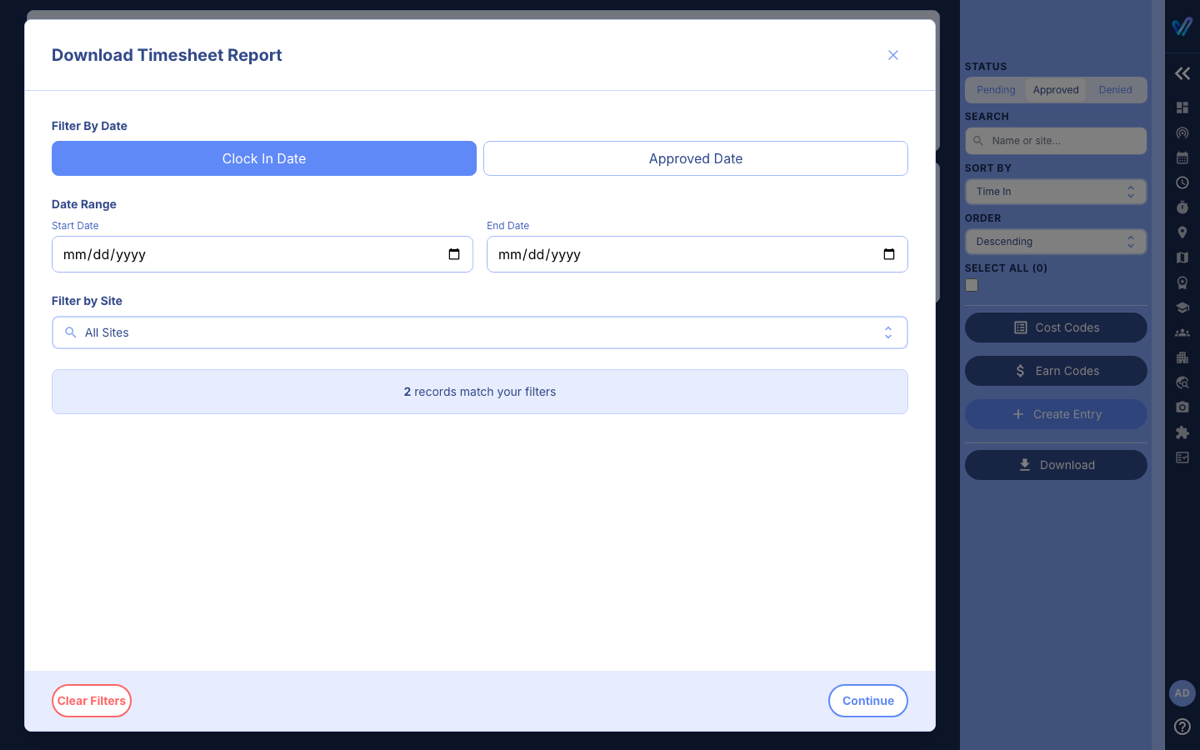
- Filter By Date: Clock In Date (when the work happened, usually what you want for a pay period) or Approved Date.
- Date Range: the first and last day to include.
- Filter by Site: one site, or all of them.
Click Continue.
Step 3: Choose the columns
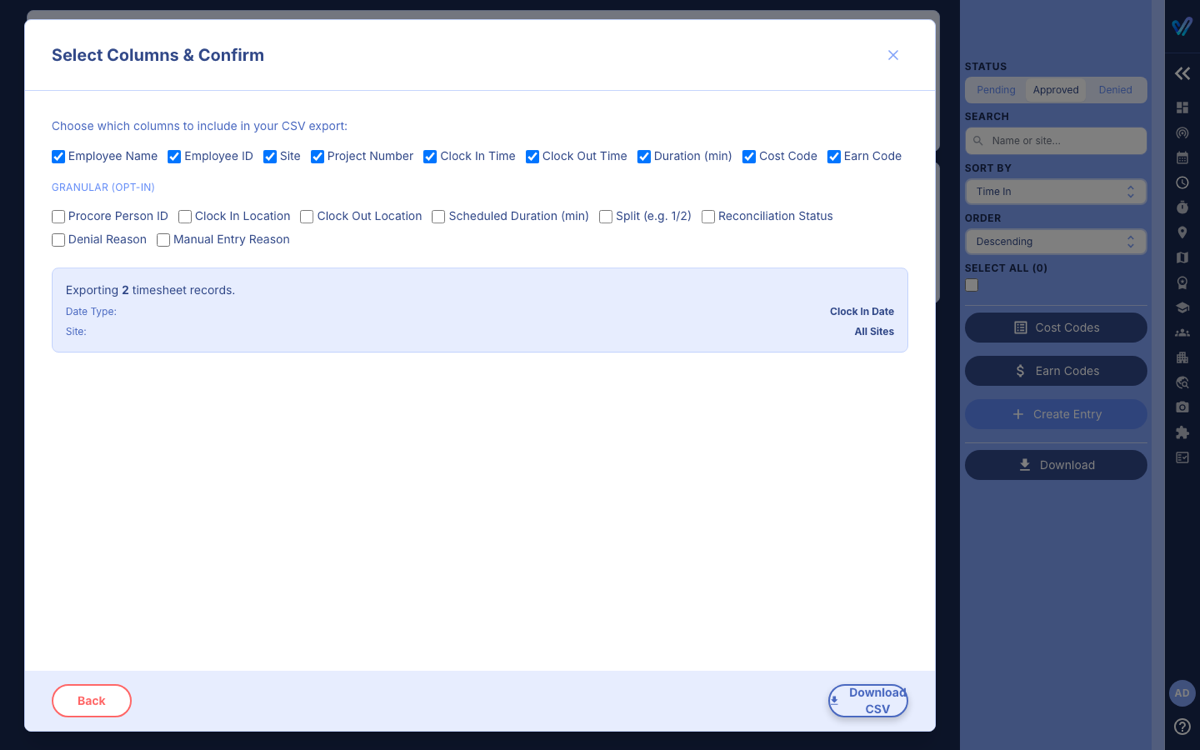
The usual columns are ticked for you. Granular (opt-in) adds detail such as locations, the scheduled duration, split markers and the reasons on denied or hand-entered records. The summary shows how many entries will be exported. Click Download CSV.
What is in the file
- The file is saved as timesheet_report_ followed by today's date.
- Duration is in minutes. Breaks and overtime are not separate columns.
- Employee ID is the ID entered on the employee's profile in Team.
Was this article helpful?
That’s Great!
Thank you for your feedback
Sorry! We couldn't be helpful
Thank you for your feedback
Feedback sent
We appreciate your effort and will try to fix the article