Deny a time card when it should not be paid as recorded. The employee sees your reason and can reply.
Who can do this: admins and members of your organization can review, approve, deny and undo work time. Only admins can create an entry for an employee.
TABLE OF CONTENTS
Denying an entry
- On the Time Tracking page's Pending tab, click Deny on the card.
- Type the reason (at least 10 characters). The employee will see it, so say what they need to fix.
- Click Deny.
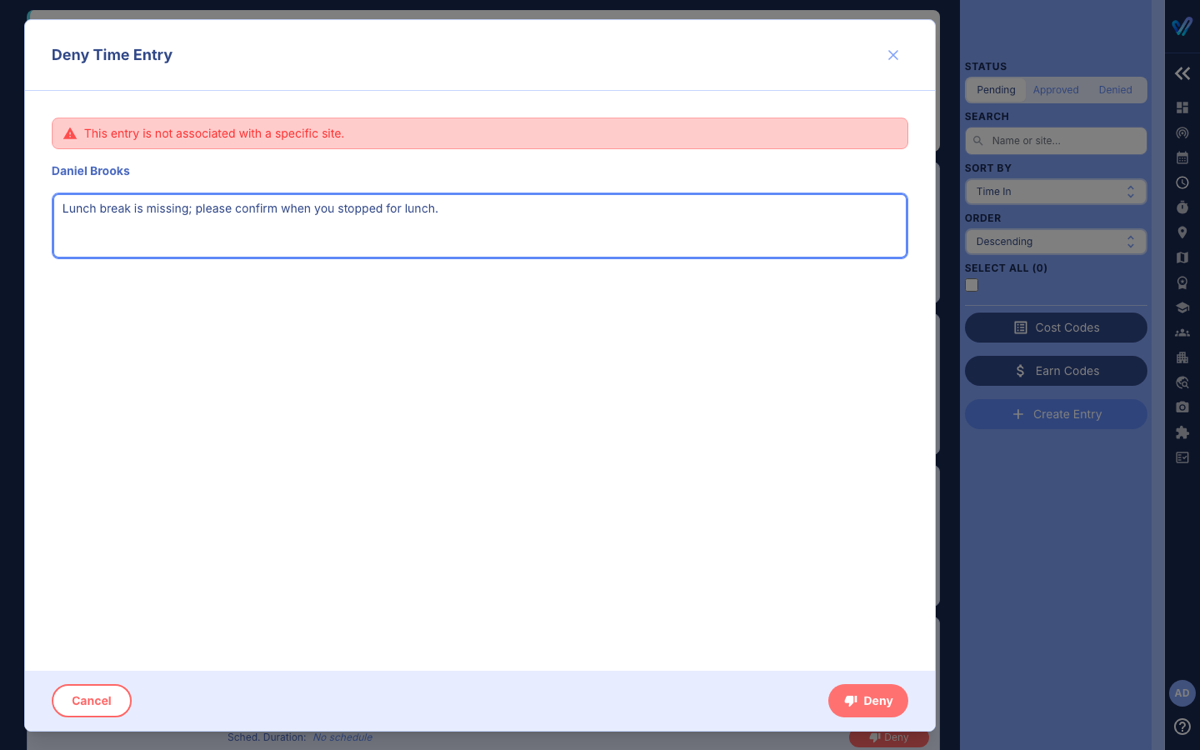
The entry moves to the Denied tab. To deny several with the same reason, tick them and click Bulk Deny.
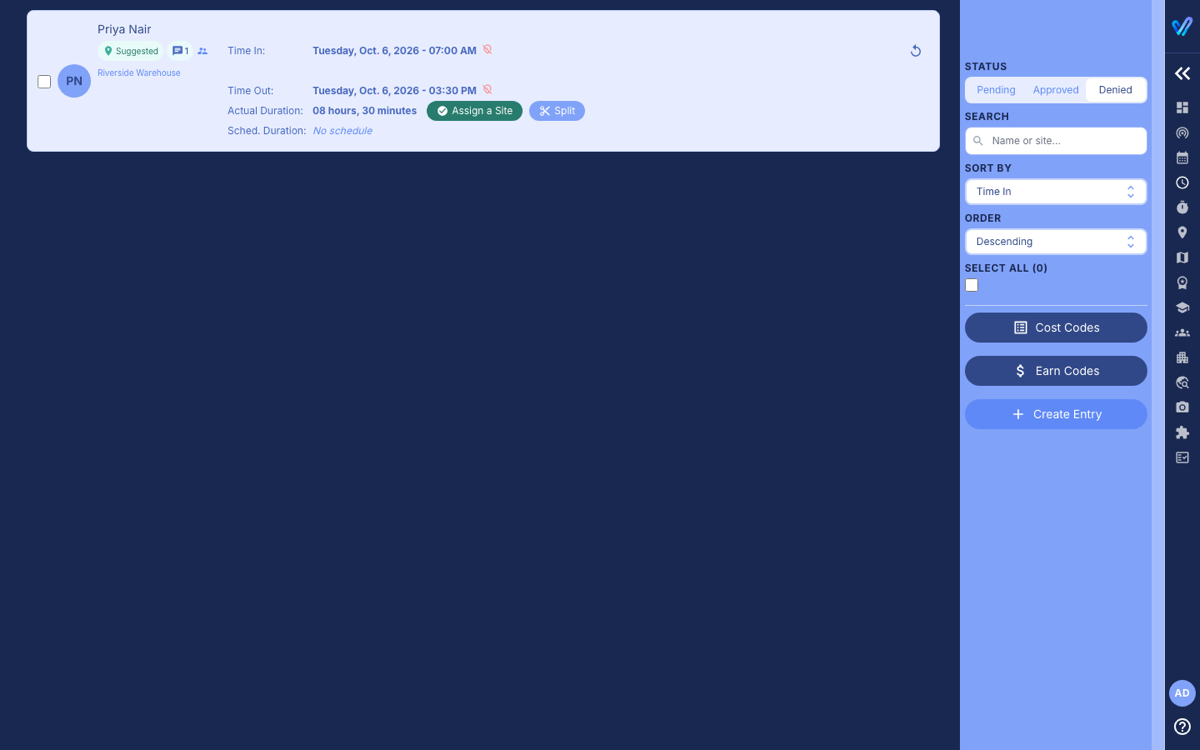
When the employee resubmits
The employee can reply from their phone. The entry then comes back to your Pending tab with the conversation attached; click the speech-bubble button on the card to read it. It works the same way as travel time (see Denying Travel Time And Undoing A Decision).
Undoing an approval or denial
- Go to the Approved or Denied tab.
- Click the circular arrow on the card.
- Confirm in the window.
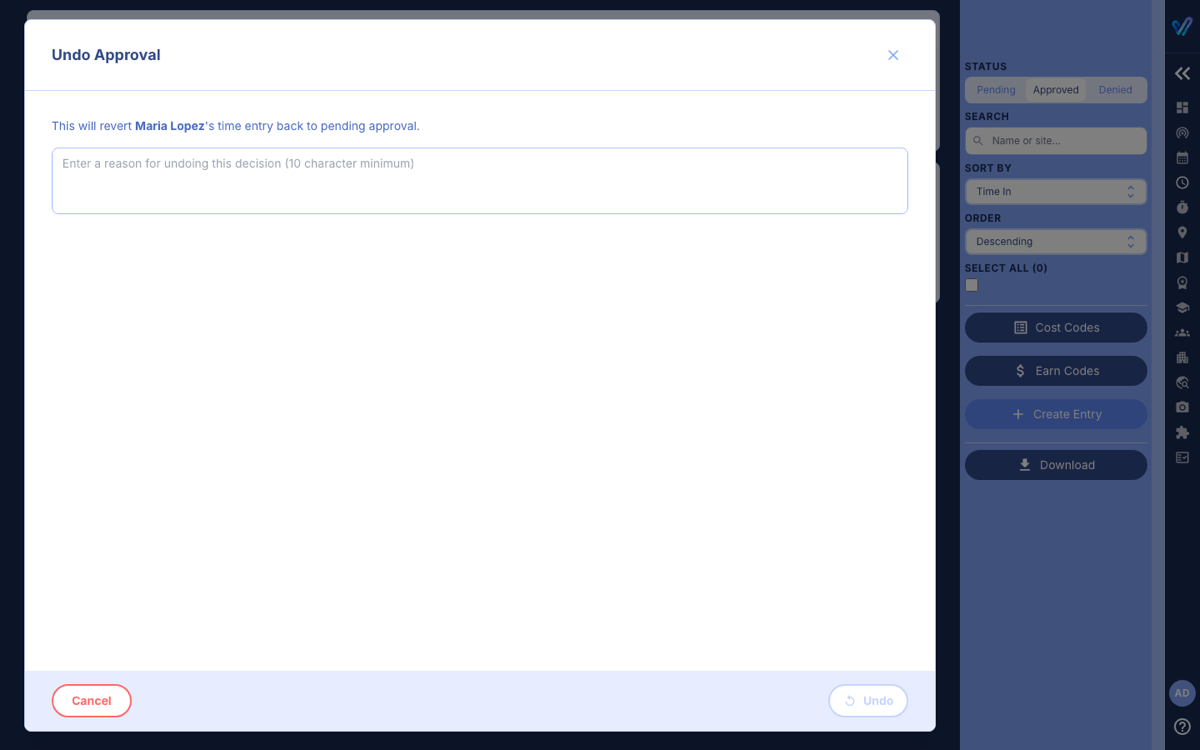
The entry returns to Pending. To undo several, tick them and click Bulk Undo. Reports you have already downloaded do not change, so download again if needed.
Was this article helpful?
That’s Great!
Thank you for your feedback
Sorry! We couldn't be helpful
Thank you for your feedback
Feedback sent
We appreciate your effort and will try to fix the article