Two company-wide settings control what your employees can do in vTime: which features they see, and how far back they can fix their own records.
Who can do this: admins only.
TABLE OF CONTENTS
Turning features on or off
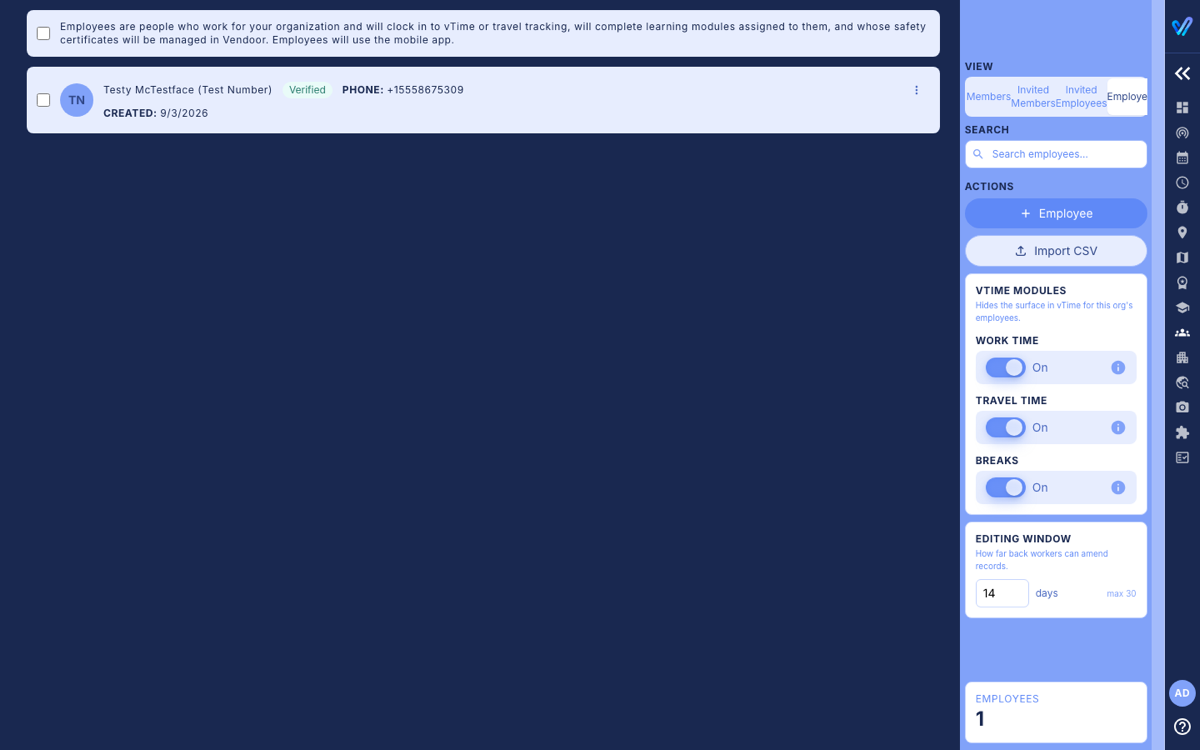
Open Team and choose the Employees view. The vTime Modules panel on the right has a switch for Work Time, Travel Time and Breaks. A change saves as soon as you flip the switch. Employees see it the next time they open vTime.
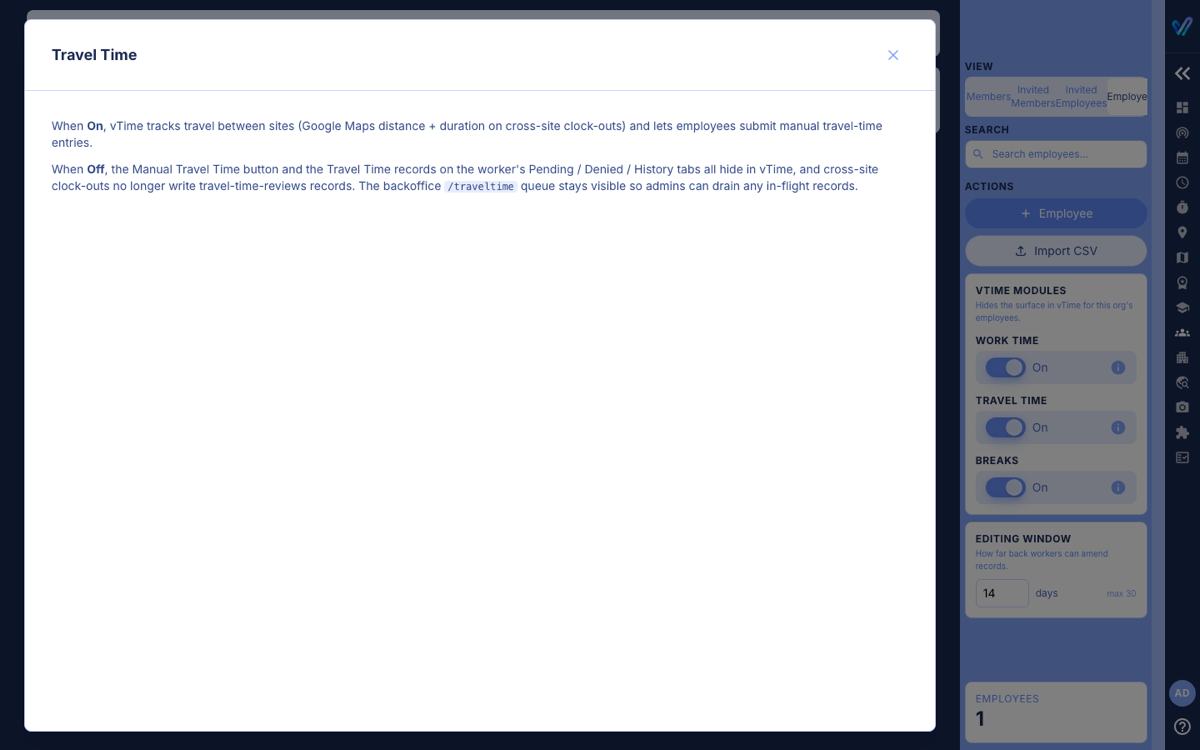
Click the i next to a switch for a reminder of what it does:
What each switch does
- Work Time. On: employees clock in and out of work, take breaks and add hand-entered time cards. Off: clocking in and out of work and Manual Time Card Entry disappear from vTime. The Time Tracking page stays available so you can finish approving what is already there.
- Travel Time. On: employees can clock in as Traveling, vTime measures trips with Google Maps, and employees can add trips by hand. Off: the travel options and Manual Travel Time disappear, and new trips are no longer recorded. The Travel Time page stays available for what is already there.
- Breaks. On: clocked-in employees see Start Break and their break count. Off: those disappear; past breaks are kept.
Turn off only what your company does not use. If both Work Time and Travel Time are off, employees have nothing to clock.
Setting the editing window
In the same panel, Editing Window sets how many days back employees can fix their own records from their phone: adding a forgotten shift or trip, or asking for a time correction.
- Type a number of days from 1 to 30 and click anywhere outside the box to save. The default is 14.
- Numbers outside 1 to 30 are changed to the nearest allowed value; check the box shows what you meant after you click away.
- Admins are not limited by the window: they can still create records further back (see Creating A Work Or Travel Record For An Employee).
Was this article helpful?
That’s Great!
Thank you for your feedback
Sorry! We couldn't be helpful
Thank you for your feedback
Feedback sent
We appreciate your effort and will try to fix the article