Deny a trip when it should not be paid as recorded, for example when it includes a personal stop. The employee sees your reason and can reply with more detail.
Who can do this: admins and members of your organization can review, approve, deny and undo travel time. Only admins can create a record for an employee or change a record's site.
TABLE OF CONTENTS
Denying a trip
- Open Travel Time from the menu on the right. You start on the Pending tab.
- Click Deny on the trip's card.
- Type the reason. It must be at least 10 characters, and the employee and your team will see it, so say what they need to fix.
- Click Deny.
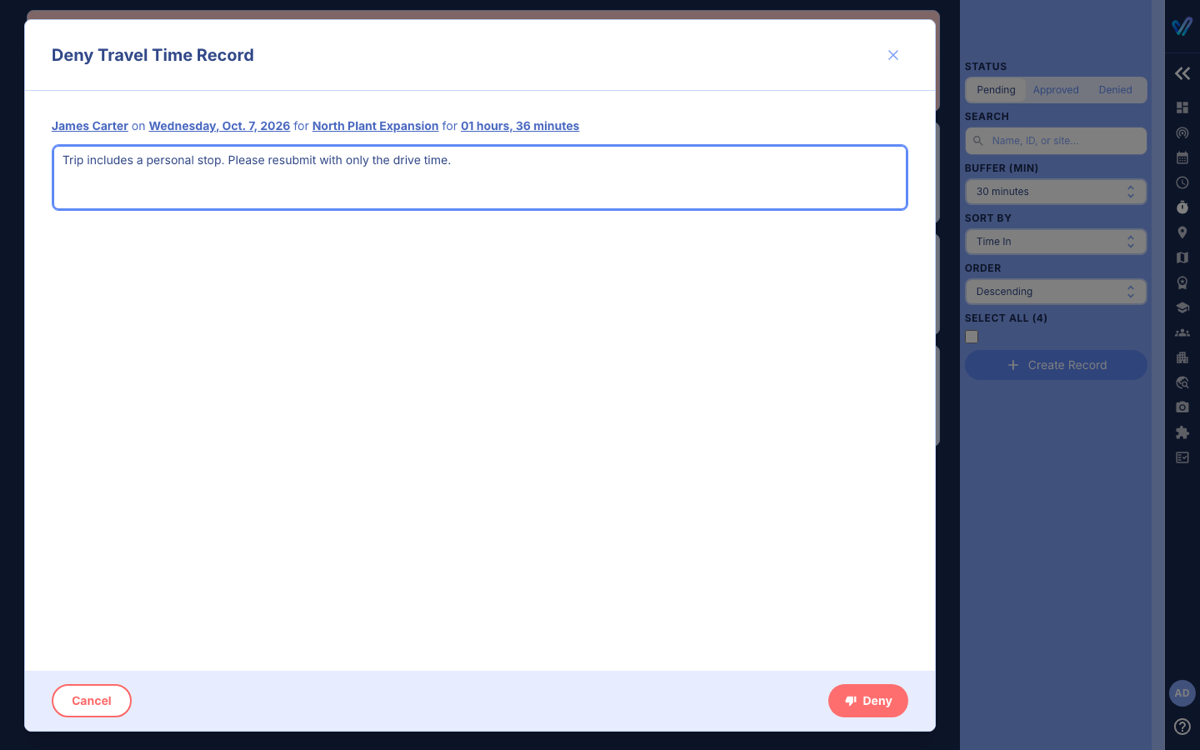
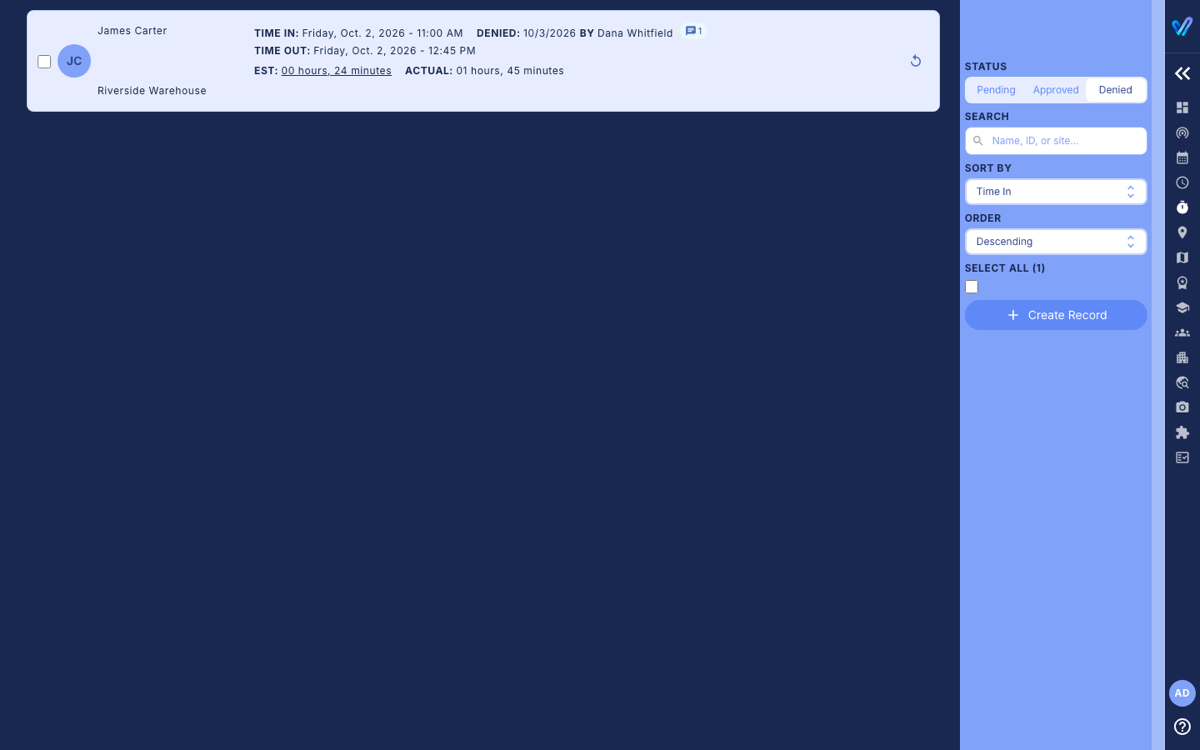
The trip moves to the Denied tab, and the employee is notified. To deny several trips with the same reason, tick them and click Bulk Deny.
When the employee resubmits
The employee can reply to a denial from their phone. Their trip then returns to your Pending tab marked RESUBMITTED. Hover over the number next to it to read the whole conversation, then approve or deny it again.
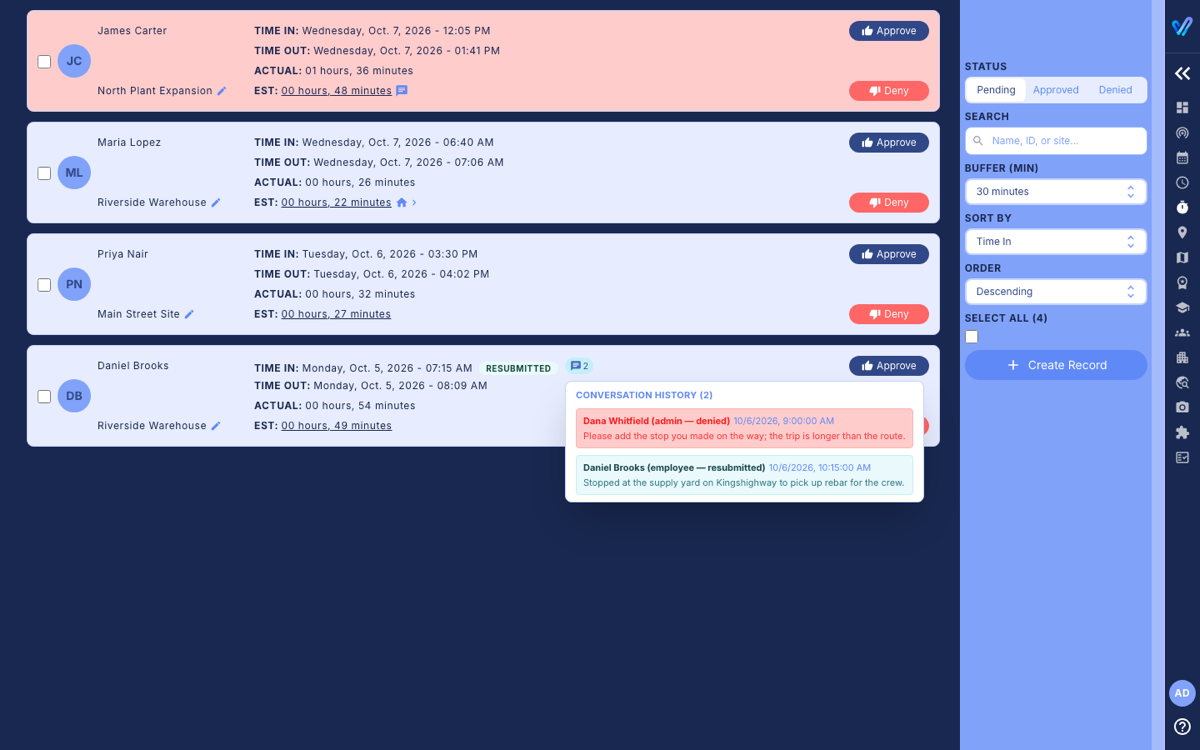
If the employee needs a time changed rather than a reason explained, they can ask for a correction instead (see Correcting A Travel Time Record). Those requests appear at the top of your Pending tab.
Undoing an approval or denial
- Go to the Approved or Denied tab.
- Click the circular arrow on the right of the card.
- Type a reason (at least 10 characters; the employee and your team will see it) and click Undo.
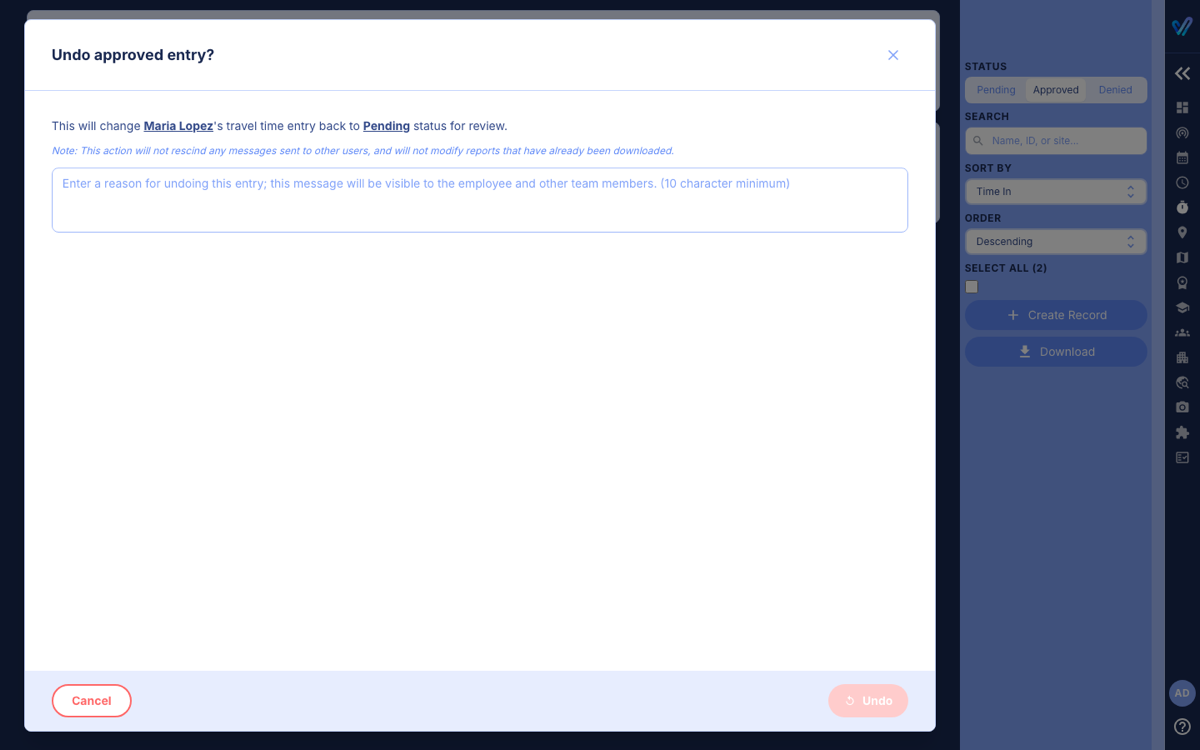
The trip goes back to Pending, and any paid amount is cleared. Undo does not take back notifications already sent, and it does not change reports you have already downloaded, so download the report again if you need it. To undo several, tick them and click Bulk Undo.
Was this article helpful?
That’s Great!
Thank you for your feedback
Sorry! We couldn't be helpful
Thank you for your feedback
Feedback sent
We appreciate your effort and will try to fix the article