Approving a trip confirms it for payroll and records how much travel time to pay. Not sure what a card is showing? Start with Reviewing Travel Time.
Who can do this: admins and members of your organization can review, approve, deny and undo travel time. Only admins can create a record for an employee or change a record's site.
TABLE OF CONTENTS
Approving one trip
- Open Travel Time from the menu on the right. You start on the Pending tab.
- Find the trip and click Approve on its card.
- Check the details and the amount to pay (see below), then click Approve at the bottom of the window.
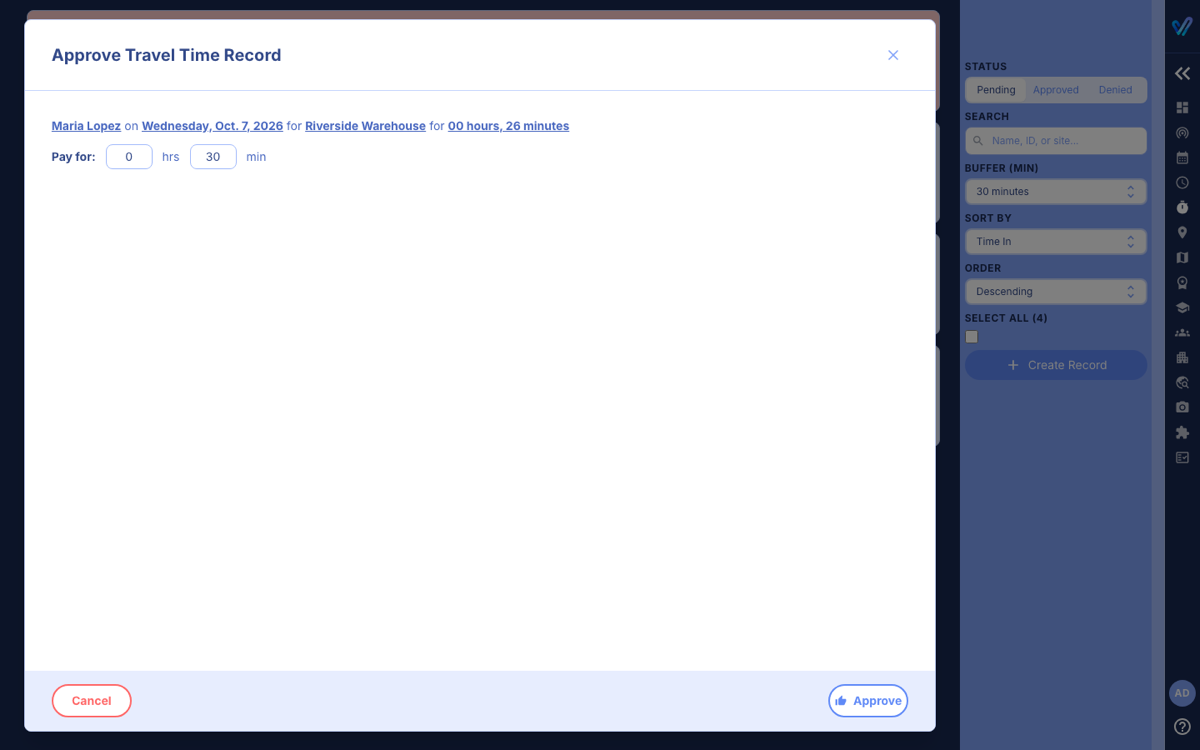
If the trip was denied before and the employee replied, the window also shows the Review History so you can read the conversation before deciding.
Choosing how much to pay
Pay for starts at the trip's actual time rounded up to the next 15 minutes. For example, a 26-minute trip starts at 30 minutes. Change the hours and minutes if your company pays a different amount, for example the estimate instead of the actual time.
When a trip starts at one site and ends at another, the window also asks which site to Bill to. Pick the site that should carry the cost.
Approving several trips at once
- On the Pending tab, tick the box on the left of each trip you want to approve, or tick Select All in the right-hand panel. Bulk Approve and Bulk Deny appear once two or more trips are ticked.
- Click Bulk Approve.
- Check the Pay amount on each line, then click Bulk Approve.
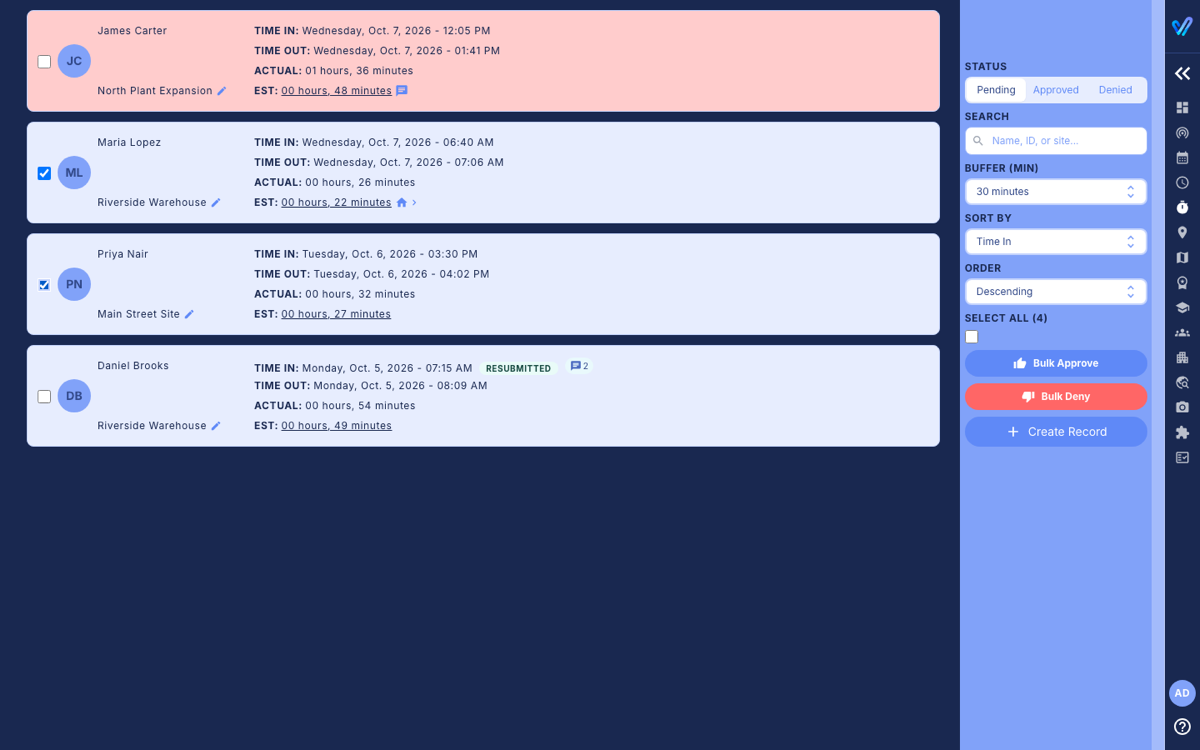
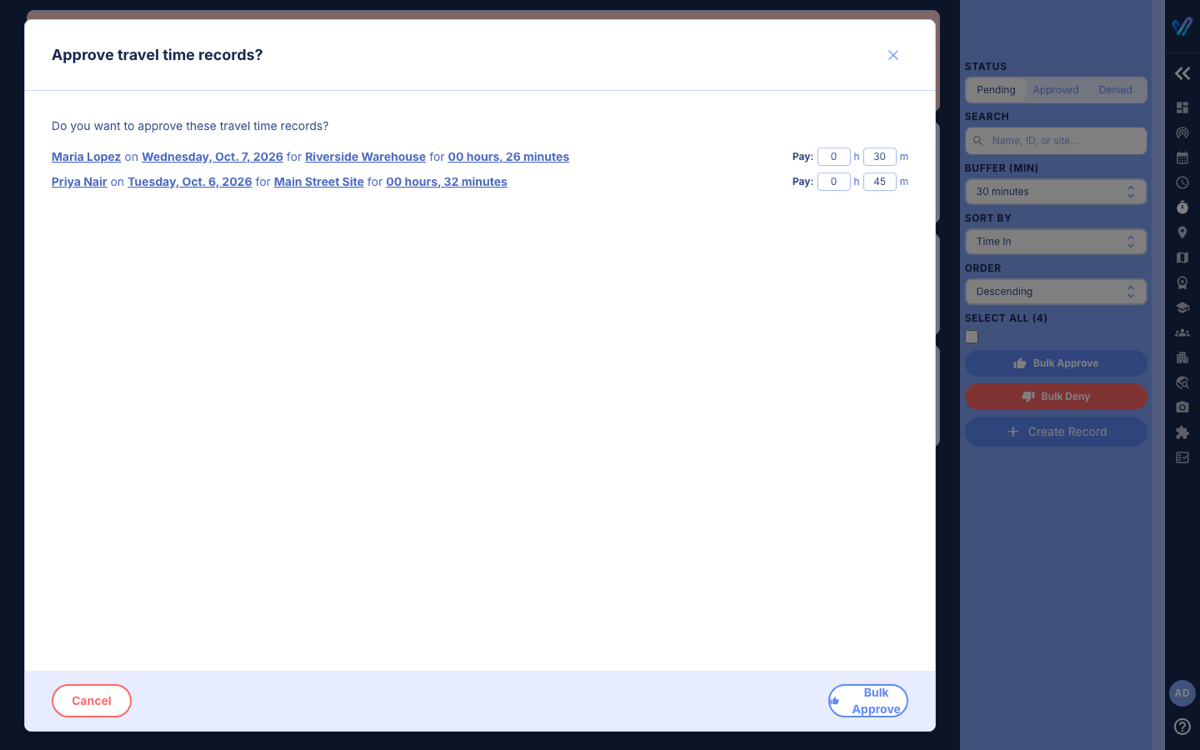
- Ticked only one trip? Its Approve and Deny buttons are hidden while it is ticked. Untick it and use the buttons on the card instead.
- Trips between two different sites cannot be bulk-approved, because each needs a Bill to site. Approve those one at a time.
After you approve
The trip moves to the Approved tab, which shows who approved it, when, and the amount Paid. The employee gets a notification on their phone.
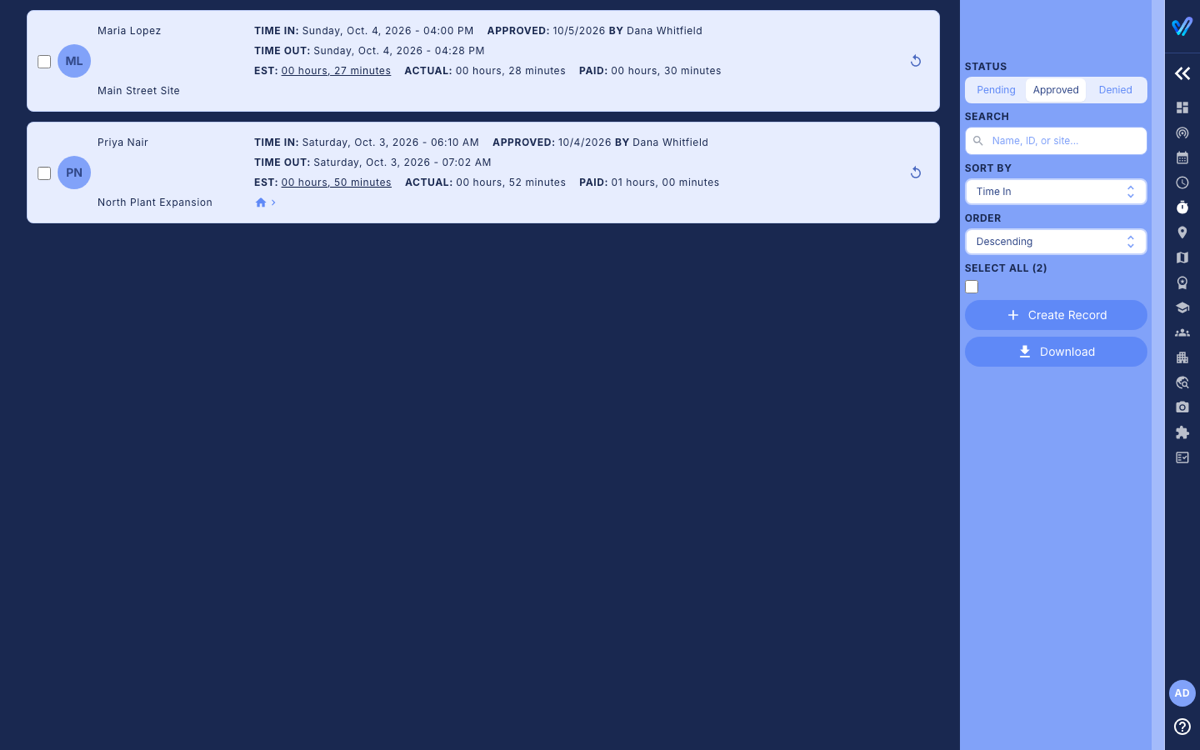
Approved by mistake? See Denying Travel Time And Undoing A Decision. To export approved trips for payroll, see Downloading The Travel Time Report.
Was this article helpful?
That’s Great!
Thank you for your feedback
Sorry! We couldn't be helpful
Thank you for your feedback
Feedback sent
We appreciate your effort and will try to fix the article