Some time cards need a small fix before they are approved: the wrong or missing site, a shift that covered two jobs, or a missing code. Everything here is done from the card on the Time Tracking page's Pending tab. For an overview of the page, see Reviewing And Approving Work Time.
Who can do this: admins and members of your organization can review, approve, deny and undo work time. Only admins can create an entry for an employee.
TABLE OF CONTENTS
Assigning a site
Use this when a card is Suggested or Unscheduled, or when the employee worked at a different site than the card shows.
- Click Assign a Site on the card.
- Under Select Site for Billing, search for the site by name or project number.
- To approve at the same time, tick Also approve this entry.
- Click Confirm Assignment.
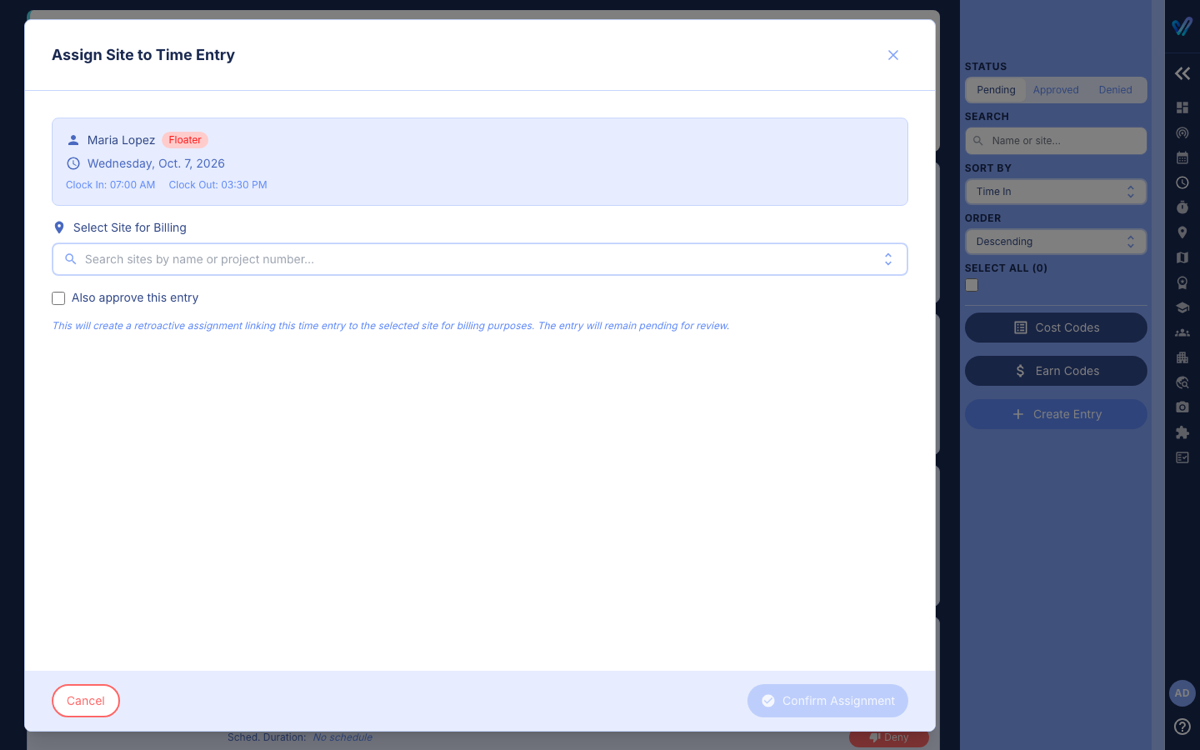
This links the shift to the site for billing. Without Also approve, the entry stays on the Pending tab for review.
Splitting a shift in two
Use this when one shift covered two jobs, for example a morning at one site and an afternoon at another.
- Click Split on the card.
- Under Split By, choose Time of Day (the clock time where the split happens) or Duration (how long the first part lasted).
- Check the Card 1 and Card 2 preview.
- Click Confirm Split.
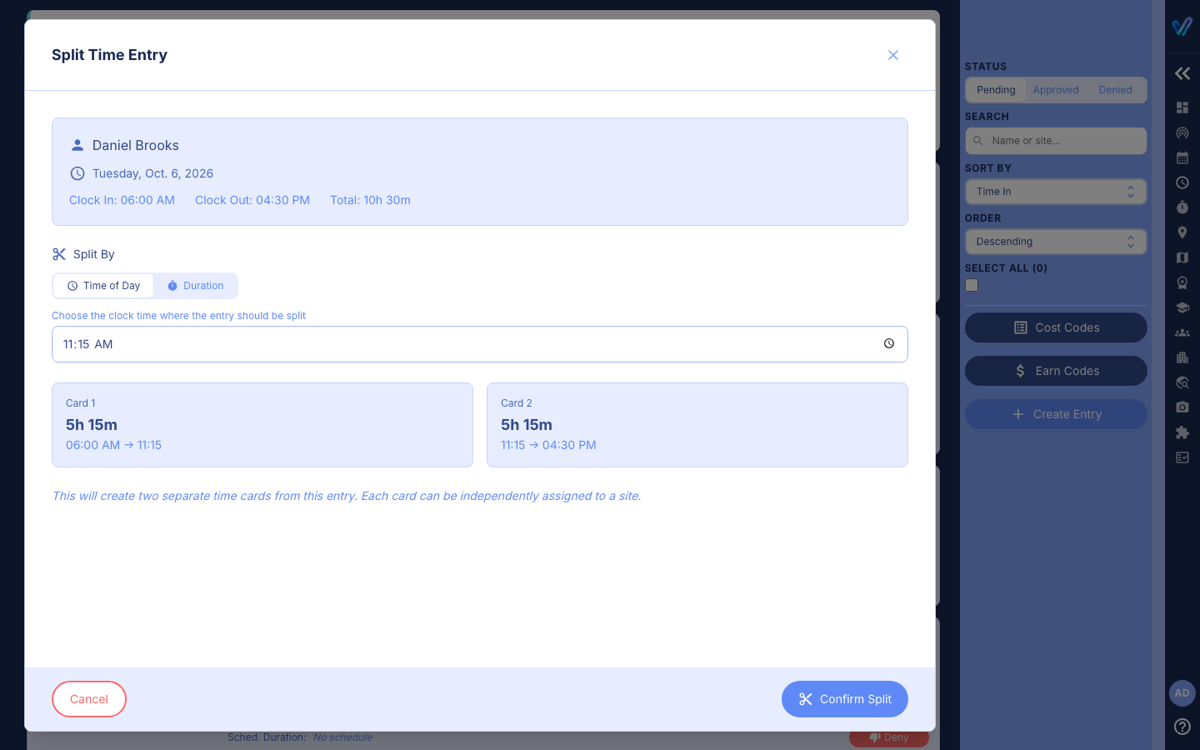
You get two cards marked Split 1/2 and Split 2/2. Assign each to its site and approve them separately.
Cost codes and earn codes
If your company uses cost codes or earn codes, each card shows a Cost Code and an Earn Code picker. Approve is unavailable while a card shows Needs Cost Code (the employee chose "Other") or Required next to the earn code, so pick them first. Admins manage the lists with the Cost Codes and Earn Codes buttons in the right-hand panel.
Entries that need attention
A card marked Needs Attention has a punch that vTime's checks rejected or never finished checking. The banner on the card gives the reason. Usually the employee needs to fix the time: they can ask for a correction from their phone, and the request appears at the top of your Pending tab (see Reviewing Time Correction Requests). Otherwise, deny the entry with a note explaining what to fix.
Was this article helpful?
That’s Great!
Thank you for your feedback
Sorry! We couldn't be helpful
Thank you for your feedback
Feedback sent
We appreciate your effort and will try to fix the article