Cost codes record what the work was for (for example concrete or electrical), and earn codes record how it is paid (for example regular time or overtime). Both are optional; turn them on only if your payroll or job costing needs them.
Who can do this: admins only.
TABLE OF CONTENTS
- What cost codes and earn codes are for
- Setting up cost codes
- Setting up earn codes
- How they appear for employees and reviewers
What cost codes and earn codes are for
- Cost codes: employees pick one when they clock in to work. You can keep different lists ("sheets") for different sites.
- Earn codes: vTime assigns your default earn code to each work entry; reviewers can change it before approving.
- Both appear as columns in the timesheet report.
Setting up cost codes
- Open Time Tracking and click Cost Codes in the right-hand panel.
- Turn on Enable Cost Codes for Time Tracking.
- Click Add Sheet and name it. Click Set as Default on the sheet most sites should use.
- Under Cost Codes, click Add Code for each code and enter the Code and Description (and the Procore ID if you use Procore).
- To give some sites a different list, add another sheet and choose those sites under Assigned Sites. Sites without a sheet use the default sheet.
- Click Save Configuration.
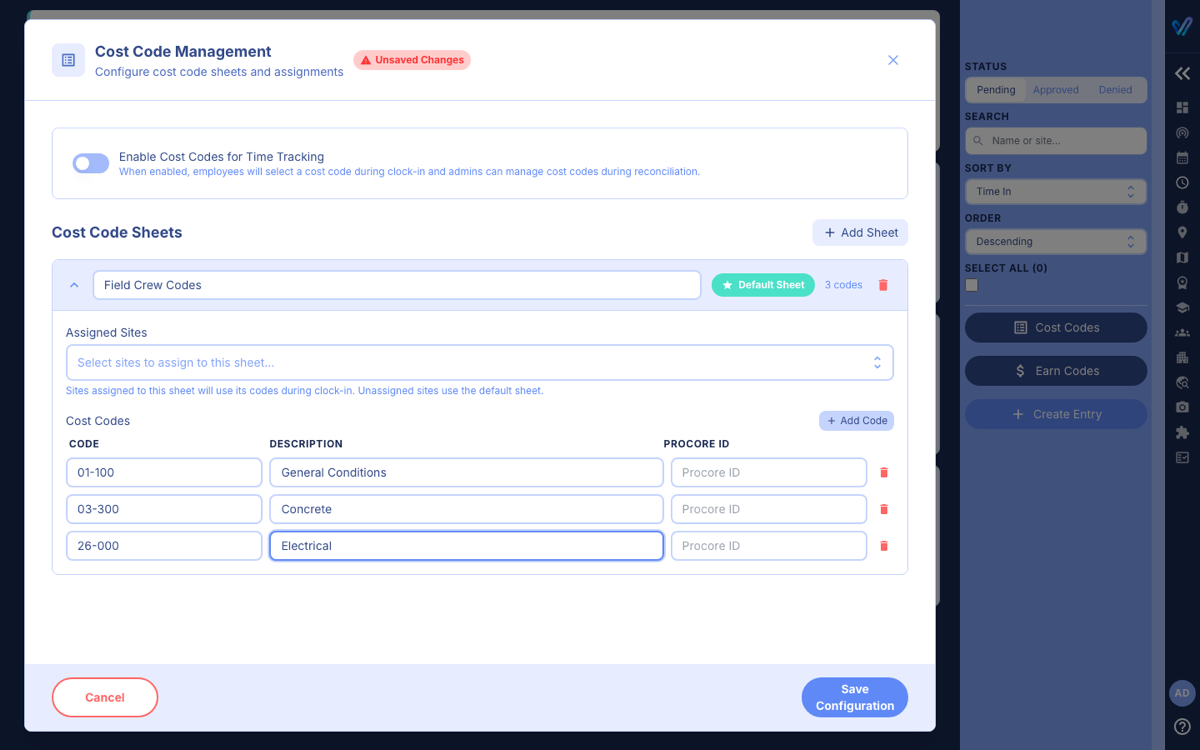
Deleting a sheet happens immediately, without a confirmation, but nothing is saved until you click Save Configuration. Click Cancel to throw away changes.
Setting up earn codes
- Open Time Tracking and click Earn Codes.
- Turn on Enable Earn Codes for Time Tracking.
- Click Add Earn Code for each one and enter the Code and Description, for example REG / Regular Time and OT / Overtime.
- Click Set Default on the code new entries should get. With only one code, it is the default automatically.
- Click Save Configuration.
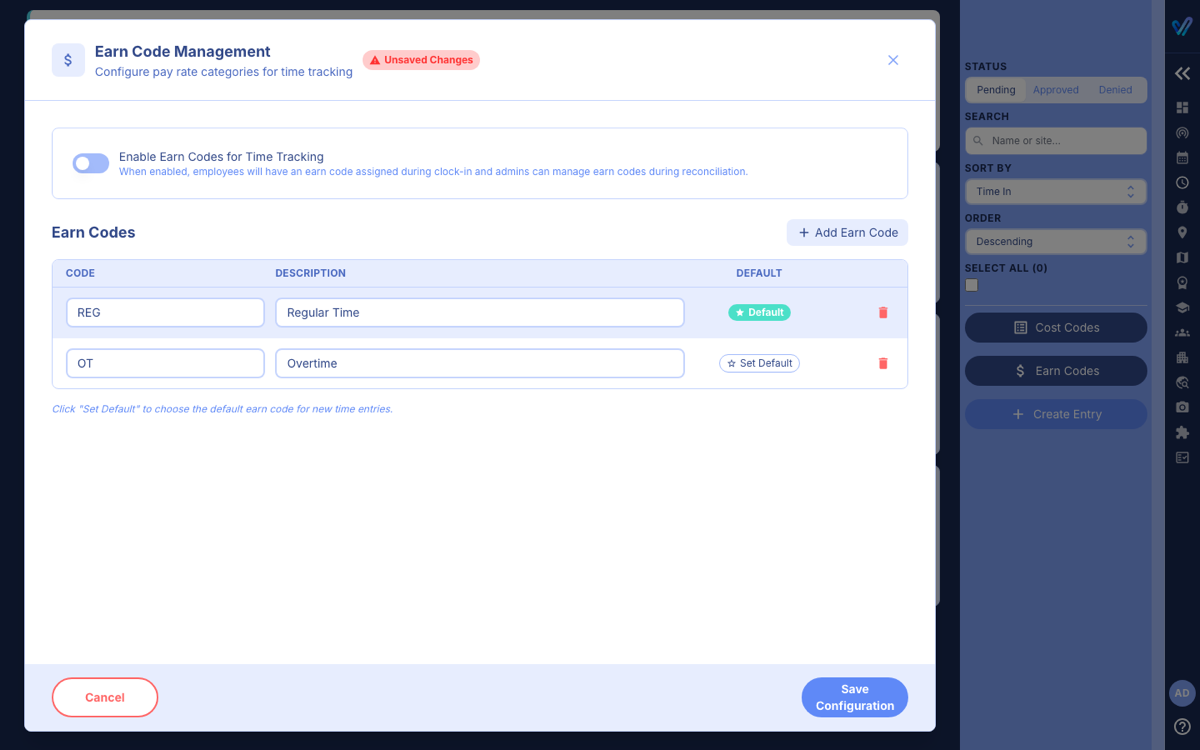
Every earn code needs a code and a description, and codes must be unique.
How they appear for employees and reviewers
- When clocking in to work, employees choose a cost code from their site's sheet, or Other - Please Review if none fits.
- On the Time Tracking page each card shows a Cost Code and Earn Code. A card marked Needs Cost Code (the employee chose Other) or with the earn code Required cannot be approved until you pick one. See Fixing A Work Entry Before Approving.
Was this article helpful?
That’s Great!
Thank you for your feedback
Sorry! We couldn't be helpful
Thank you for your feedback
Feedback sent
We appreciate your effort and will try to fix the article