When an employee could not clock in or out themselves, for example because their phone died or they forgot the app, someone in the office can enter the shift or trip for them. The record is marked as created by you on the employee's behalf and goes through the normal approval queue.
Who can do this: admins only.
TABLE OF CONTENTS
Before you start
- Employees can add a forgotten trip themselves from their phone (see Adding Travel Time You Forgot To Clock). Create the record yourself when they cannot.
- Have the date, the start and end times, and the site. You also need a reason; it is shown on the record to everyone who reviews it.
- Admins can enter records older than the employees' editing window. Records cannot be in the future.
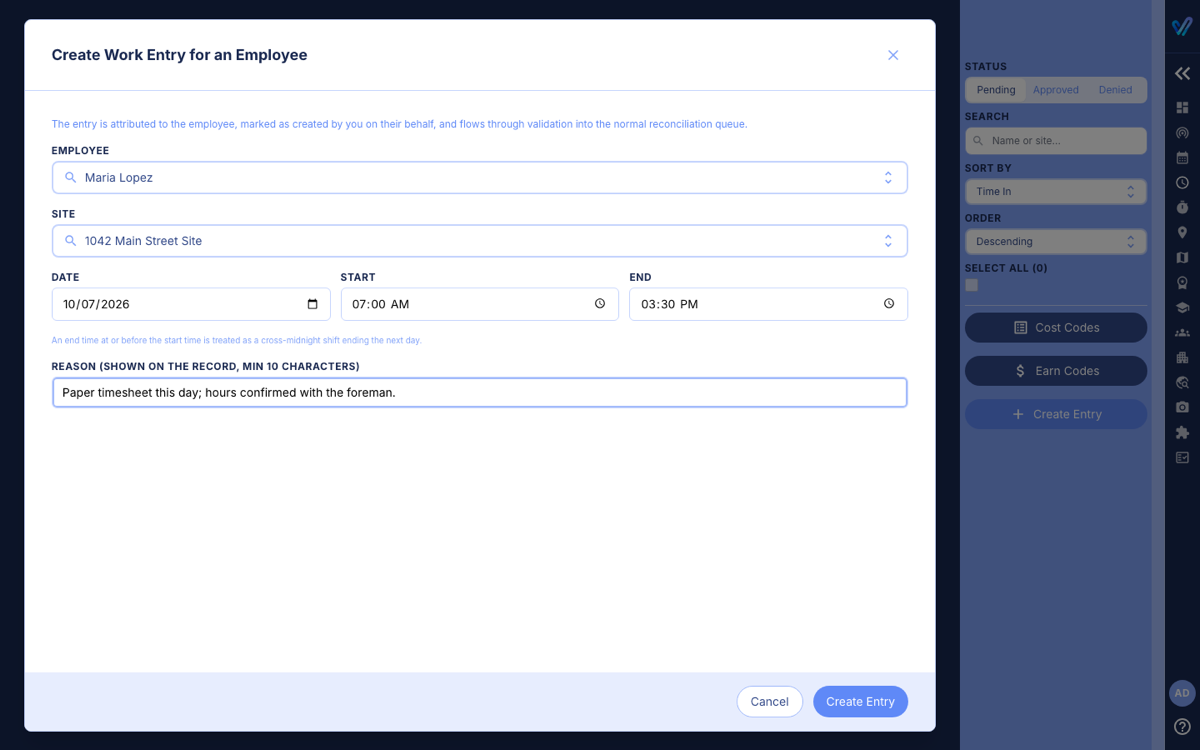
Creating a work entry
- Open Time Tracking from the menu on the right and click Create Entry in the right-hand panel.
- Under Employee, search for the employee by name.
- Under Site, search for the site by name or project number.
- Enter the Date, Start and End. An end time at or before the start time is treated as an overnight shift ending the next day.
- Type the Reason (at least 10 characters), for example "Phone died; hours confirmed with the foreman".
- Click Create Entry.
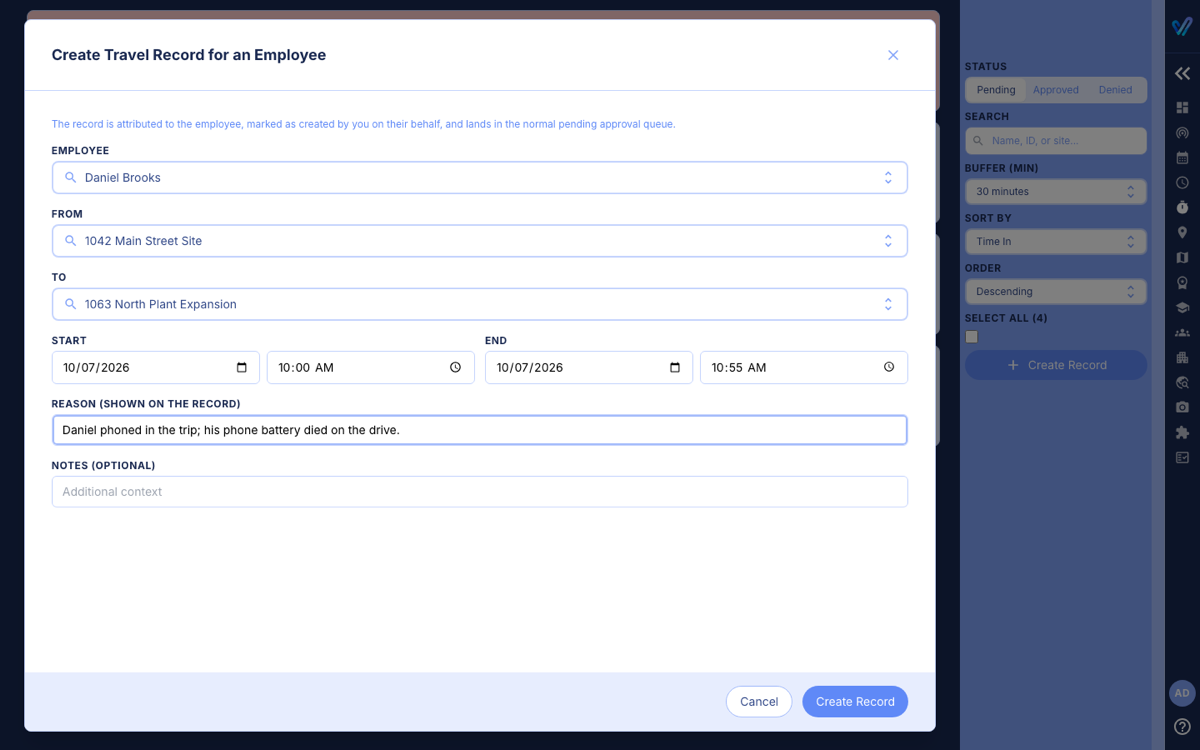
Creating a travel record
- Open Travel Time from the menu on the right and click Create Record.
- Under Employee, search for the employee.
- Under From and To, choose a site, Employee's Home, or Other address…. For another address, type it and click Verify.
- If the trip does not start at a site, also choose For (project that pays).
- Enter the Start and End date and time.
- Type the Reason (shown on the record) and any Notes, then click Create Record.
Employee's Home only works if the employee has saved their home address in vTime on their phone. If vTime says the employee has no geocoded home address, use Other address… and type it instead.
vTime looks up the expected drive time when you create the record, just as it does for a trip clocked from a phone. The new record appears on the Pending tab with the supervisor icon next to its estimate:

What happens next
- The employee gets a notification on their phone that a record was created for them.
- The record appears on the Pending tab with a small supervisor icon. Hover over it to see "Created by your name on behalf of this employee" and the reason. Approve it like any other record (see Reviewing And Approving Work Time or Reviewing Travel Time).
- Records the employee entered by hand show a clipboard icon instead.

Was this article helpful?
That’s Great!
Thank you for your feedback
Sorry! We couldn't be helpful
Thank you for your feedback
Feedback sent
We appreciate your effort and will try to fix the article