When an employee clocks in or out at the wrong time, they can ask for a correction from their phone instead of starting over. The request comes to the office to approve or deny.
Who can do this: only admins can approve or deny correction requests.
TABLE OF CONTENTS
Where requests appear
Pending requests appear at the top of the Pending tab: work-time requests on Time Tracking, travel requests on Travel Time. The Dashboard's Pending Approvals tile also counts them.

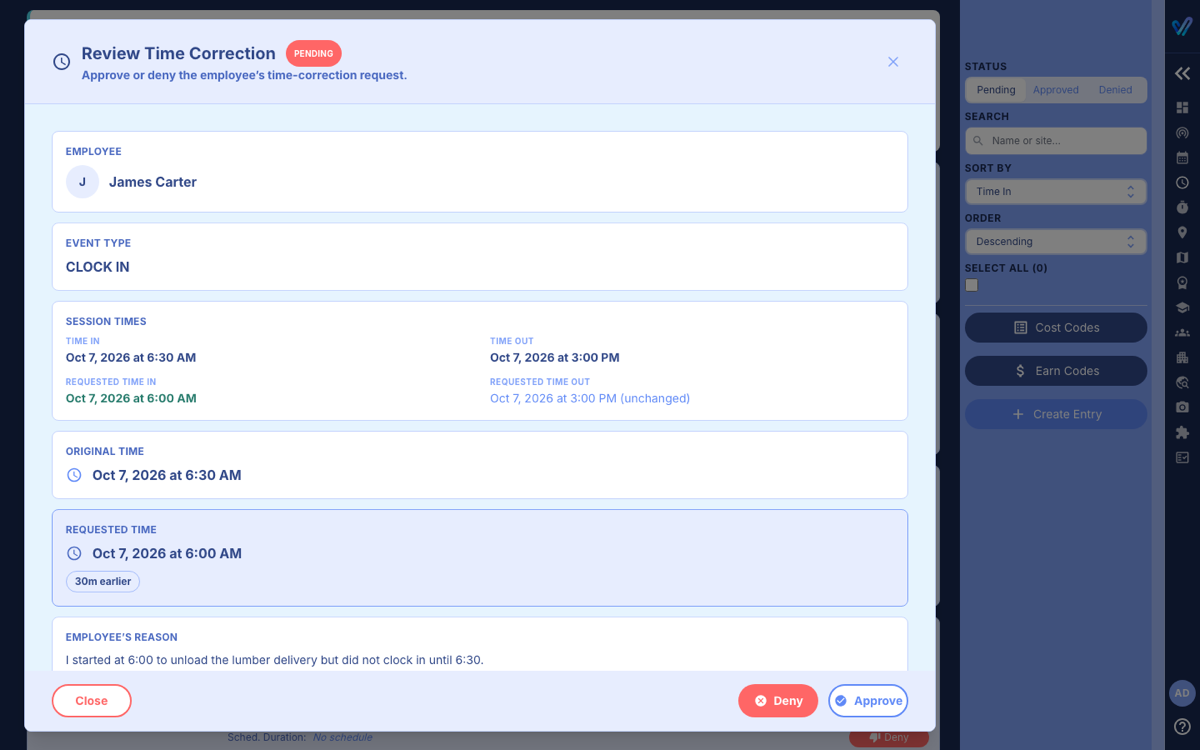
- Time In / Time Out: the shift as recorded.
- Requested Time In / Out: what the employee is asking for; (unchanged) marks the time they did not touch.
- The label on the right shows the size of the change, for example 30m earlier, and below is the employee's reason.
- System-filed correction means vTime raised the request itself because a punch failed its checks.
Reviewing a request
- Click the request to open Review Time Correction.
- Compare the Original Time with the Requested Time, and read the Employee's Reason.
- Click Approve and then Confirm Approval, or click Deny, type a reason for the employee, and click Confirm Denial.
What approving changes
Approving changes the clocked time on the original record to the requested time, keeps a note of the old time, and recalculates the shift. The employee is notified either way. The request then leaves the list.
If the employee asks for a change outside your company's editing window (14 days unless an admin changed it), vTime does not let them file the request.
Was this article helpful?
That’s Great!
Thank you for your feedback
Sorry! We couldn't be helpful
Thank you for your feedback
Feedback sent
We appreciate your effort and will try to fix the article