Note: This guide fixes a trip you already clocked. To add a trip you never clocked at all, see Adding Travel Time You Forgot To Clock.
Clocked in as Traveling at the wrong time, or forgot to clock out until later? You can ask your supervisor to correct the time. You pick the clock-in or clock-out that is wrong, enter the right time, and say why. Your supervisor approves or denies the change.
TABLE OF CONTENTS
Before you start
- Only trips you clocked in vTime as Traveling can be corrected here. See Clocking In As Traveling.
- You can only correct recent trips. Most companies allow the last 14 days.
- Know the time you actually left or arrived. A text message, receipt or your phone's maps history can help.
Requesting a correction
Step 1: Open Manual Travel Time
On the vTime home screen, scroll down to the Forgot to clock in? card and tap Manual Travel Time.
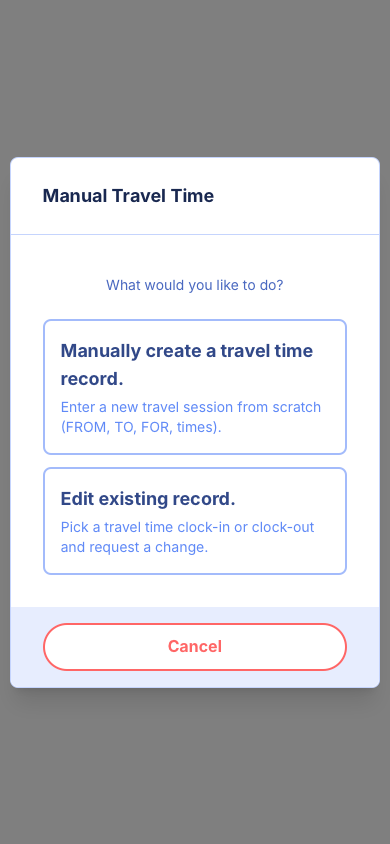
Step 2: Choose Edit existing record
Tap Edit existing record. vTime shows Loading travel events… for a moment while it finds your recent trips.
Step 3: Pick the clock-in or clock-out to fix
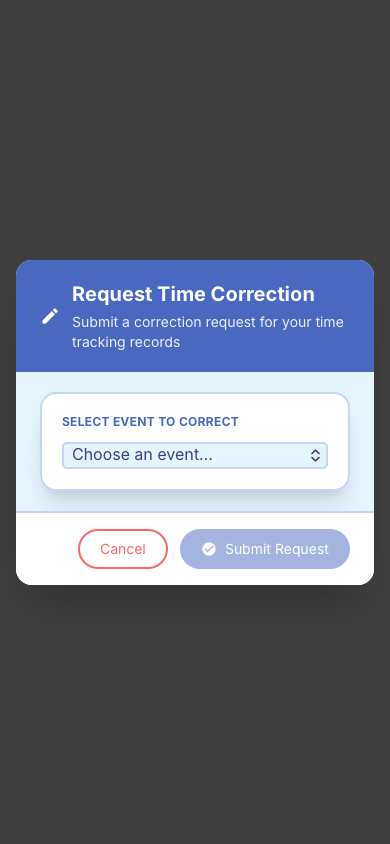
The Request Time Correction window opens. Tap Choose an event... and pick the clock-in or clock-out you want to fix. Each one is listed with its type, date and time, for example CLOCK IN - Oct 7, 2026 at 7:15 AM, newest first.
Step 4: Enter the correct time
vTime shows the Original Time it recorded. Under Corrected Time, change the date or time to when it really happened.
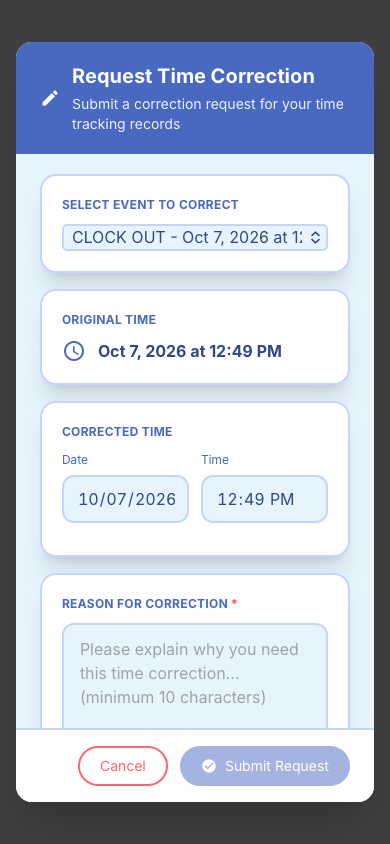
A label shows how far you moved it, for example 30m earlier. It turns red when the change is more than an hour, so double-check the time before you continue.
Step 5: Explain the change and submit
Under Reason for Correction, explain what happened in at least 10 characters. The counter below the box shows how many more you need. Then tap Submit Request.
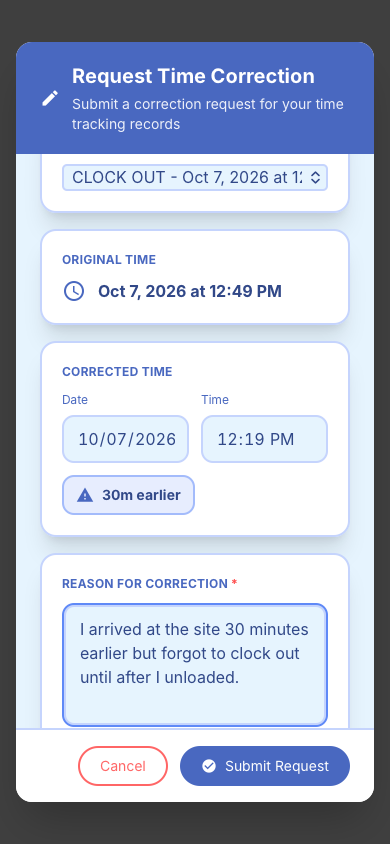
The window closes when your request has been sent.
After you submit
Your supervisor reviews the request. Tap Dashboard on the vTime home screen to follow it: it appears under Pending while it waits, History once it is decided, and Denied with your supervisor's reason if it is not approved.
Questions
- "No recent time tracking events found." You have no clocked travel trips in your company's editing window. For an older trip, ask your supervisor.
- The trip I want is not in the list. Trips added with Manual Travel Time are not listed here, and neither are trips older than the editing window. Ask your supervisor to correct those.
- Something other than the time is wrong, such as the site. This form changes a time. Pick the trip's clock-in, leave the time as it is, and explain what is wrong in the reason so your supervisor can fix it.
- Submit Request stays grey. Choose an event and write a reason of at least 10 characters.
- "Submission was rejected by the server." Trying again will not help. Tell your supervisor.
Still stuck? Contact your supervisor.
Was this article helpful?
That’s Great!
Thank you for your feedback
Sorry! We couldn't be helpful
Thank you for your feedback
Feedback sent
We appreciate your effort and will try to fix the article