If your company pays you for travel time, you record it in vTime by clocking in as Traveling when you start driving for work, and clocking out when you arrive. vTime works out how long the trip should take and sends the record to your supervisor to review.
TABLE OF CONTENTS
Before you start
- You can only clock in as Traveling if your company has turned on travel time in vTime. If you never see a Traveling option, ask your supervisor.
- Leave location turned on for vTime. Your travel time is measured between where you clock in and where you clock out. See vTime And Your Phone's Location and Does Vendoor track my location?
- Clock in as Traveling when you start driving, for example when you leave home for a jobsite, or leave one jobsite for another.
Clocking in as Traveling
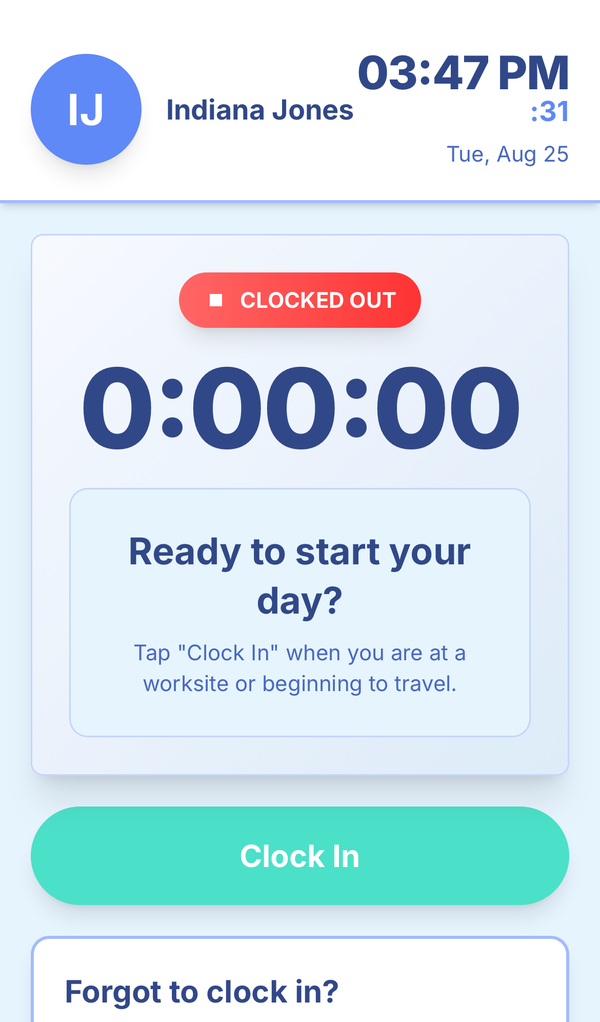
Step 1: Tap Clock In
Open vTime from your home screen and tap Clock In.
Step 2: Choose Traveling
vTime asks whether you are working or traveling. Tap Traveling.
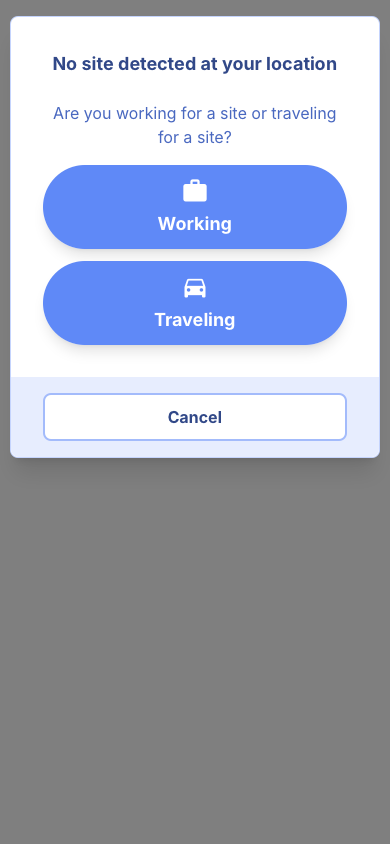
You may not see this question:
- If you are clocking in at home, vTime knows you are setting off and skips straight to Step 3.
- If your company only uses travel time, vTime skips this question for you.
- If you have a shift scheduled today, vTime shows You have a shift scheduled today. Tap Traveling to travel, or the shift button to start work.
Step 3: Choose the site you are traveling for
Choose the jobsite this trip is for: the site you are driving to, or the site the travel is being done for. Type in the search box to find a site by name or project number.
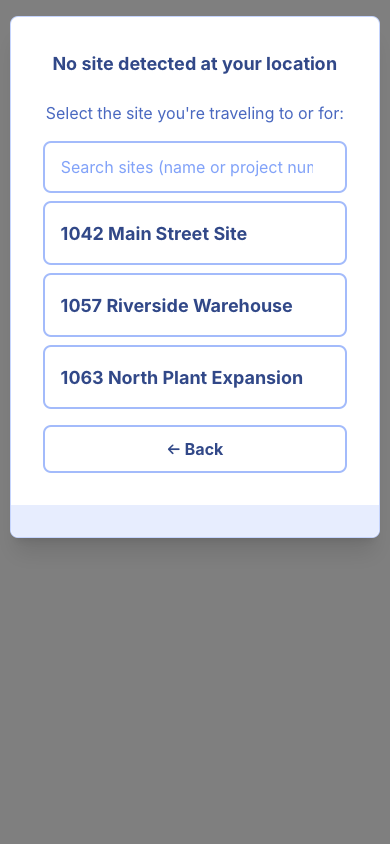
Picked the wrong option in Step 2? Tap ← Back. If your company uses cost codes, vTime asks you to pick one next.
Step 4: Travel
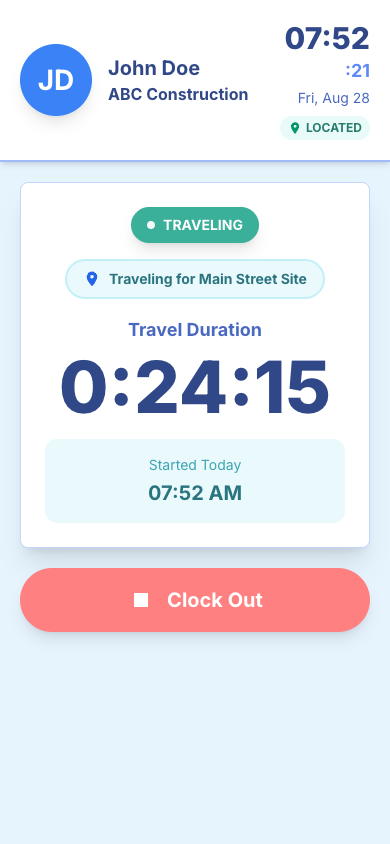
You are now clocked in as TRAVELING. vTime shows the site you are traveling for and a Travel Duration timer. You can close vTime while you drive; the timer keeps counting.
Step 5: Clock out when you arrive
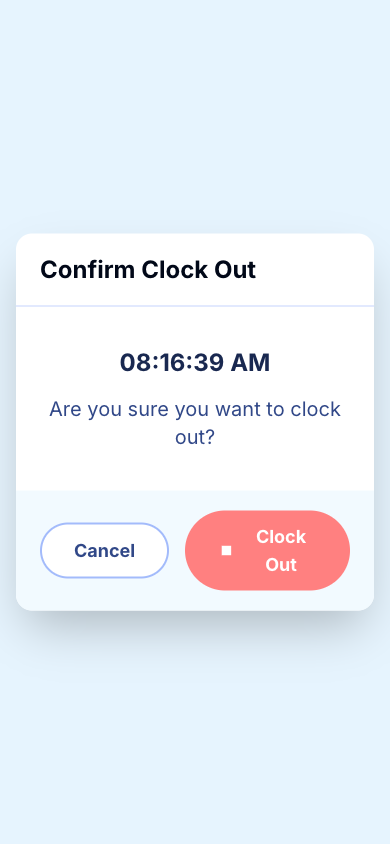
When you arrive, open vTime, tap Clock Out, then tap Clock Out again to confirm. vTime shows Calculating travel time... for a moment while it checks the trip.
If you are starting work at the site, clock in again and choose Working. Travel and work are recorded separately.
Step 6: Explain a long trip, if asked
If your trip took more than 30 minutes longer than expected, vTime shows Travel Time Explanation with your time and the expected time. Type what happened, for example traffic, a road closure or an extra stop, and tap Submit & Clock Out.
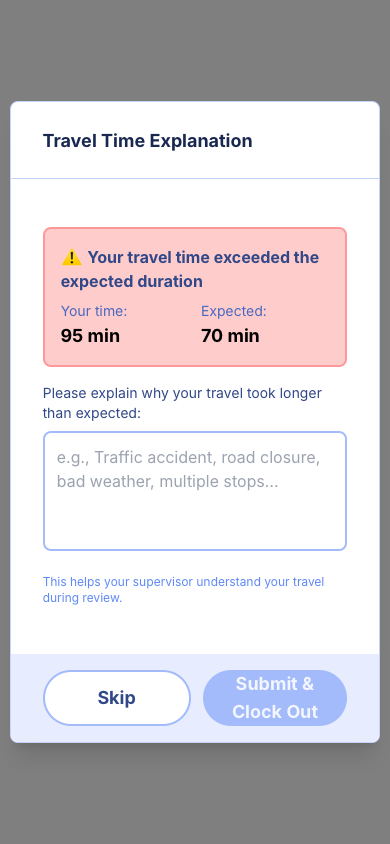
Your clock-out is already saved when this appears, so you will not lose your time. If you tap Skip, your supervisor sees the trip without your explanation.
If vTime could not check the trip, for example because your location was off, it says Travel time verification required instead. Describe your route and any delays in the same way.
After you clock out
Your trip goes to your supervisor for review. To see it, tap Dashboard on the vTime home screen:
- Pending lists trips waiting for review.
- History lists trips that have been approved.
- Denied lists trips your supervisor did not approve, with their reason.
Questions
- I forgot to clock in before I left. On the vTime home screen, scroll to Forgot to clock in? and tap Manual Travel Time to add the trip by hand. See Adding Travel Time You Forgot To Clock.
- I chose the wrong site. Clock out, then on the home screen tap Manual Travel Time and choose Edit existing record to ask your supervisor to correct it. See Correcting A Travel Time Record.
- I do not see Traveling. Your company may not use travel time in vTime. Check with your supervisor.
Still stuck? Contact your supervisor.
Was this article helpful?
That’s Great!
Thank you for your feedback
Sorry! We couldn't be helpful
Thank you for your feedback
Feedback sent
We appreciate your effort and will try to fix the article