Note: Want more detail on adding vTime to your iPhone's home screen? See our guide for adding vTime using the Safari browser.
This guide walks you through setting up vTime on your iPhone and signing in for the first time. You only need to do these steps once, not each time you use vTime.
vTime signs you in with your phone number and a code sent by text message. There is no password and no PIN to remember.
TABLE OF CONTENTS
- Before you start
- First sign-in
- Step 1: Add vTime to your home screen
- Step 2: Open vTime
- Step 3: Enter your cellphone number or Employee ID
- Step 4: Tap Send Verification Code
- Step 5: Enter the 6-digit code
- Step 6: Enter your home address
- Step 7: Allow vTime to use your location
- Step 8: You are signed in
- Step 9: Clock in when you are ready
- What happens next
- Trouble signing in
Before you start
- Your company sends you a vTime link. Open that link on the iPhone you will use for work.
- Have your phone with you. You will receive a text message with a code.
- Use your mobile number the first time you sign in. After that, if your company uses Employee IDs, you can sign in with yours instead.
- Know your home address. vTime asks for it once, the first time you sign in.
First sign-in
Step 1: Add vTime to your home screen
Open the vTime link your company sent you in Safari. vTime shows an Install vTime screen asking you to add it to your home screen. This keeps you signed in, loads the app faster, and lets you clock in even when phone service is spotty.
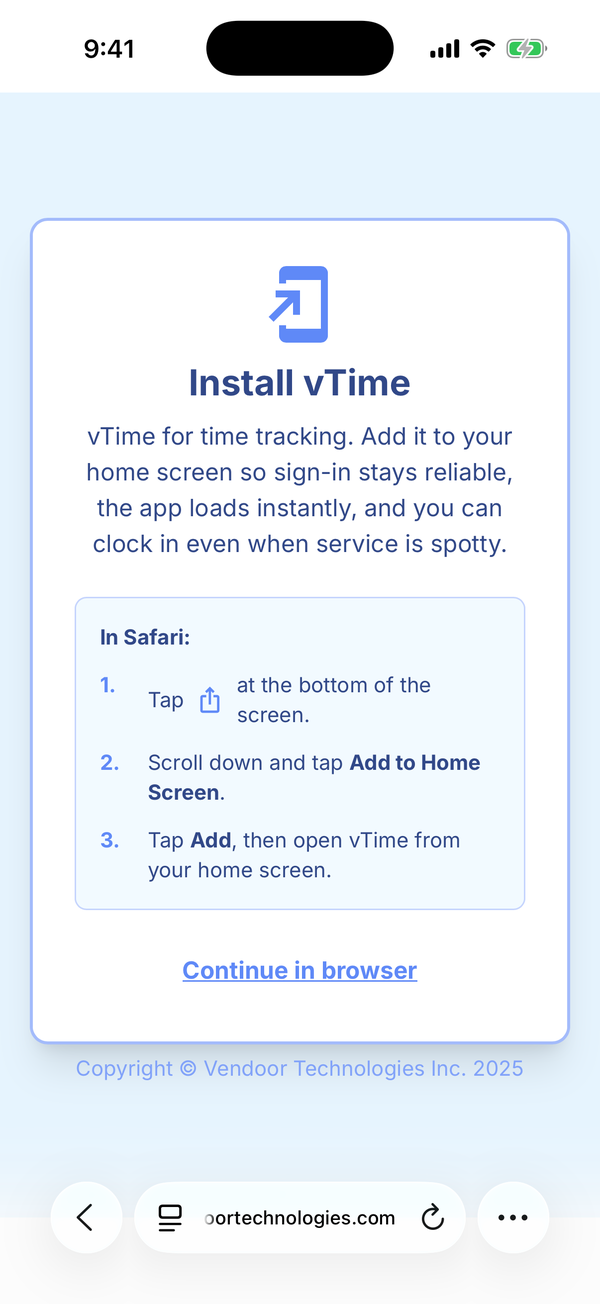
1. Tap the ⋯ button at the bottom-right of Safari. On iOS 27 there is no ⋯ button: tap the ≡ at the left of the address bar instead, then continue from step 2. See Adding vTime To Your Home Screen for every iOS version.
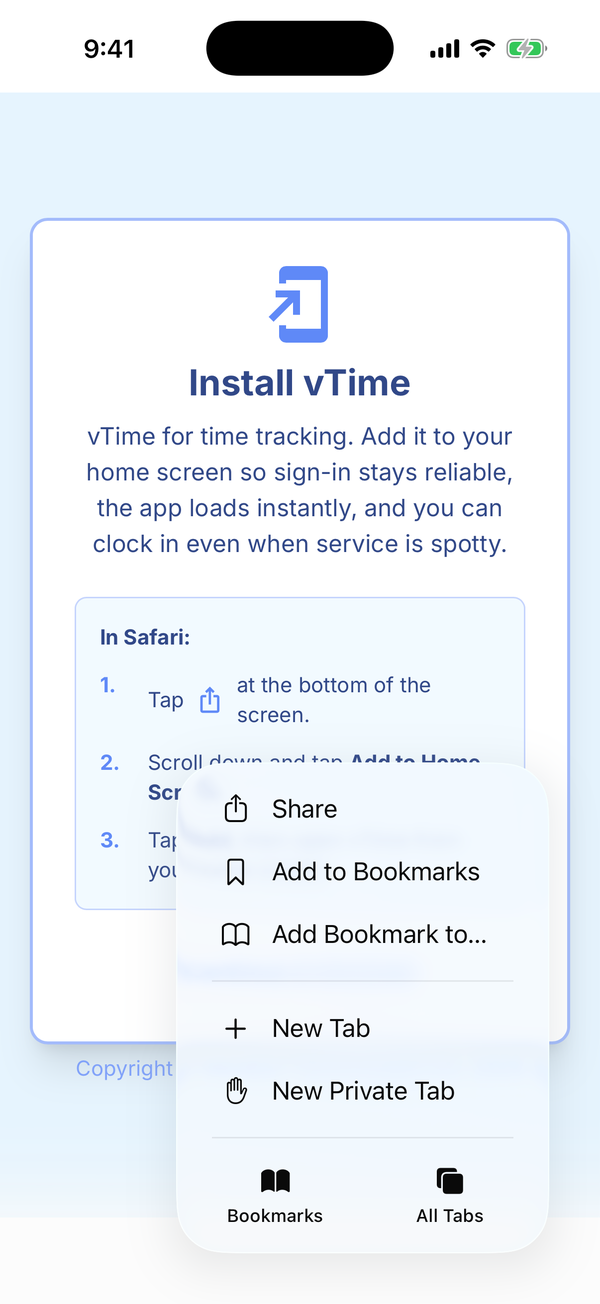
2. Tap Share.
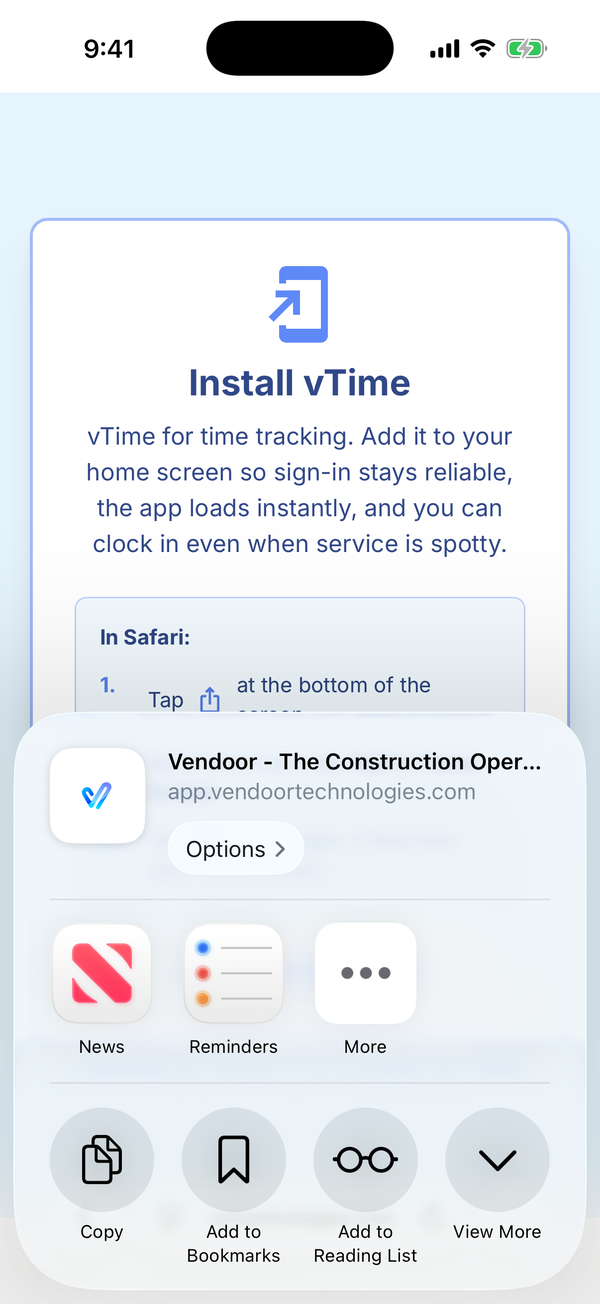
3. Tap View More to see the rest of the actions.
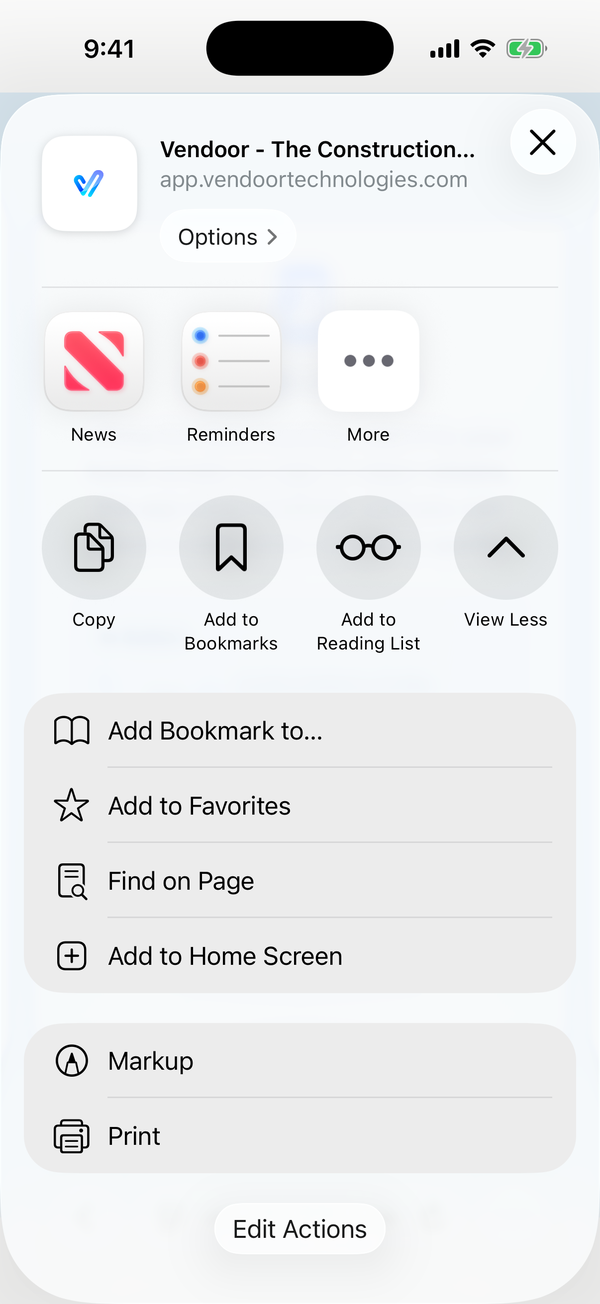
4. Tap Add to Home Screen, then tap Add. Leave Open as Web App switched on. That is what makes vTime open like an app rather than a web page.
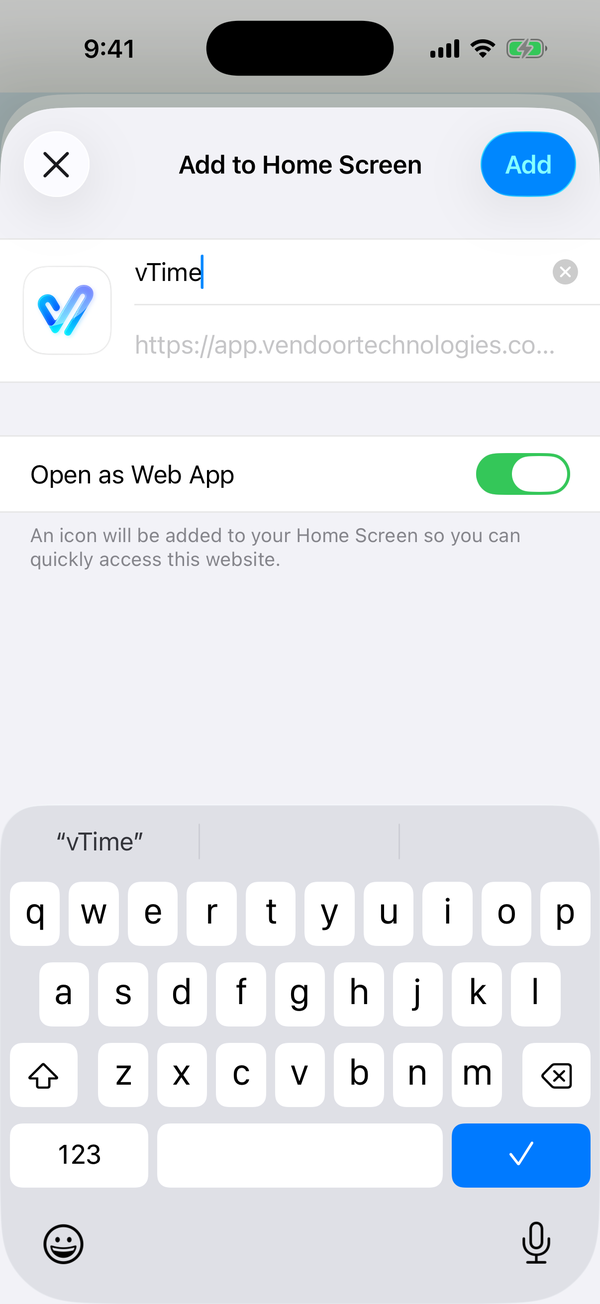
vTime now appears on your home screen.
Can't add it right now? Tap Continue in browser at the bottom of the Install vTime screen to sign in anyway. Add vTime to your home screen as soon as you can: Safari can sign you out of websites after about a week, but the home-screen app keeps you signed in.
Step 2: Open vTime
Find the vTime icon on your home screen and tap it. The sign-in screen appears.
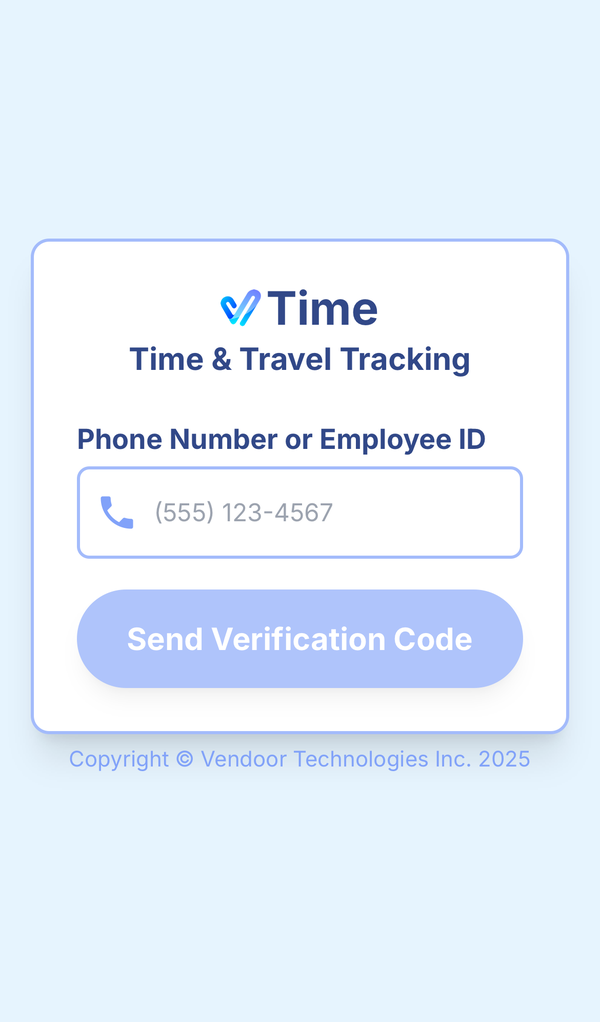
Step 3: Enter your cellphone number or Employee ID
Tap the Phone Number or Employee ID field and enter the mobile number your company has on file. This first time, use your mobile number: an Employee ID only works once you have signed in with your phone number.
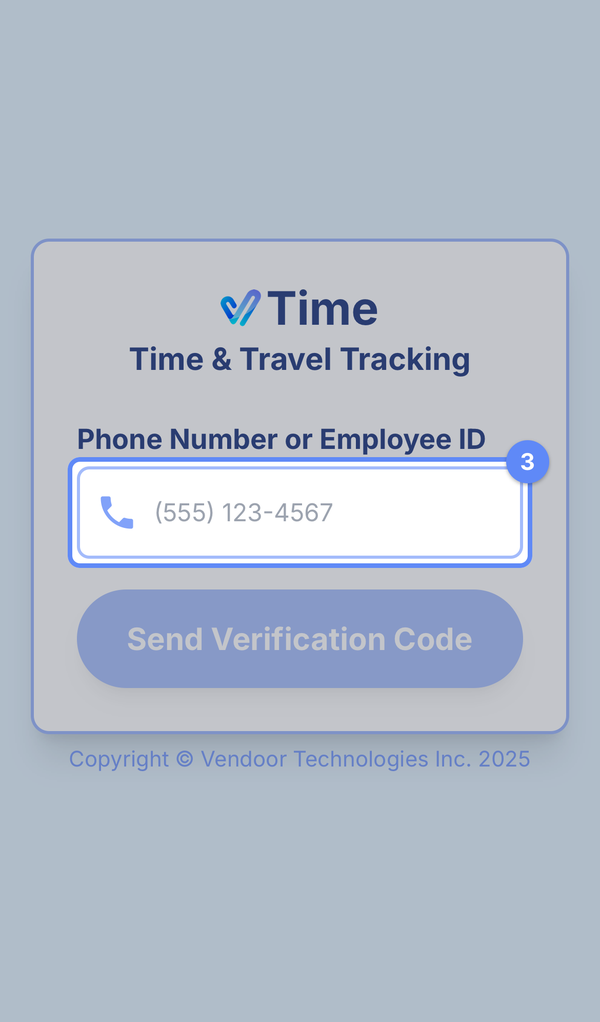
Step 4: Tap Send Verification Code
Tap Send Verification Code. If you entered an Employee ID, the button says Look Up & Send Code instead. vTime sends a 6-digit code by text message to your phone. It usually arrives within a few seconds.
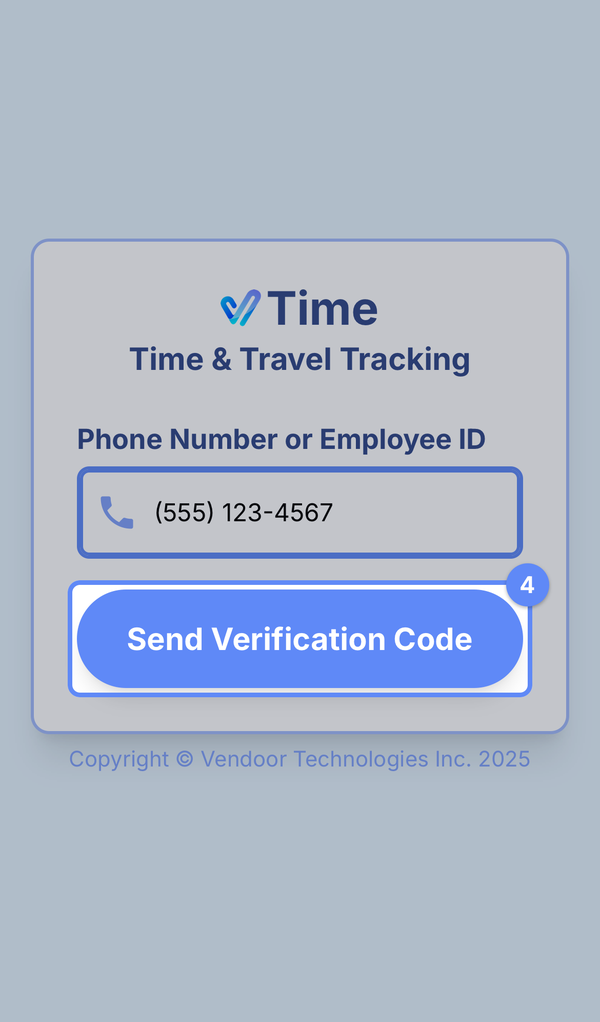
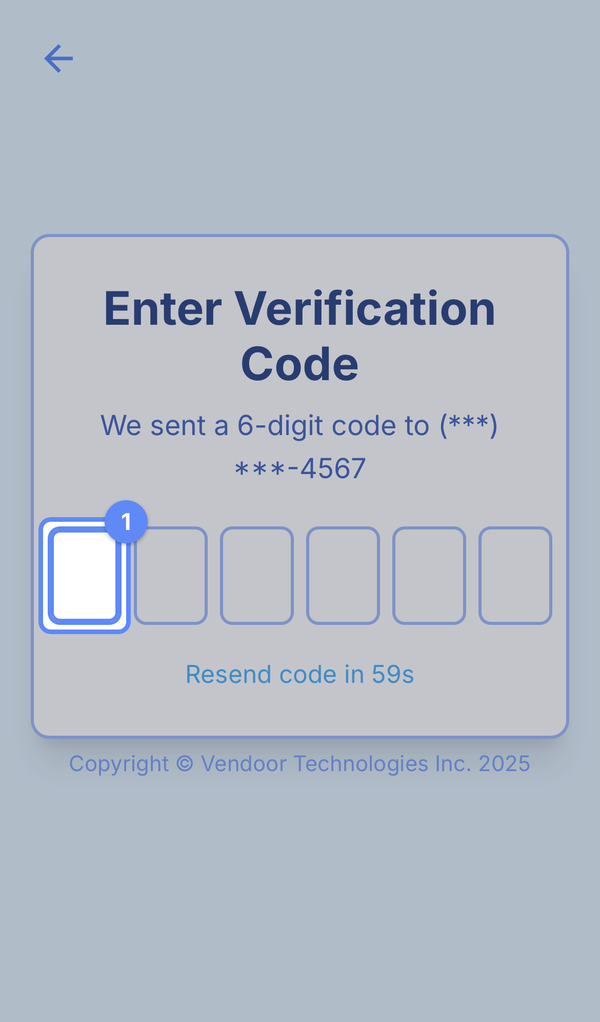
Step 5: Enter the 6-digit code
Open your text messages, find the 6-digit code, and type it into the boxes. You do not need to tap anything else. vTime checks the code as soon as the last digit is entered.
If the code does not arrive, wait for the Resend code timer (60 seconds) to finish and tap Resend Code. vTime takes you back to the first screen; tap Send Verification Code again to get a new code.
Step 6: Enter your home address
The first time you sign in, vTime shows a Home Address Required screen. You must complete it before you can continue, and you only do it once.
Your home address lets your company calculate your travel time and distance when you start or end your work day at home. For what vTime does and does not record about your location, see Does Vendoor track my location?
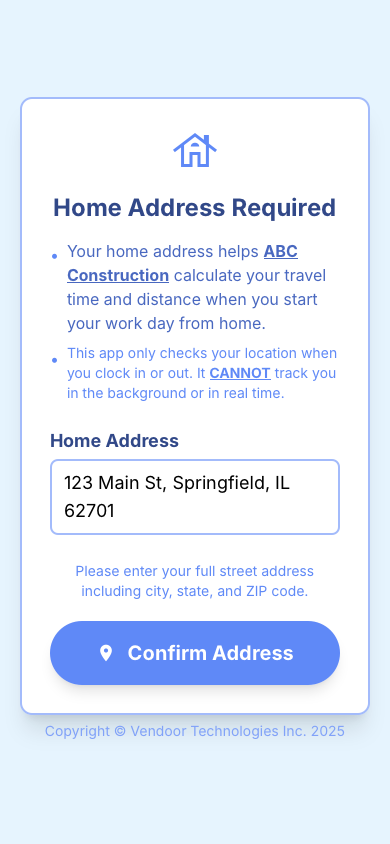
- Type your full street address, including city, state, and ZIP code.
- Tap Confirm Address.
- vTime shows Address Found with your address. If it is right, tap Confirm. If not, tap Change and try again.
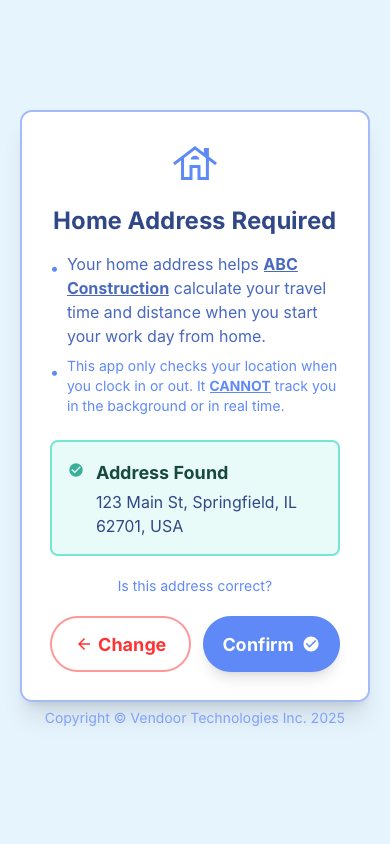
If vTime says Could not verify this address, check the street number and spelling, and make sure you included the city, state, and ZIP code.
Moved? You can change your address later: tap Dashboard on the vTime home screen, open the Settings tab, then tap Update Home Address under Account.
Step 7: Allow vTime to use your location
Once your address is saved, your iPhone asks whether vTime may use your location. Tap Allow.
vTime uses your location to find the jobsite you are at when you clock in, and to measure travel time if your company pays for it.
If you tapped Don't Allow by mistake, you can still clock in and out, but you will not be able to add travel time by hand until location is turned back on for vTime in your iPhone's settings. See vTime And Your Phone's Location.
Step 8: You are signed in
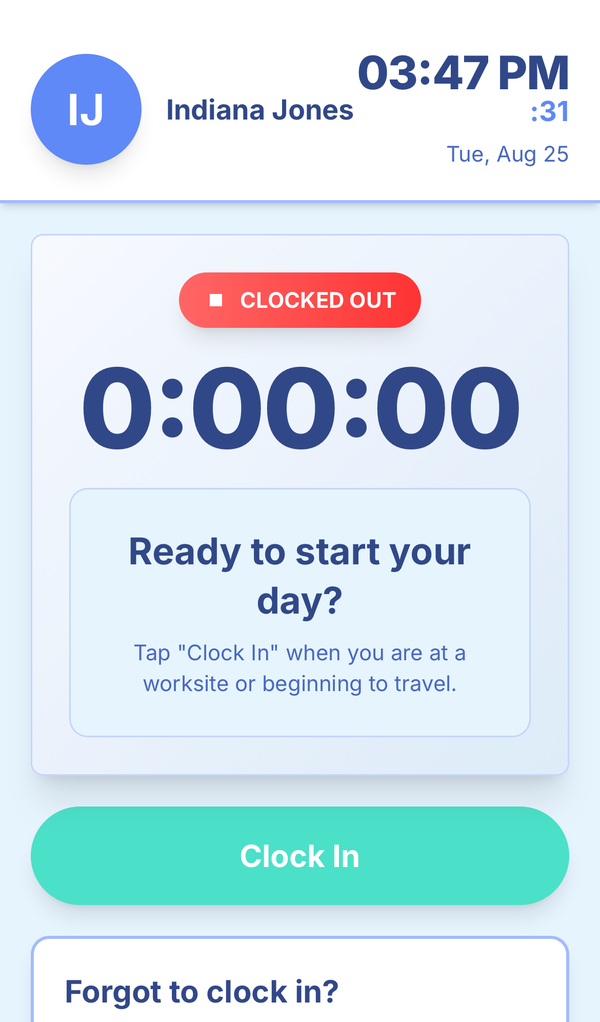
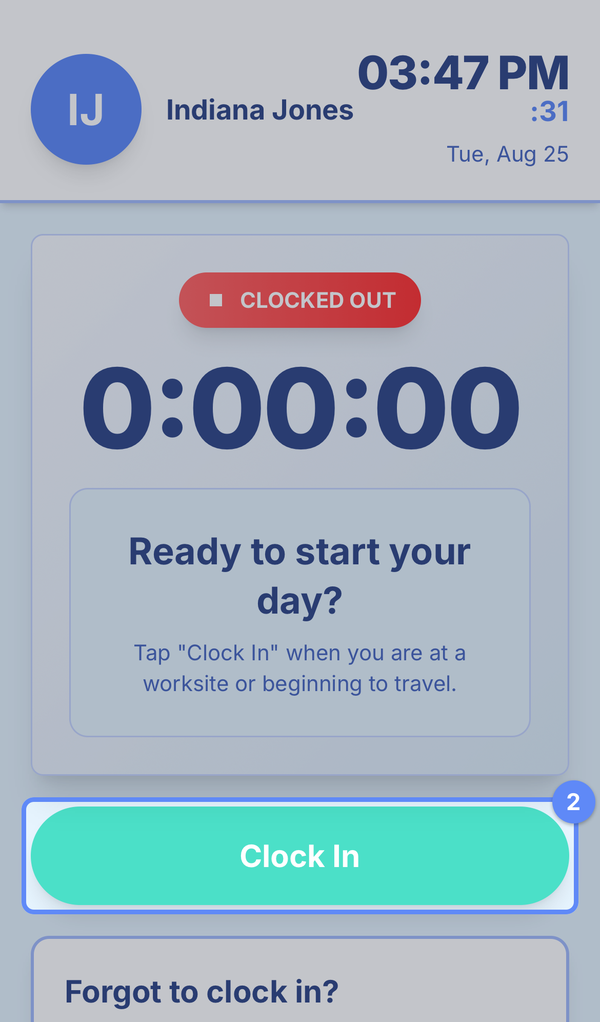
vTime opens on your day. Your name is at the top, along with the current time and date, and you start out CLOCKED OUT.
Step 9: Clock in when you are ready
Tap Clock In when you arrive at a worksite or begin travelling for work. vTime may ask whether you are Working or Traveling, and which jobsite it is for. Choose the ones that fit, and your timer starts running.
If you forgot to clock in earlier, scroll down to the Forgot to clock in? card. Tap Manual Travel Time or Manual Time Card Entry to add the time you missed. You will only see the options your company uses.
What happens next
You are set up. From now on, opening vTime from your home screen takes you straight to your day. You will not need to enter a code every time.
You will only need a new code if you sign out, switch to a different phone, or remove vTime from your home screen.
Trouble signing in
- "Invitation Not Found" after you enter the code. The number you entered does not match the one your company has on file. Tap Try a Different Number, or check with your supervisor which number to use.
- "No verified employee found with that ID." vTime could not match your Employee ID. On your first sign-in, use your mobile number; otherwise check your ID with your supervisor.
- The code never arrives. Check that you have phone signal, then wait for the timer and tap Resend Code. Always use the most recent code.
- "Incorrect code" or "Code expired." Check the digits against your latest text message, or request a new code.
- "Too many attempts." Wait a few minutes, then try again.
- "Organization Required." You opened vTime without your company's link. Open the link your company sent you, or ask your supervisor to send it again. If this happens when you open vTime from your home screen, remove vTime from your home screen and add it again from your company's link.
More messages and how to fix them: Trouble Signing In To vTime. Still stuck? Contact your supervisor.


Was this article helpful?
That’s Great!
Thank you for your feedback
Sorry! We couldn't be helpful
Thank you for your feedback
Feedback sent
We appreciate your effort and will try to fix the article