vTime asks to use your phone's location. This guide explains what it is used for, what to tap when your phone asks, and how to turn it back on if you said no. For exactly what is and is not recorded, see Does Vendoor track my location?
TABLE OF CONTENTS
Why vTime uses your location
- To find the jobsite you are at when you clock in, so you can pick it quickly.
- To measure your travel time, if your company pays for it. See Clocking In As Traveling.
- To back up your hours. When your location was captured, vTime shows a green LOCATED badge under the time.
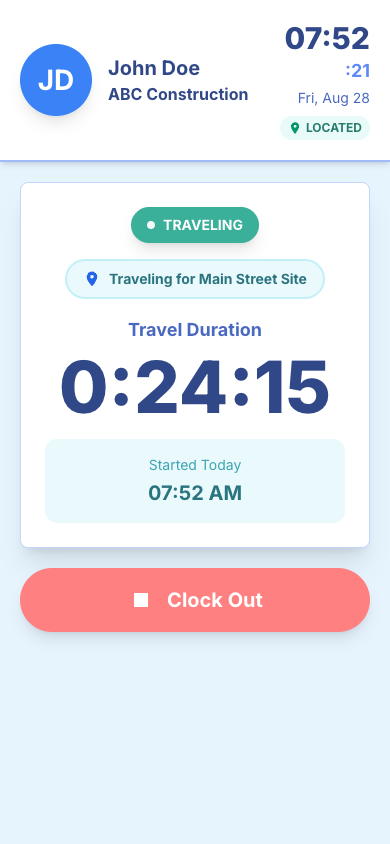
When your phone asks
The first time vTime opens on your day after you sign in, your phone shows a message asking whether vTime may use your location.
- iPhone: tap Allow (or Allow While Using App).
- Android: tap Allow (or While using the app).
vTime only uses your location while it is open on your screen.
If location is off
You can still clock in and out with location off, but some things stop working:
- There is no LOCATED badge, and vTime cannot suggest the jobsite you are at.
- When you clock out of a travel trip, vTime cannot check it. It shows Travel time verification required and asks you to describe the trip.
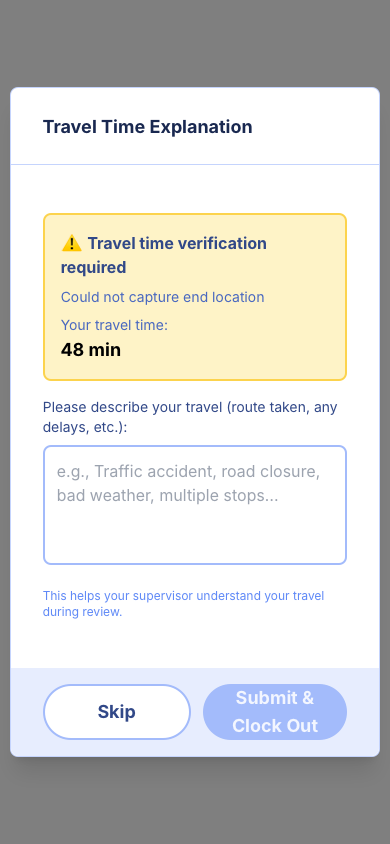
- Manual Travel Time entries are refused with "GPS location required for verification. Please enable location services." See Adding Travel Time You Forgot To Clock.
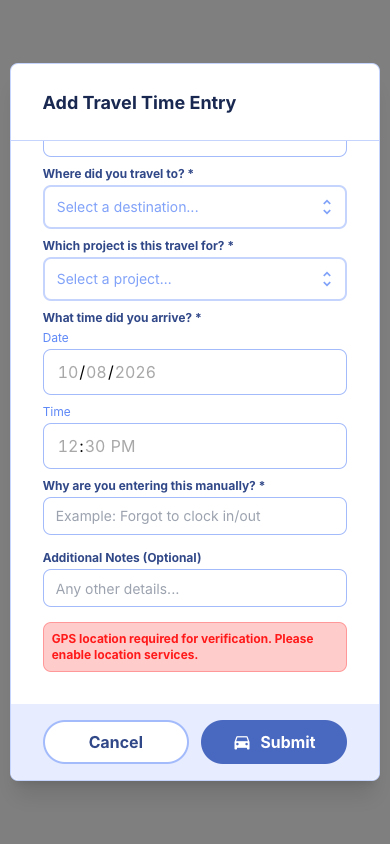
Turning location back on
vTime has no location setting of its own; your phone controls it. Menu names vary a little between phones and software versions.
iPhone
- Open Settings and tap Privacy & Security, then Location Services. Make sure Location Services is on.
- In the same list, tap Safari Websites and choose While Using the App or Ask Next Time.
- Close vTime completely (swipe it away) and open it again from your home screen. Tap Allow if asked.
Android
- Swipe down from the top of the screen and make sure Location is on.
- Open Chrome, tap ⋮, then Settings, Site settings and Location. If vTime's website is listed under Blocked, tap it and choose Allow.
- Close vTime and open it again from your home screen. Tap Allow if asked.
Still stuck? Contact your supervisor.
Was this article helpful?
That’s Great!
Thank you for your feedback
Sorry! We couldn't be helpful
Thank you for your feedback
Feedback sent
We appreciate your effort and will try to fix the article