vTime works best from an icon on your home screen: it keeps you signed in, opens faster, and lets you clock in when phone service is spotty. These steps add it using the Safari browser on an iPhone. You only do this once.
TABLE OF CONTENTS
- Step 1: Open your company link in Safari
- Step 2: Open Safari's menu
- Step 3: Tap Share
- Step 4: Tap View More
- Step 5: Tap Add to Home Screen
- Step 6: Find vTime on your home screen
- Next steps
Step 1: Open your company link in Safari
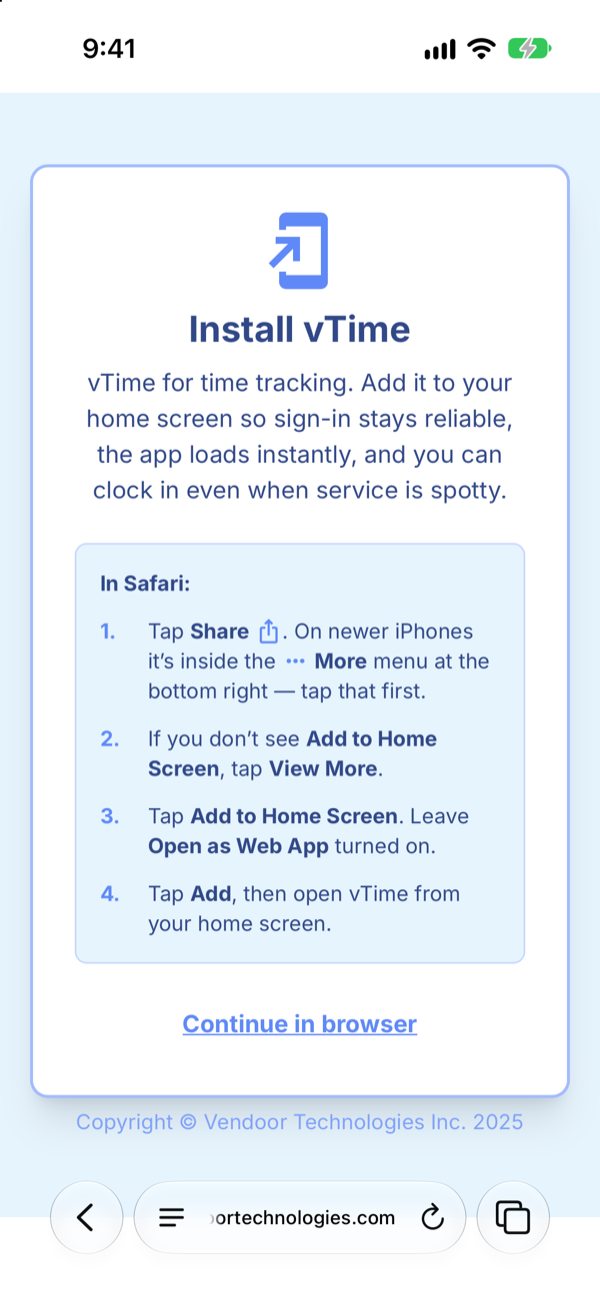
When your company adds you to vTime, you get a text message with a link. Tap it, and make sure it opens in Safari. vTime shows an Install vTime screen with these same steps in short.
Step 2: Open Safari's menu
Where Safari keeps the Share button depends on your iPhone's software version:
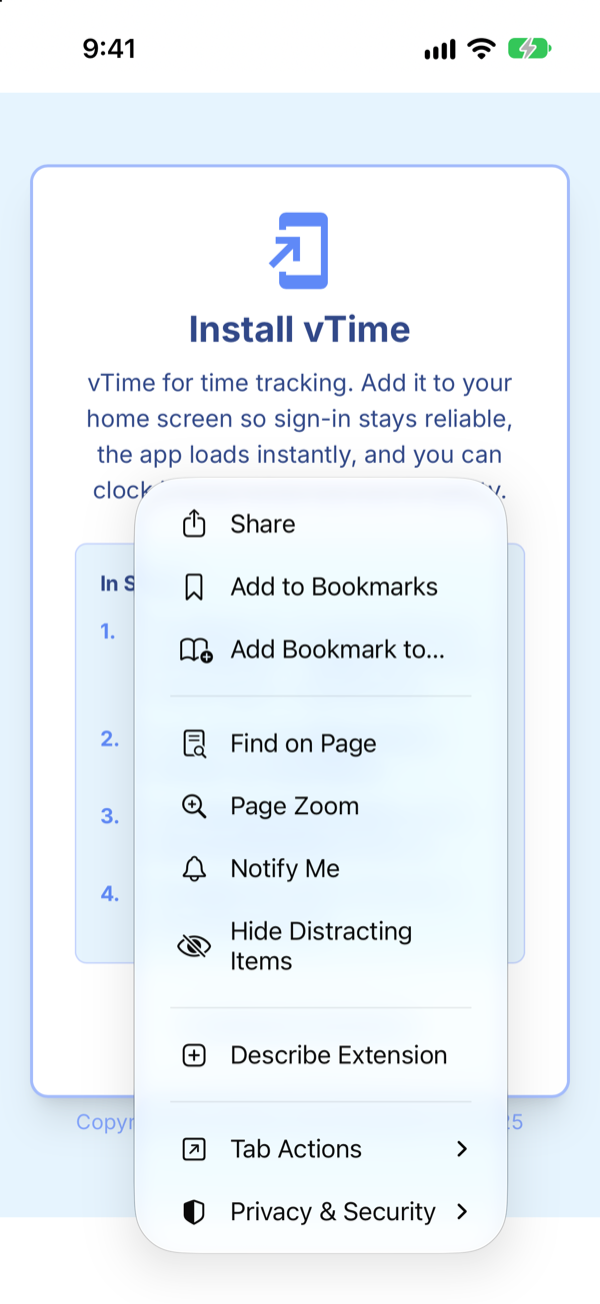
- Newest iPhones (iOS 27): tap the ≡ button at the left of the address bar.
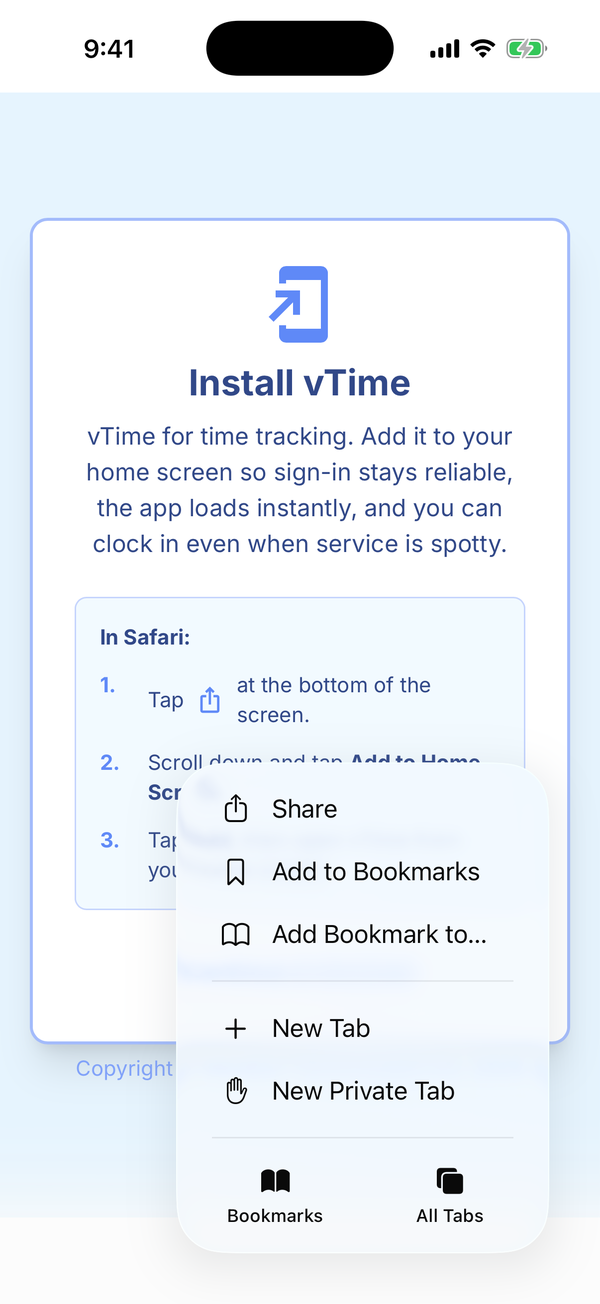
- iOS 26: tap the ⋯ button at the bottom right of Safari.
- Older iPhones: the Share button is on the toolbar at the bottom of the screen. Tap it and skip to Step 4.
On iOS 27 the menu looks like this:
On iOS 26:
Step 3: Tap Share
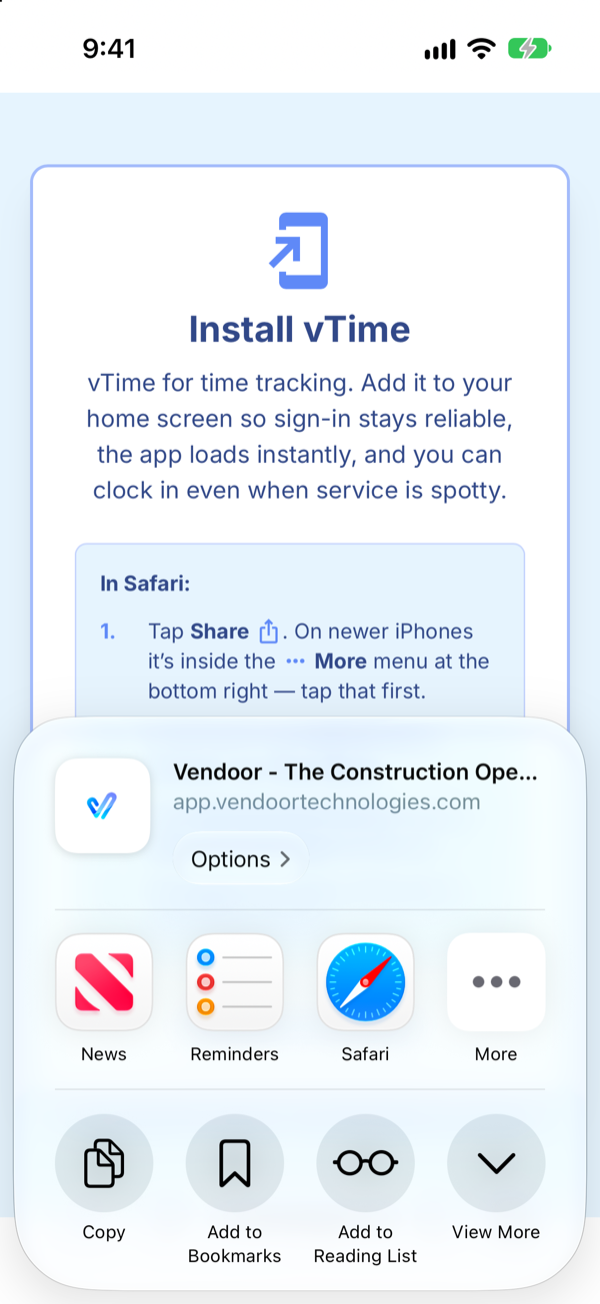
Tap Share. The share sheet opens at the bottom of the screen.
Step 4: Tap View More
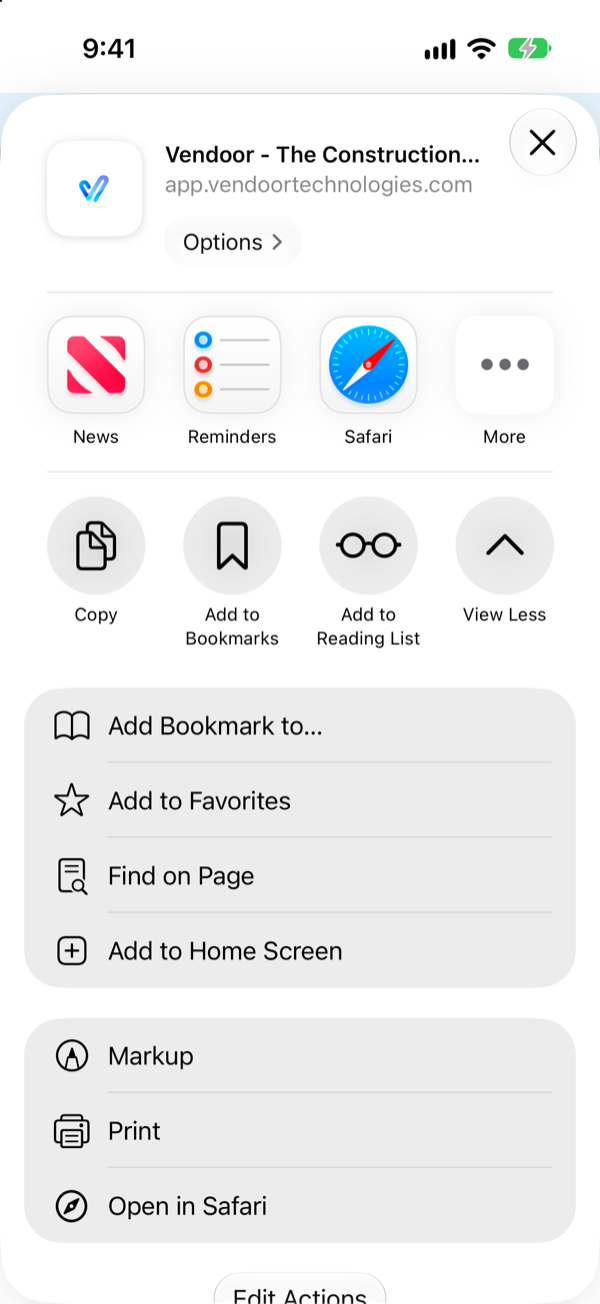
Add to Home Screen is hidden at first. Tap View More to see the rest of the actions.
Step 5: Tap Add to Home Screen
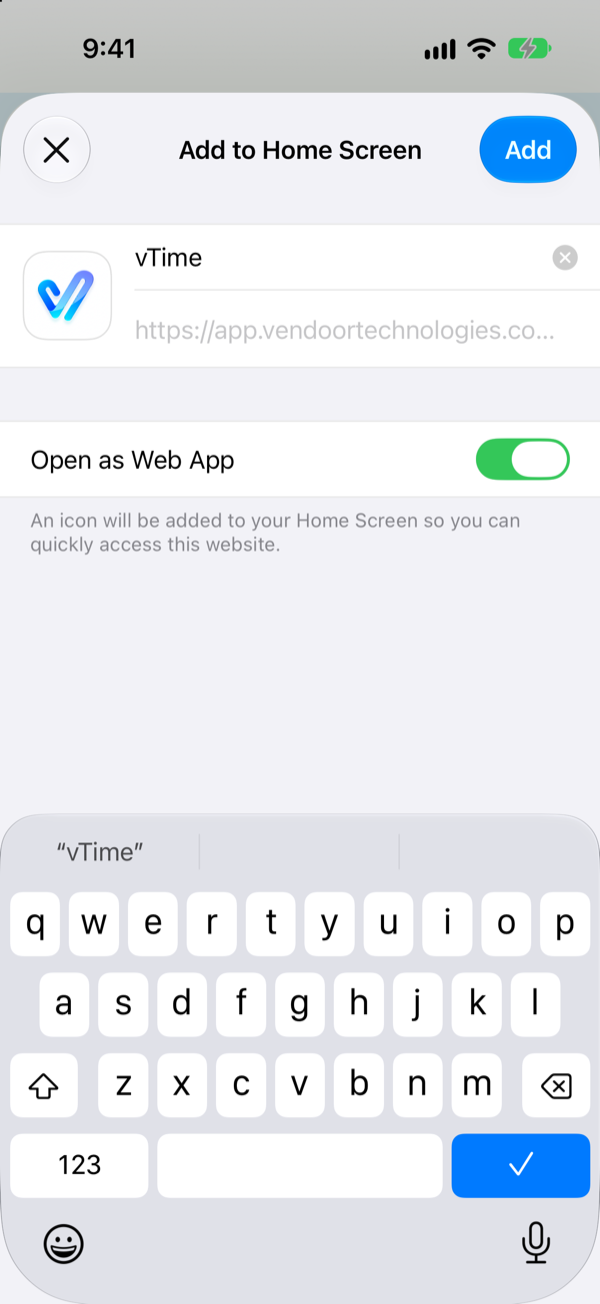
Tap Add to Home Screen. Leave the name as vTime and leave Open as Web App switched on; that is what makes vTime open like an app instead of a web page. Then tap Add.
Step 6: Find vTime on your home screen
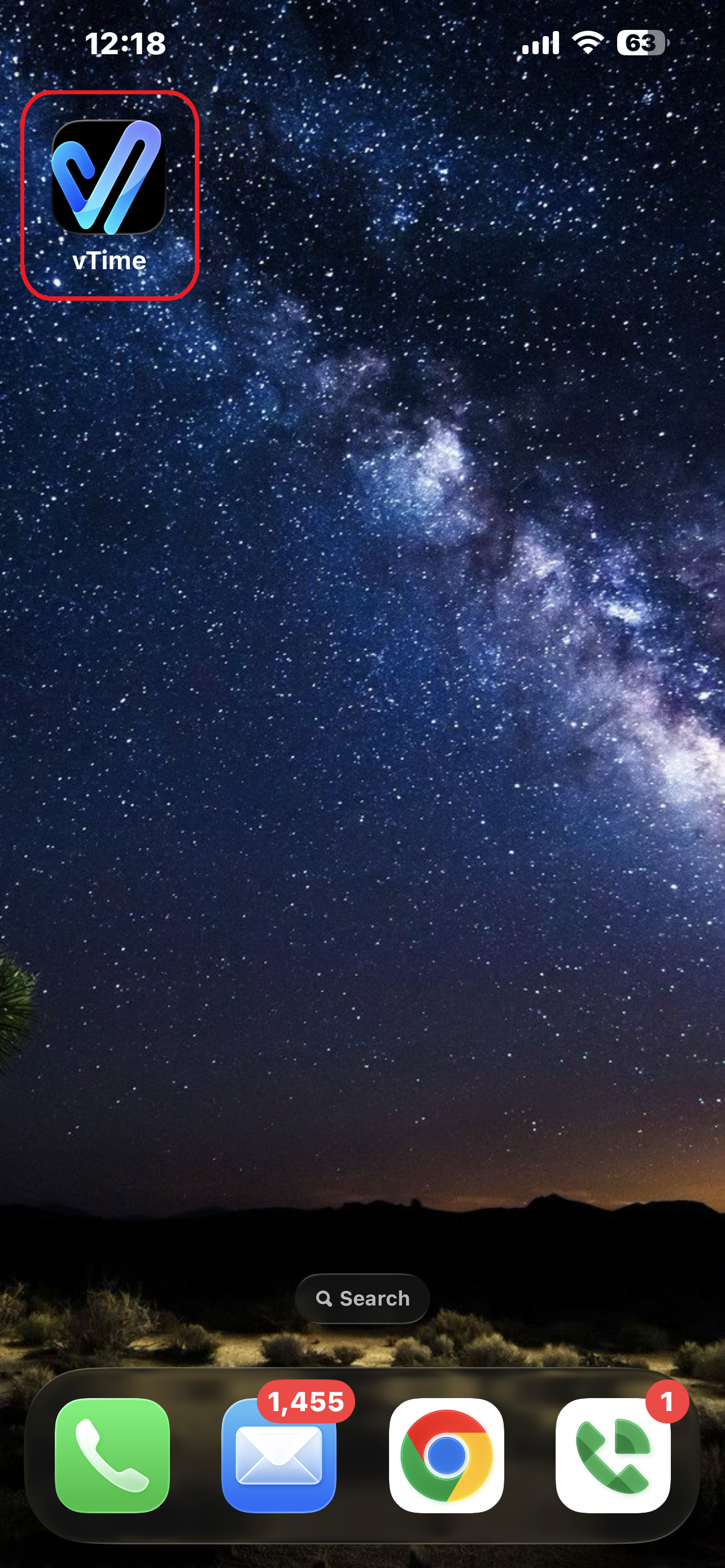
vTime is now on your home screen. From now on, always open vTime from this icon.
Next steps
Tap the vTime icon to sign in for the first time: see Using vTime For The First Time (iPhone).
Can't add it right now? Tap Continue in browser on the Install vTime screen to sign in anyway, and add it as soon as you can: Safari can sign you out after about a week. Having trouble? See Trouble Signing In To vTime.
Was this article helpful?
That’s Great!
Thank you for your feedback
Sorry! We couldn't be helpful
Thank you for your feedback
Feedback sent
We appreciate your effort and will try to fix the article