When your employees clock in as Traveling in vTime (see Clocking In As Traveling), each trip lands on the Travel Time page for someone in the office to review. This guide explains what you see there.
Who can do this: admins and members of your organization can review, approve, deny and undo travel time. Only admins can create a record for an employee or change a record's site.
TABLE OF CONTENTS
Opening Travel Time
Open the menu on the right side of the screen and click Travel Time. The page opens on the Pending tab: every trip waiting for a decision, newest first.
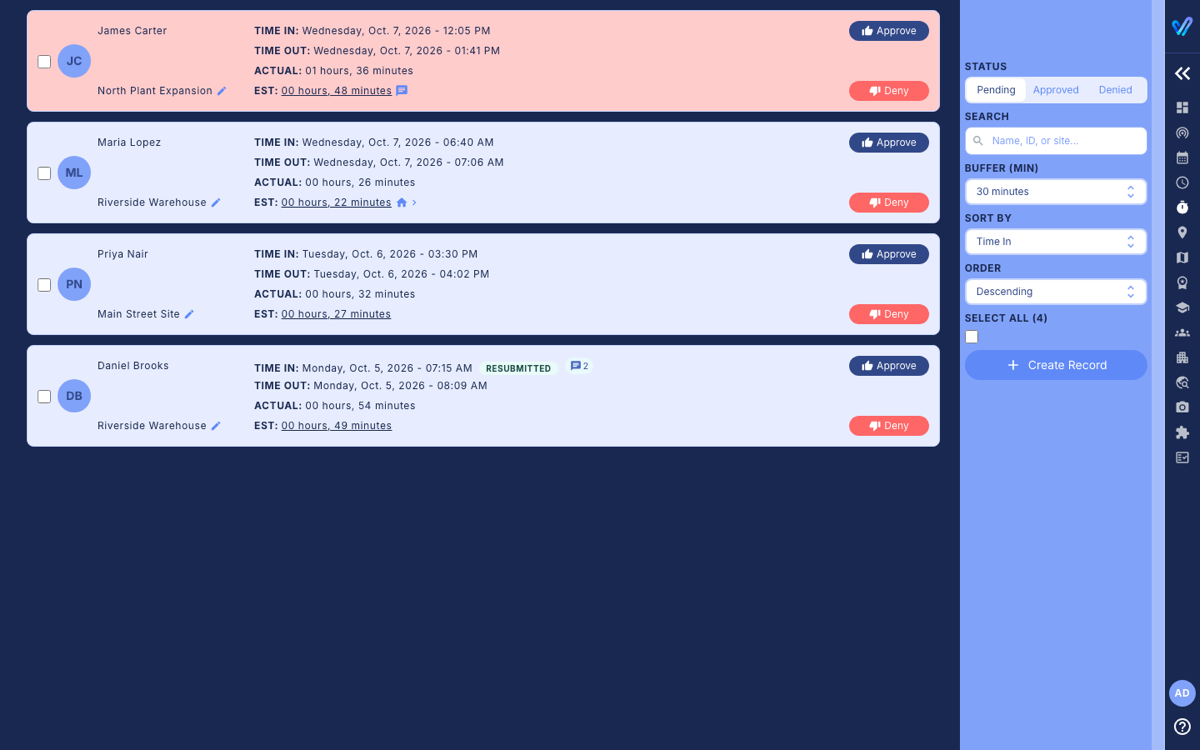
Use the Pending, Approved and Denied buttons at the top of the right-hand panel to switch between trips waiting for a decision and trips already decided.
Reading a travel card
- Name and site on the left: the employee, and the jobsite the trip was for.
- Time In / Time Out: when the employee clocked in as Traveling and when they clocked out.
- Actual: how long the trip took.
- Est: how long Google Maps expects the drive between the clock-in and clock-out locations to take. Click it to open the route in Google Maps.
A card turns red when the trip took longer than the estimate plus the Buffer set in the right-hand panel (30 minutes unless you change it). The buffer only changes what is highlighted on this page; it does not change anything for the employee.

The icons on a card
- Speech bubble next to Est: the employee explained why the trip ran long. Hover over it to read the explanation.
- House: the trip started or ended at the employee's home address.
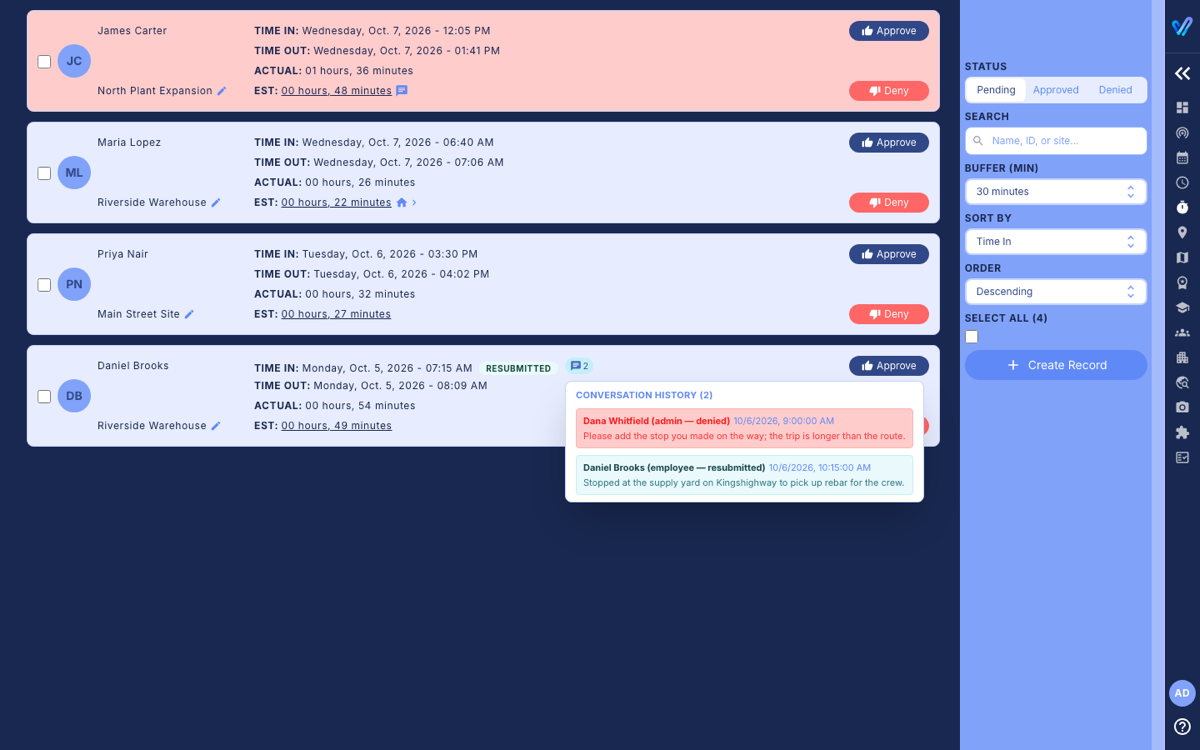
- RESUBMITTED with a number: the record was denied before and the employee replied. Hover over the number to read the conversation.
- Clipboard icon: the employee entered this trip by hand because they forgot to clock in. Hover to read their reason.
- Supervisor icon: someone in the office created this record for the employee.
- Pencil next to the site (admins only): change which site the trip is recorded against.
Finding records
- Search: type an employee's name, Employee ID or a site.
- Sort By and Order: sort by Employee ID, last name, project, time in, time out, or put hand-entered (Manual) records first.
What to do next
Was this article helpful?
That’s Great!
Thank you for your feedback
Sorry! We couldn't be helpful
Thank you for your feedback
Feedback sent
We appreciate your effort and will try to fix the article