Find the message you are seeing below. Most sign-in problems come from opening vTime without your company's link, or from a phone number that does not match the one your company has on file.
Setting vTime up for the first time? Start with our guide for iPhone or Android.
TABLE OF CONTENTS
Before you get a code
Organization Required
vTime was opened without your company's link. Every company has its own vTime link, and vTime cannot tell which company you work for without it.
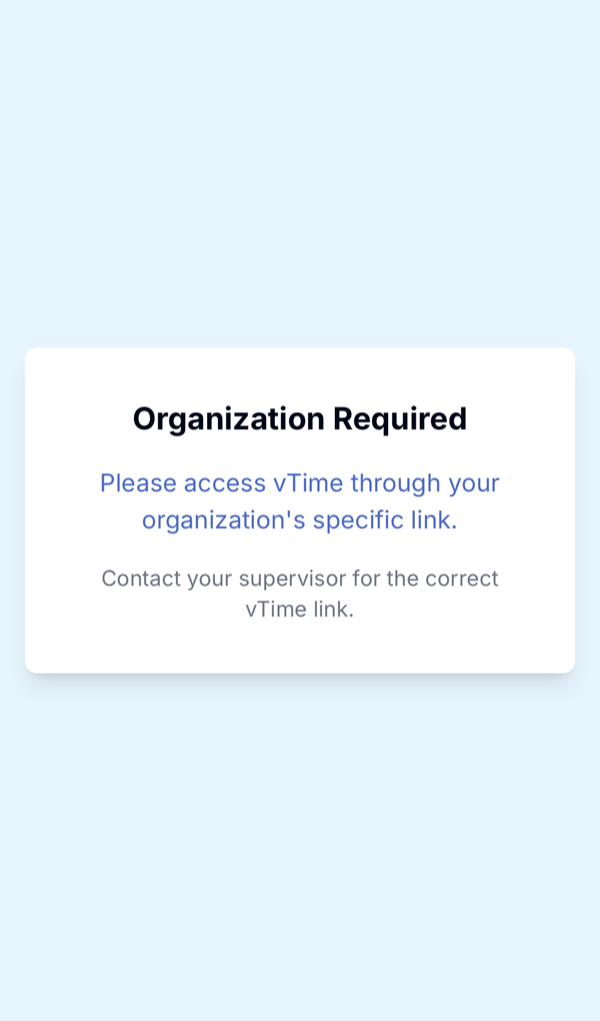
Fix: open the vTime link your company sent you by text message. If you cannot find it, ask your supervisor to send it again.
PWA Installed Without Organization Context
You see Organization Required with a yellow box underneath when you open vTime from your home screen. The icon was added from a link that did not include your company.
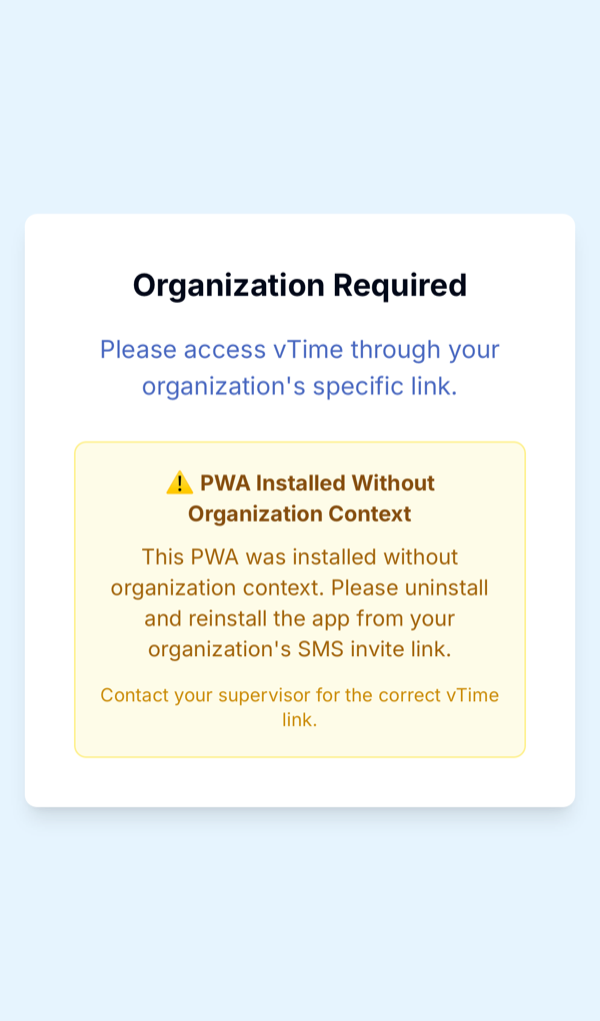
Fix:
- Press and hold the vTime icon on your home screen and remove it.
- Open the vTime link from your company's text message.
- Add vTime to your home screen again from that page: see the iPhone or Android guide.
No verified employee found with that ID
You typed an Employee ID and tapped Look Up & Send Code, but vTime could not match it.
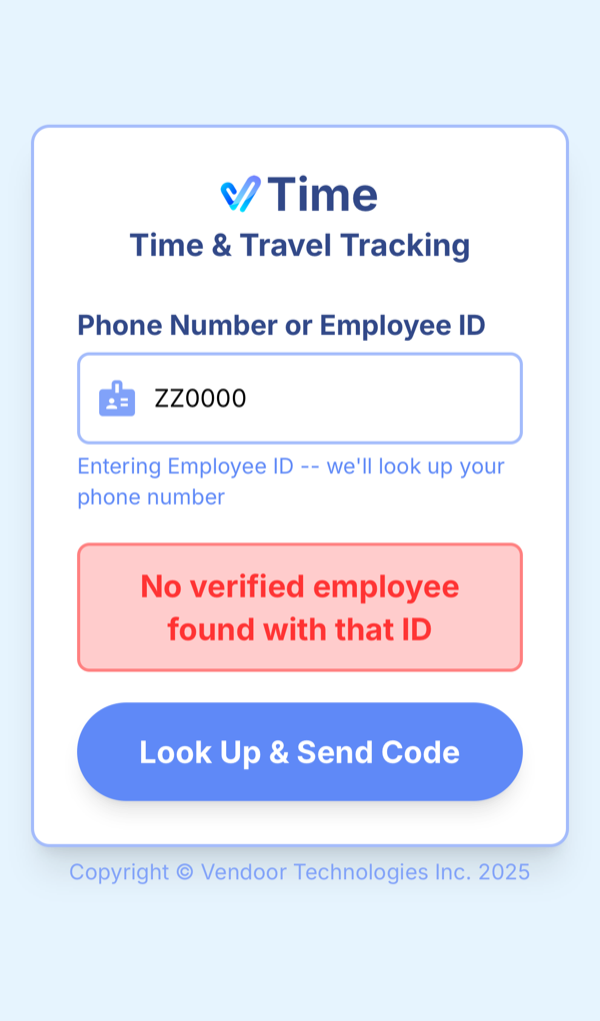
- Signing in for the first time? Use your mobile number instead. An Employee ID only works after you have signed in with your phone number once.
- Signed in before? Check the ID with your supervisor, or use your mobile number.
After you ask for a code
The code never arrives
- Check that you have phone signal and can receive text messages.
- Check the number vTime shows on the code screen. If it is wrong, tap the back arrow and enter it again.
- Wait for the Resend code in timer (60 seconds) to finish, tap Resend Code, then tap Send Verification Code again.
Incorrect code or Code expired
"Incorrect code. Please try again." means the digits do not match. "Code expired. Please request a new one." means the code is too old. Each time you resend, the earlier codes stop working, so always use the newest text message.
Invitation Not Found
Your code was accepted, but no company has invited that phone number to vTime.
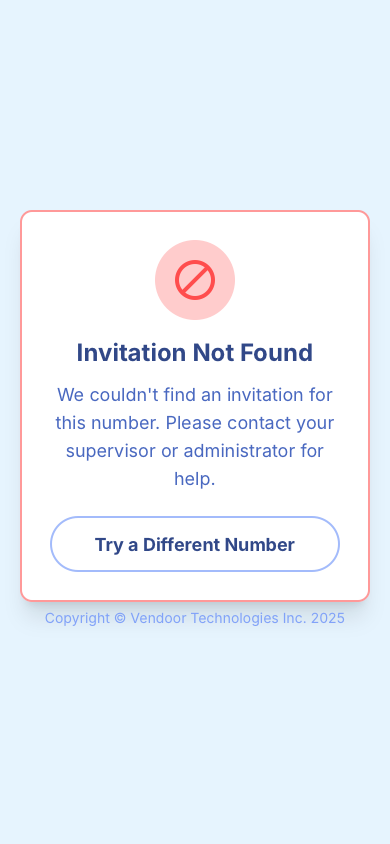
- If you have more than one phone number, tap Try a Different Number and use the one you gave your company.
- Otherwise, ask your supervisor to check the mobile number they have on file for you, and to send your vTime invitation.
Too many attempts
"Too many attempts. Please wait a few minutes and try again." appears after several codes in a short time. Wait a few minutes before asking for another code.
Your account needs to be re-activated
"Your account needs to be re-activated. Please contact your administrator." Your vTime access has been turned off. Only your company can turn it back on, so contact your supervisor.
After you are signed in
Sign-in is taking longer than expected
vTime accepted your code but could not load your account. Check your internet connection and tap Try again. vTime returns to the sign-in screen and you will need a new code. If it happens again, contact your supervisor.
vTime keeps asking me to sign in again
If you open vTime in your web browser instead of from your home-screen icon, your phone can sign you out after about a week. Open vTime from the home-screen icon, which keeps you signed in. Not on your home screen yet? See the iPhone or Android guide.
You will also need a new code after you tap Sign Out, or on a new phone.
Still stuck? Contact your supervisor.
Was this article helpful?
That’s Great!
Thank you for your feedback
Sorry! We couldn't be helpful
Thank you for your feedback
Feedback sent
We appreciate your effort and will try to fix the article