Note: The quickest way to record travel is to clock in as Traveling when you set off. See Clocking In As Traveling. Use this guide when you forgot to.
Forgot to clock in for a work trip? You can add it afterwards with Manual Travel Time. You tell vTime where you traveled from and to, and when. Your supervisor reviews the entry like any other trip.
TABLE OF CONTENTS
Before you start
- Manual Travel Time only appears if your company has turned on travel time in vTime.
- Turn on location for vTime. vTime checks your phone's location when you submit, and will not accept the entry without it. See Does Vendoor track my location?
- You can only add trips that have already happened, and only recent ones. Most companies allow the last 14 days.
- Have the times you left and arrived. Your phone's maps history or a fuel receipt can help.
Adding a trip by hand
Step 1: Open Manual Travel Time
On the vTime home screen, scroll down to the Forgot to clock in? card and tap Manual Travel Time.
Step 2: Choose to create a record
Tap Manually create a travel time record.
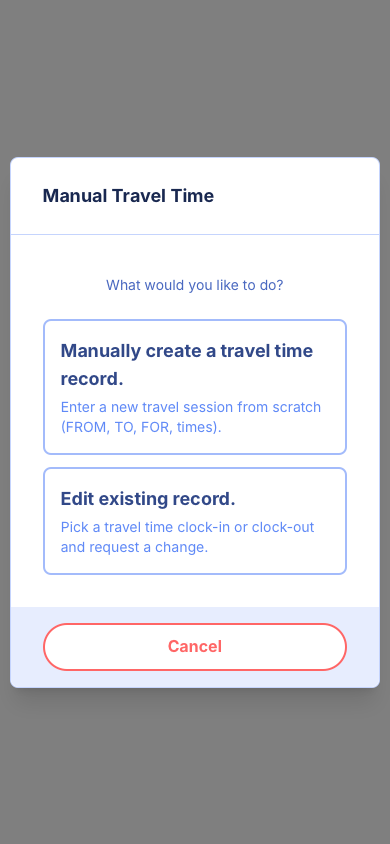
Need to fix a trip you already clocked instead? Tap Edit existing record. to ask your supervisor to change it; see Correcting A Travel Time Record.
Step 3: Fill in where and when you traveled
The Add Travel Time Entry form opens. Fill in each field marked with *.
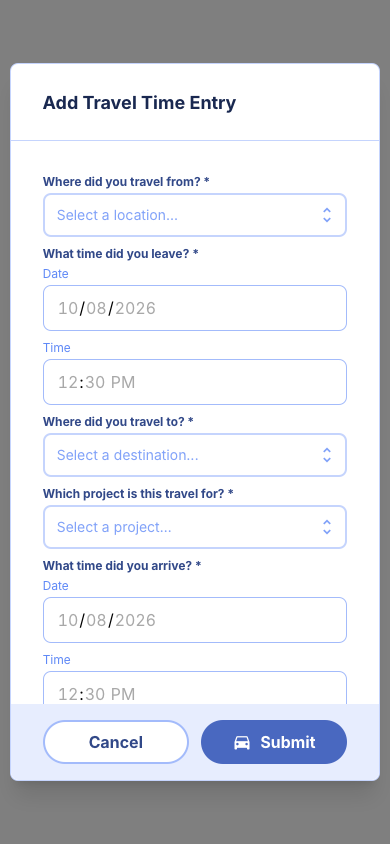
- Where did you travel from? Choose Home, HQ, one of your company's jobsites, or Other (enter address).
- What time did you leave? The date and time you set off.
- Where did you travel to? The same choices, plus Here (current location) if you are standing where the trip ended.
- Which project is this travel for? Only asked when neither end of the trip is a jobsite. If you traveled to or from a jobsite, vTime fills this in for you.
- What time did you arrive? The date and time you got there. It must be after the time you left.
If you choose Other (enter address), type the full address (street, city, state, ZIP) and tap Verify. vTime shows the address it found; tap Change if it is wrong.
Step 4: Say why you are entering it by hand
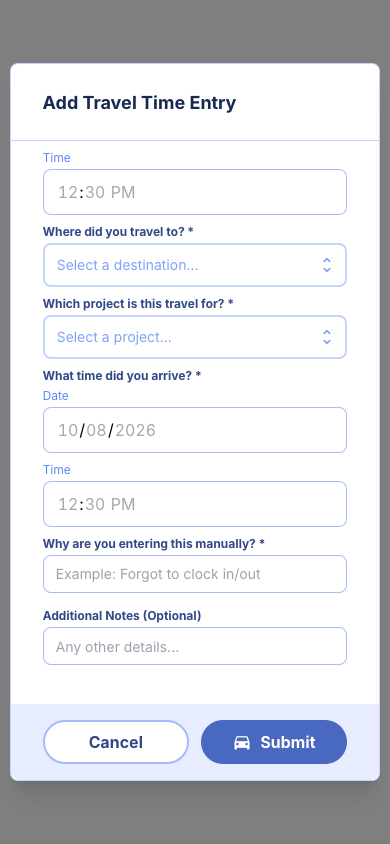
Scroll down. In Why are you entering this manually?, give a short reason, for example "Forgot to clock in". Add anything else your supervisor should know in Additional Notes.
Step 5: Submit
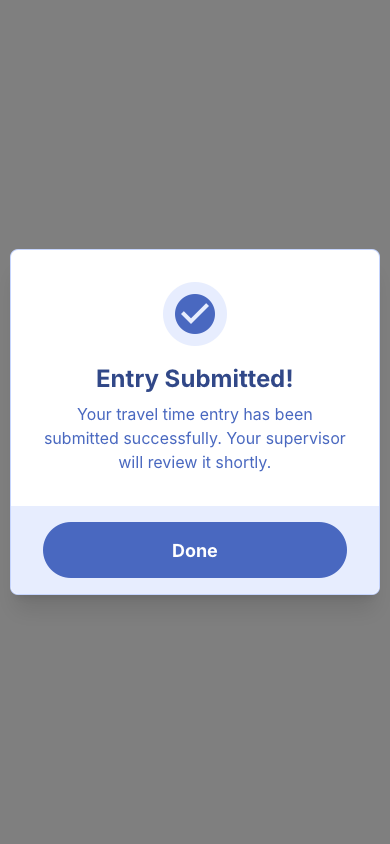
Tap Submit. When vTime shows Entry Submitted!, tap Done.
After you submit
Your entry goes to your supervisor for review. Tap Dashboard on the vTime home screen to follow it: it appears under Pending while it waits, History once approved, and Denied with your supervisor's reason if it is not approved.
If vTime shows a message
- "Please fill in all required fields." A field marked * is empty. Scroll up and check each one.
- "End time must be after start time." Your arrival time is the same as, or earlier than, the time you left. Check the dates as well as the times.
- "Cannot submit travel time for future dates." You can only add trips that have finished.
- "This entry is older than 14 days..." The trip is outside your company's editing window (the number may differ for your company). Ask your supervisor: an administrator can widen the window.
- "GPS location required for verification." vTime could not read your location. Turn on location for vTime in your phone's settings, then submit again. See vTime And Your Phone's Location.
- "Please verify your starting address" or "destination address". You chose Other and typed an address but did not tap Verify.
- A site "is missing GPS coordinates." That jobsite's location has not been set up in vTime. Tell your supervisor, or choose Other and enter its address.
Still stuck? Contact your supervisor.
Was this article helpful?
That’s Great!
Thank you for your feedback
Sorry! We couldn't be helpful
Thank you for your feedback
Feedback sent
We appreciate your effort and will try to fix the article