Note : Need help adding vTime to your iPhone's home screen?
Check out our guide for adding vTime to your iPhone using the Safari browser here.
OR
Check out our guide for adding vTime to your iPhone using the Chrome browser here.
After you have added vTime to your iPhone, you are ready to login for the first time; follow these steps to get started! You will only need to do these steps one time; NOT each time you use vTime.
First Login
Step 1 : Click the vTime Icon
In a previous guide we added the vTime logo to your iPhone's home screen. Find that icon now, and click it.
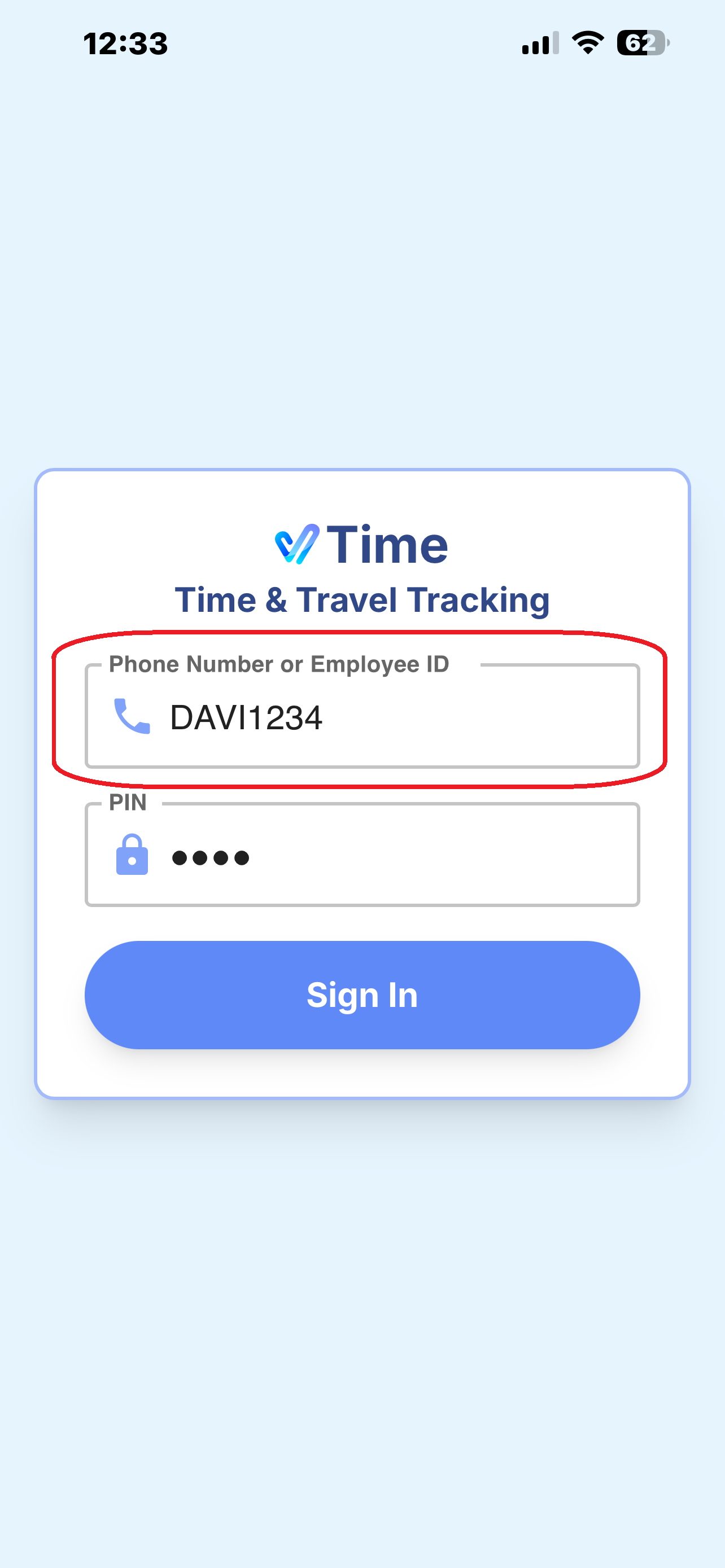
Step 2 : Enter Your Cellphone Number or Employee ID
Depending on your organization, enter your cellphone number or employee ID in the top field.
Step 3 : Enter Your Default PIN Number
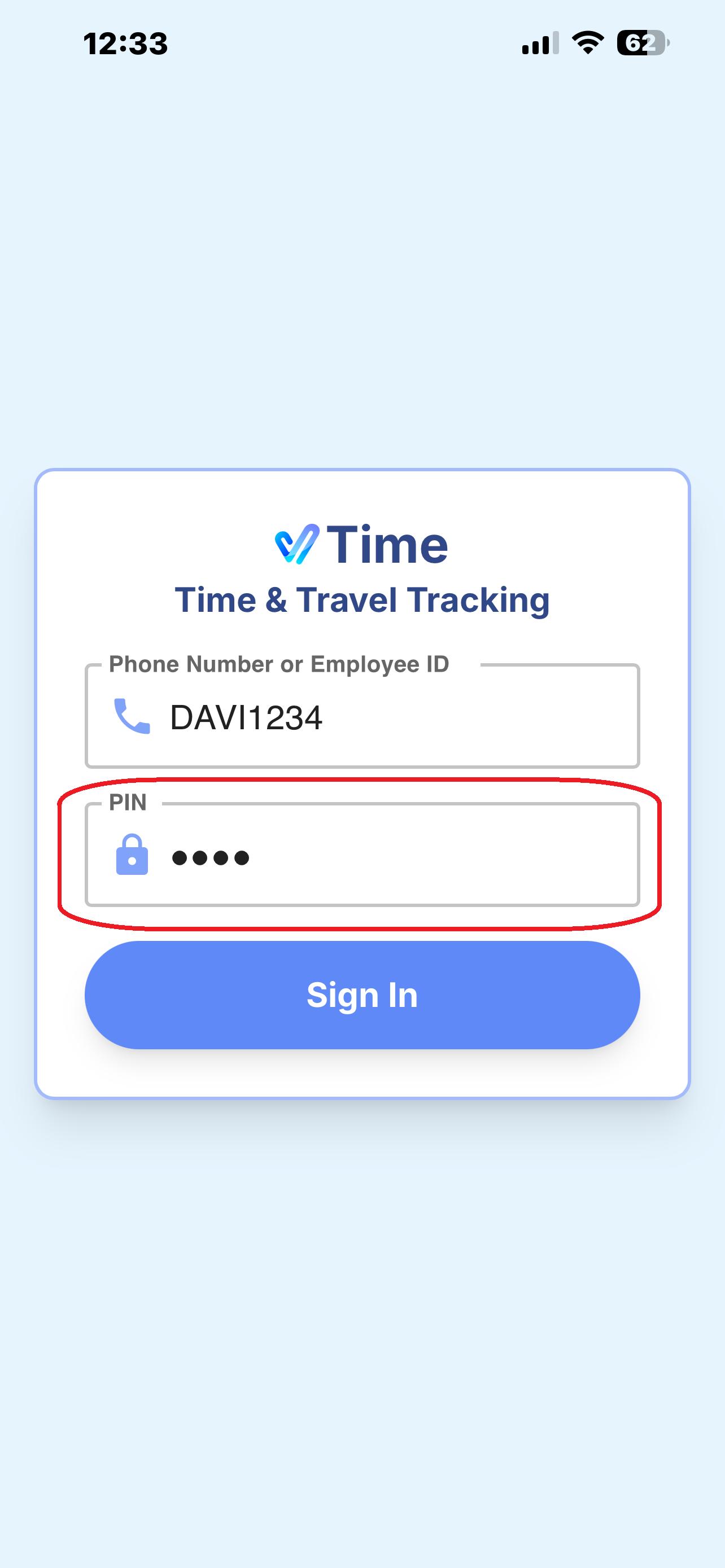
You previously received a welcome text message from your company inviting you to use vTime. In that message was a default PIN number. Enter that number in the PIN number field.
Step 4 : Choose a New PIN Number
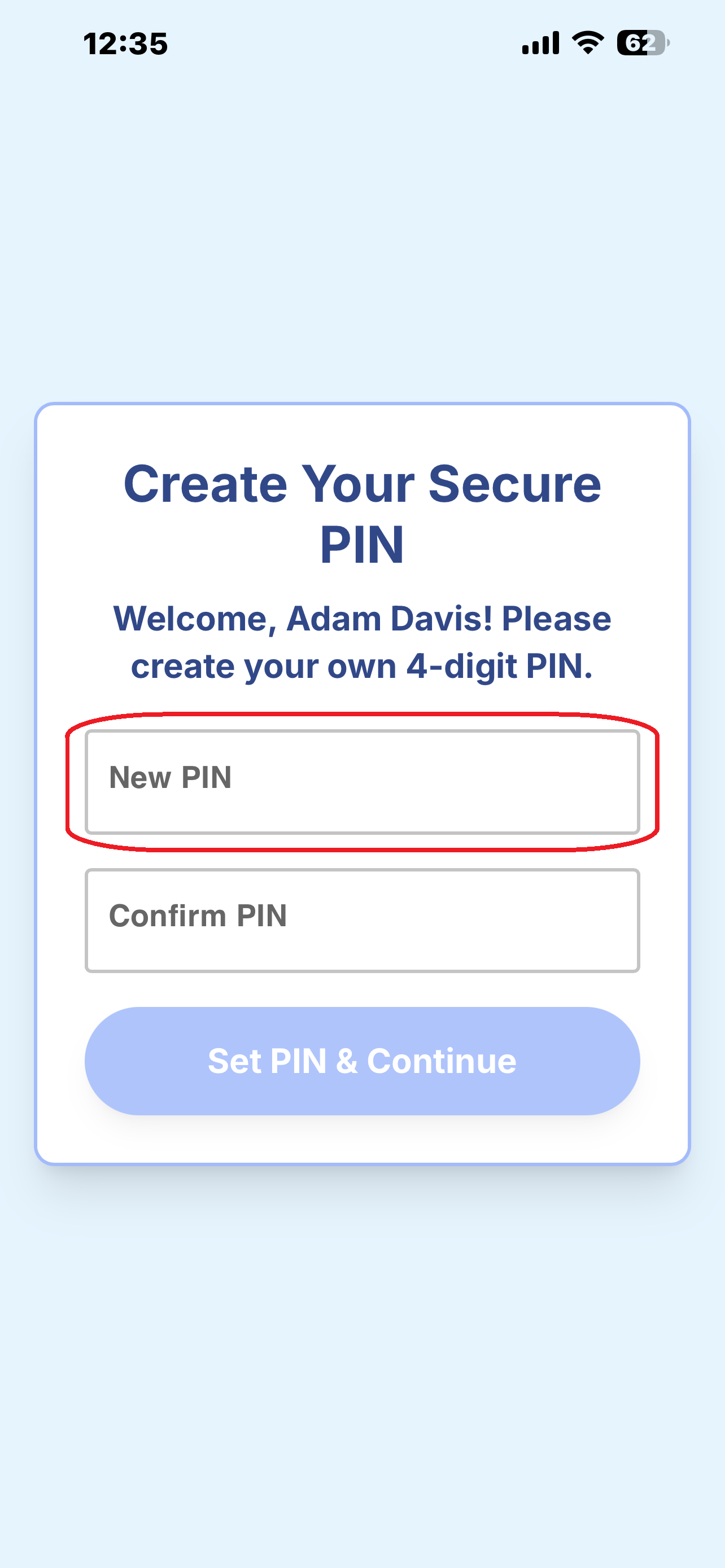
Choose a unique four-digit PIN that you will remember. (Note : You cannot use "1234" or the default PIN number you received in your welcome text message.)
Step 5 : Re-enter Your New PIN Number
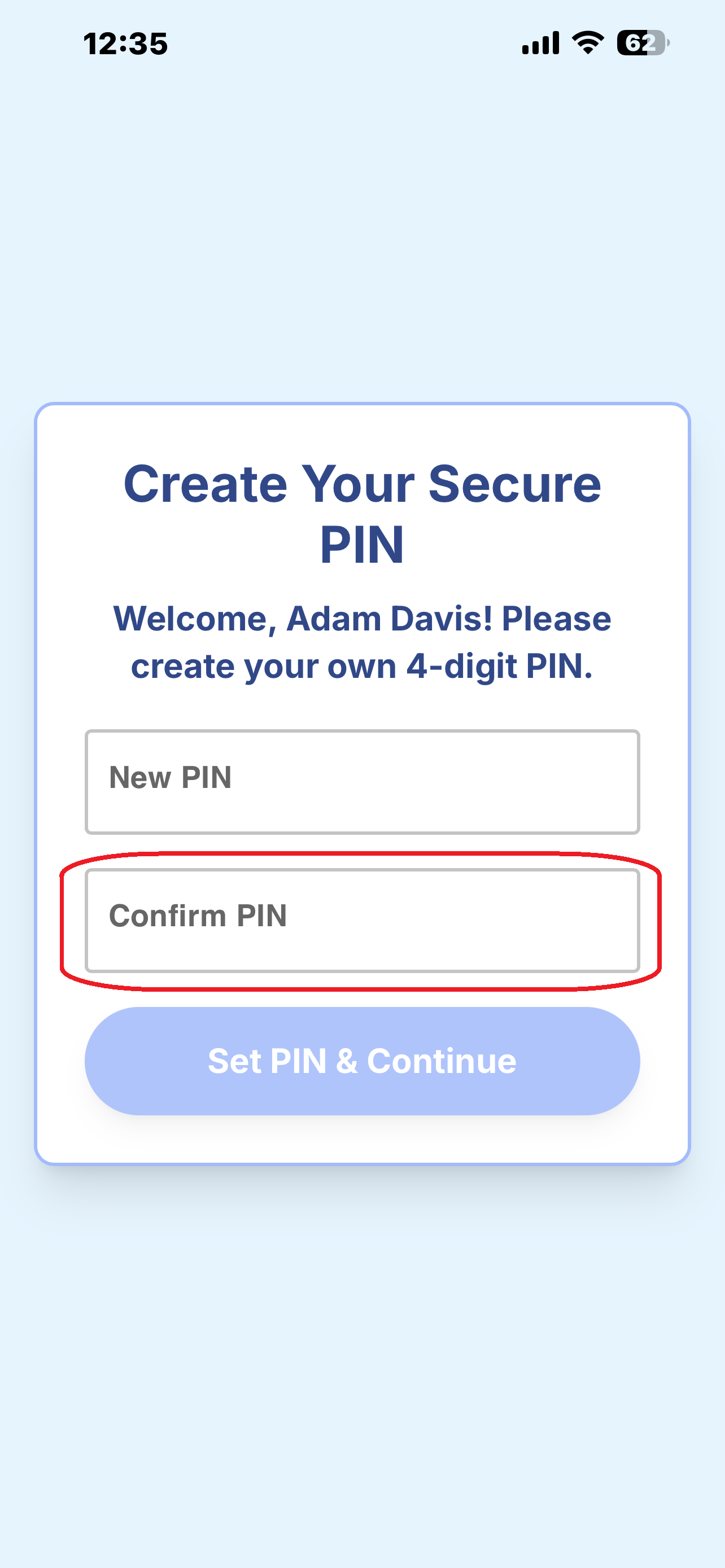
Re-enter the unique four-digit PIN you chose in Step 4. (Note : You cannot use "1234" or the default PIN number you received in your welcome text message.)
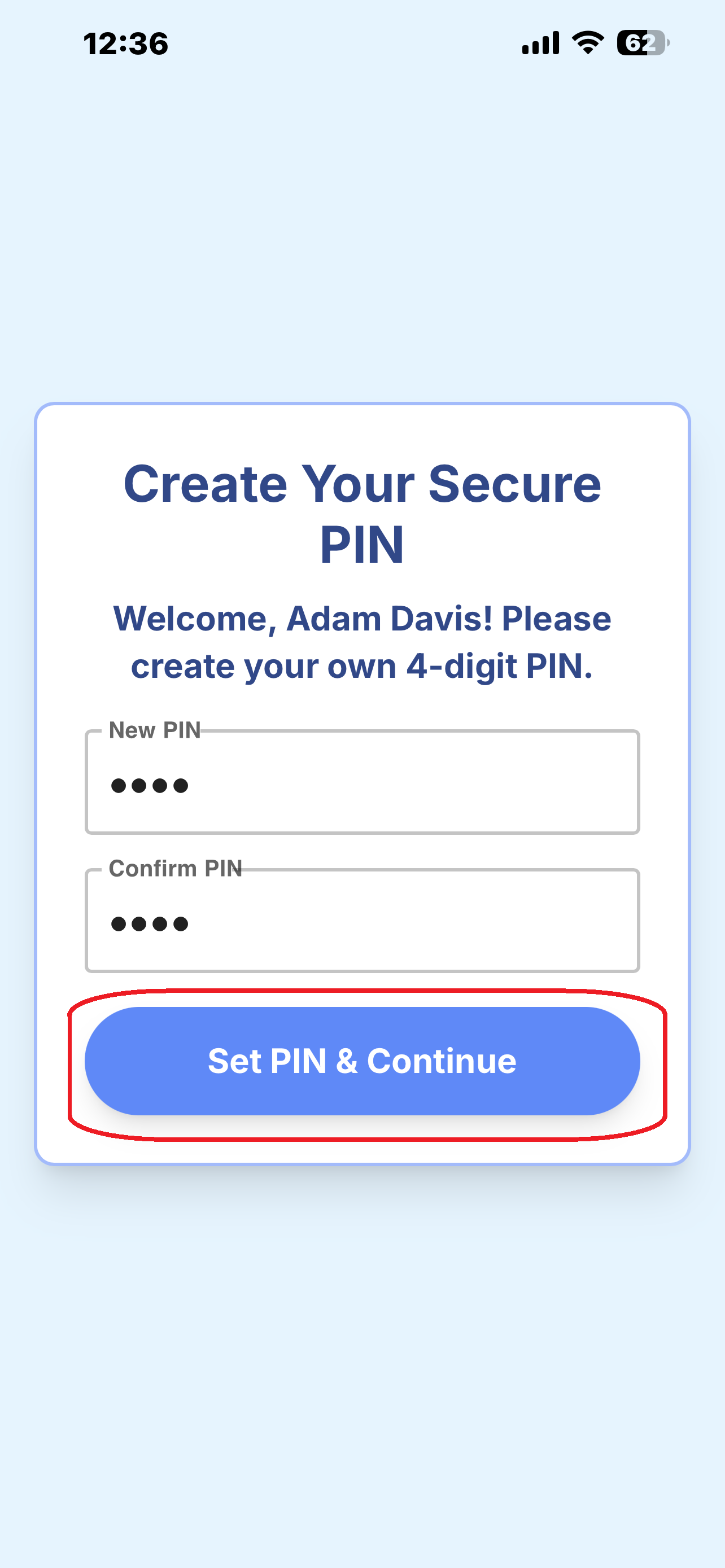
Step 6 : Set PIN & Continue
Click the "Set PIN & Continue" button to save your new PIN.
Your Home Address
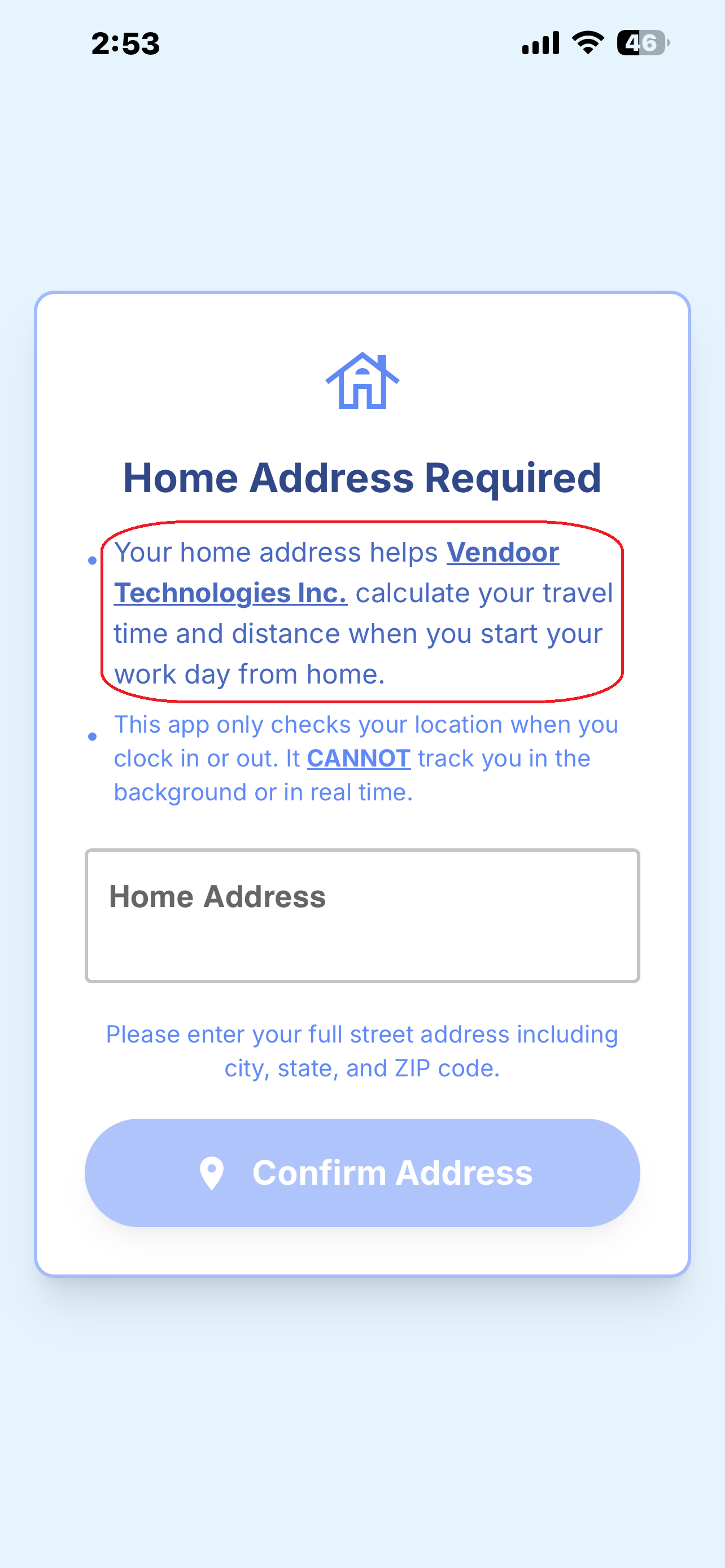
Note : Vendoor Technologies Inc. takes the privacy and security of all personal information seriously. Your home address is collected here ONLY for the calculation of travel time and distance when traveling for your employer "on the clock" FROM home FOR work, or FROM work TO home.
Your home address is used here ONLY by your employer and is NOT used by Vendoor Technologies Inc. for ANY other reason or in ANY other way. Vendoor Technologies Inc. does not give this address to ANYONE for ANY reason, other than your employer.
Why vTime Ask For Your Home Address
vTime is used by your employer to calculate travel time and distance when you travel for work-related tasks and events from your home for which you are "on the clock". (For example, traveling from home to a hotel on a Sunday near a jobsite you will work at on Monday.)
What vTime Does NOT Do
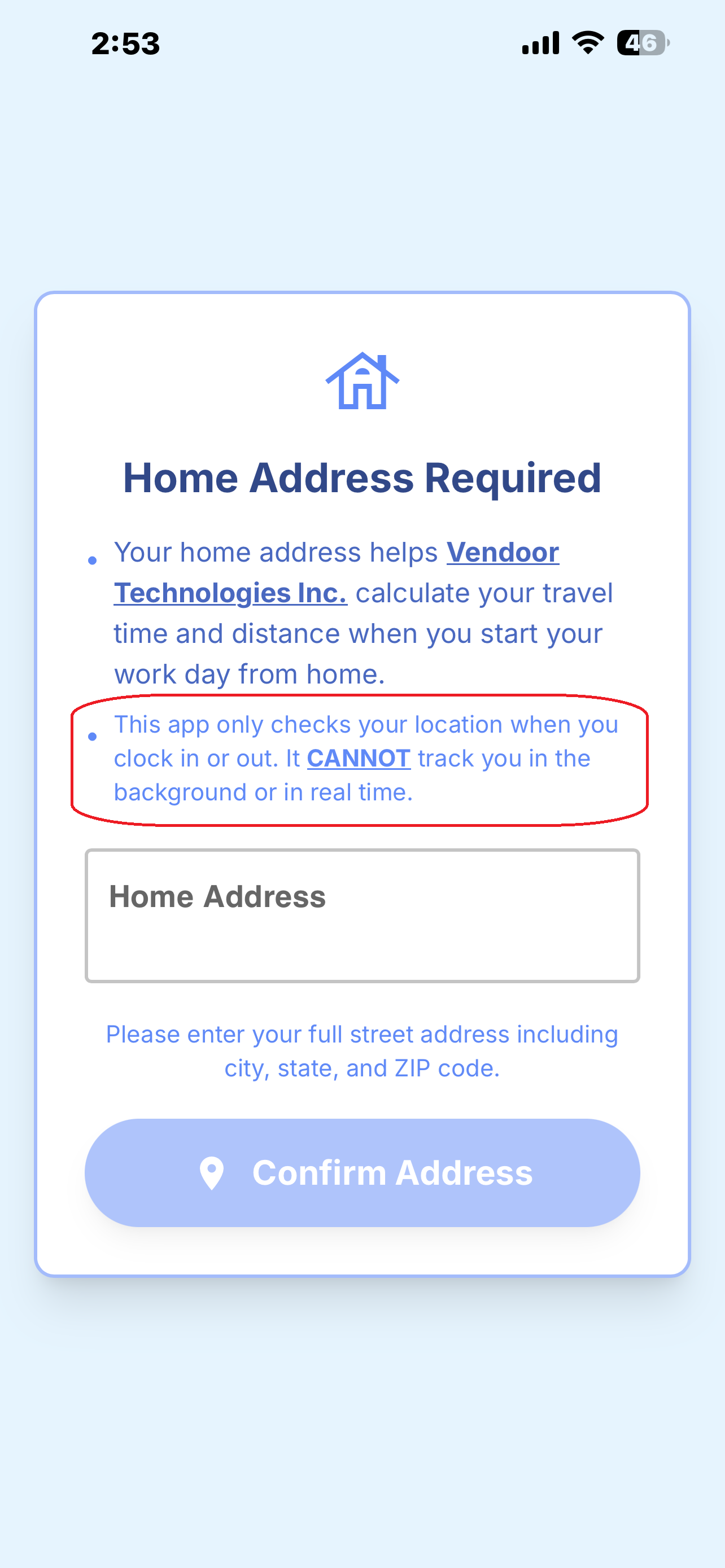
vTime DOES NOT and CAN NOT know your location in real-time or in the background. vTime ONLY knows your location at the moment you clock in and the moment you clock out; not before you clock in, not while you are clocked in, and not after you clock out.
Step 7 : Enter Your Home Address
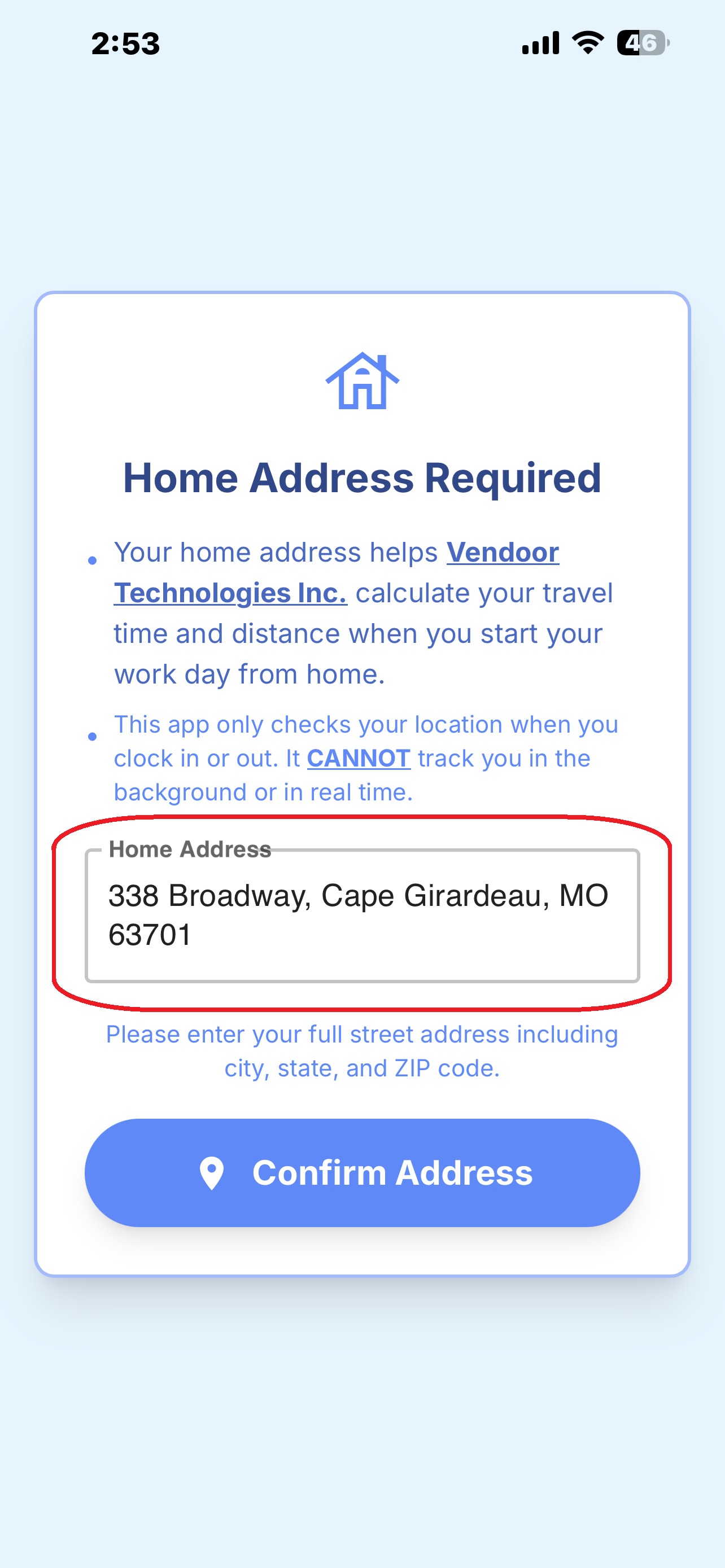
Enter your home street address with as much detail as possible including street name and number, city, state, and ZIP code.
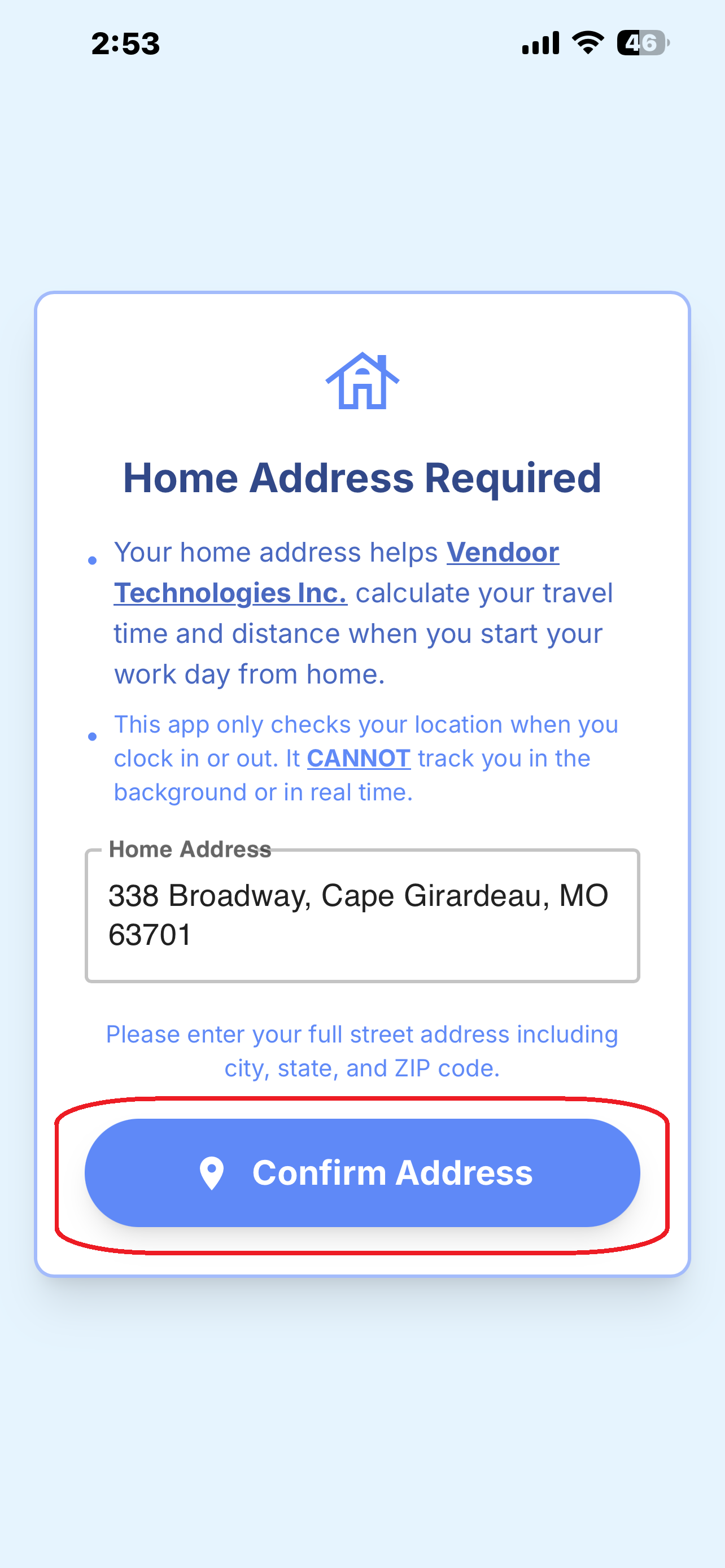
Step 8 : Confirm Your Address
After you enter your home address, click 'Confirm Address'.
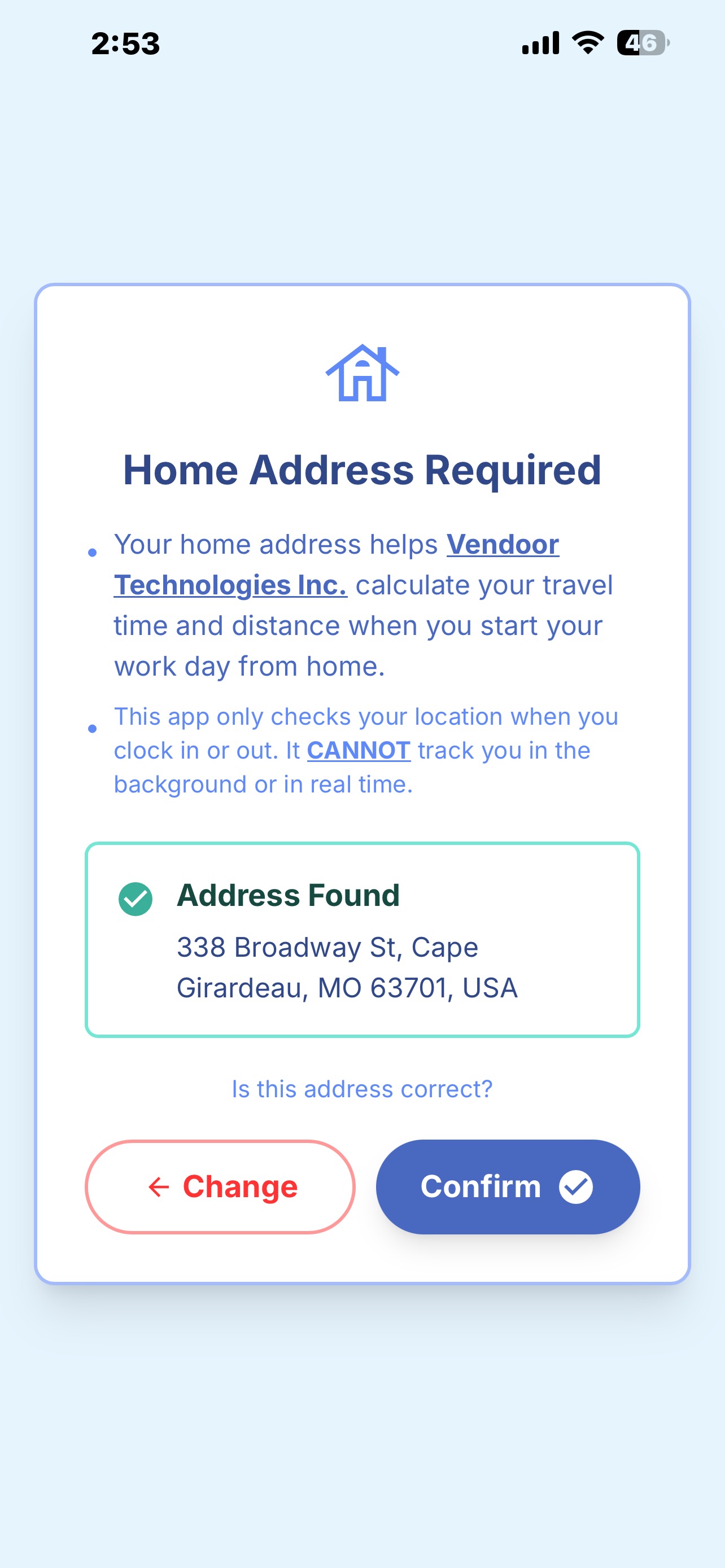
Step 9 : Address Found
If you successfully enter your home address, vTime will say "Address Found" and highlight your home address in green.
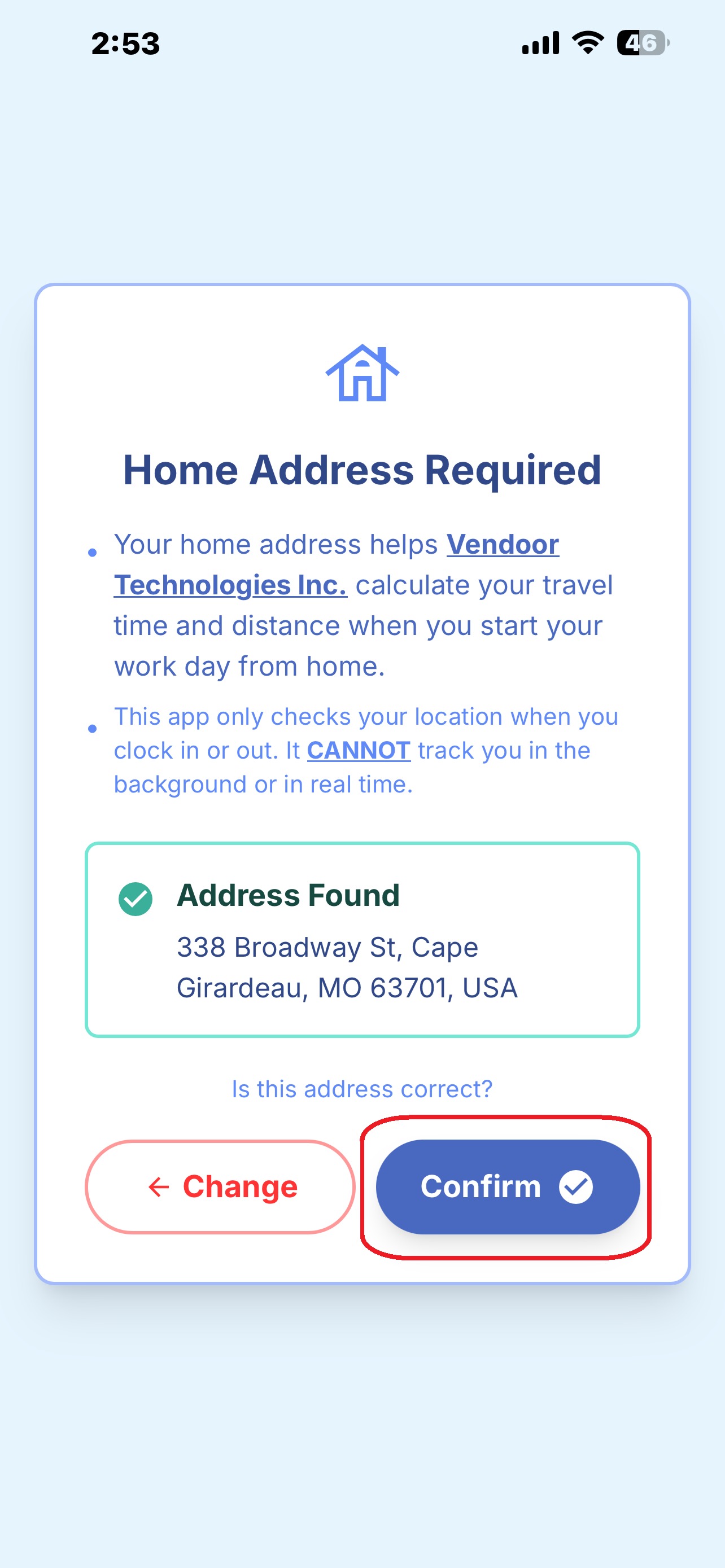
Step 10 : Confirm Your Address
Once your address is found, 'Confirm' your address one last time.
Step 10 : vTime Location Permissions
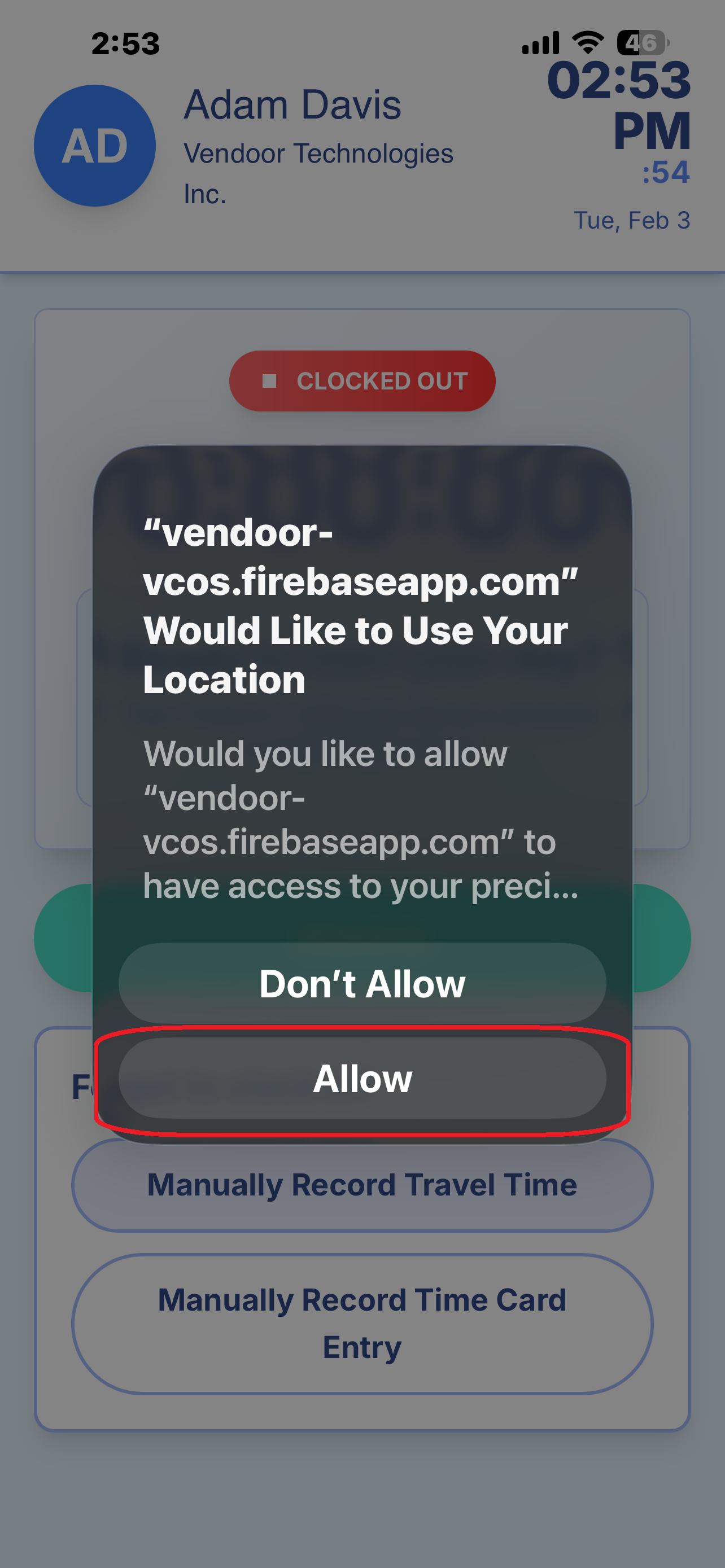
Your device's browser will ask your permission for vTime to use your location. This is NOT asking to track you in real-time or when the app is closed, and is only asking for permission to capture your location on clock in and clock out.
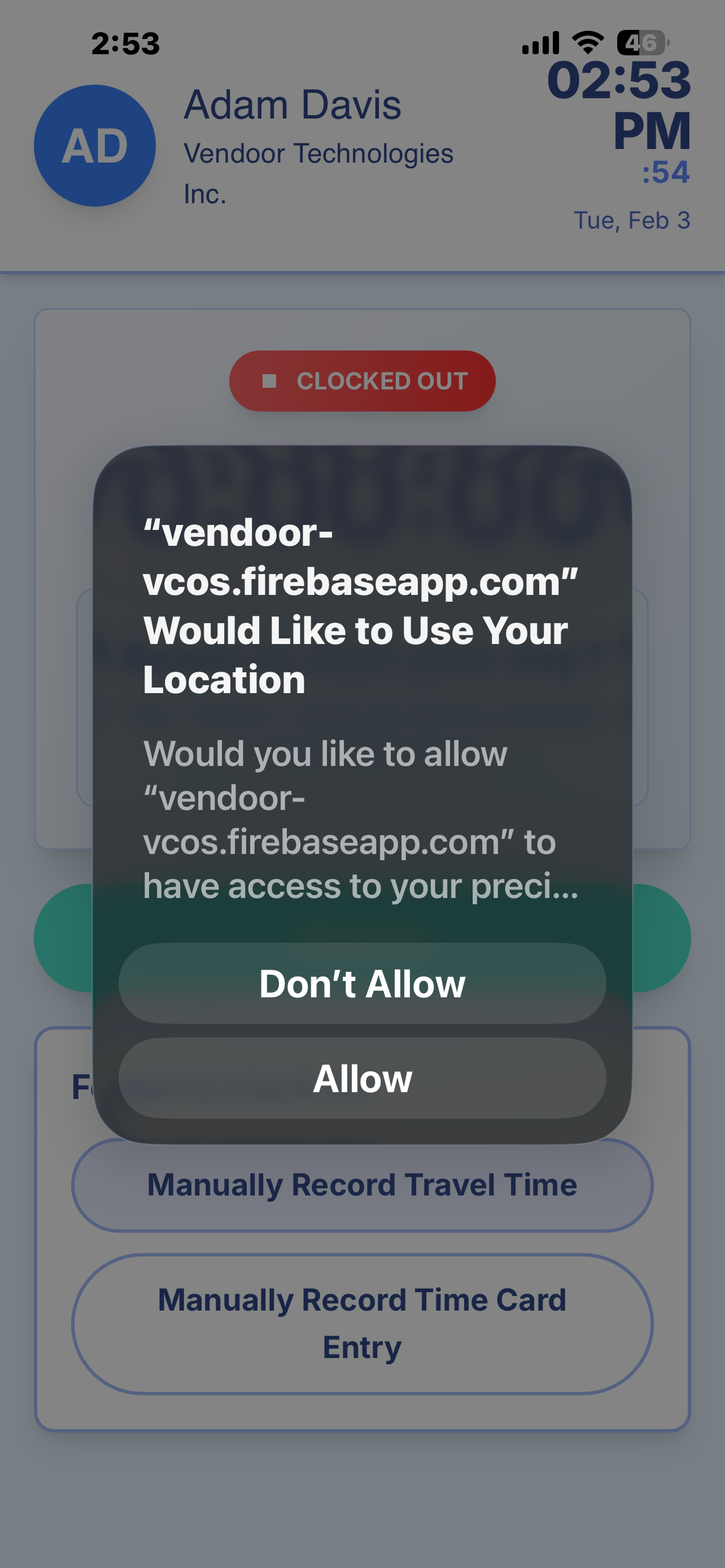
Step 11 : Allow Location Permissions
Click 'Allow' when your device's browser asks your permission for vTime to use your location. This is NOT asking to track you in real-time or when the app is closed, and is only asking for permission to capture your location on clock in and clock out.
vTime Setup Is Complete
You have now completed all of the one-time steps to setup vTime for future use!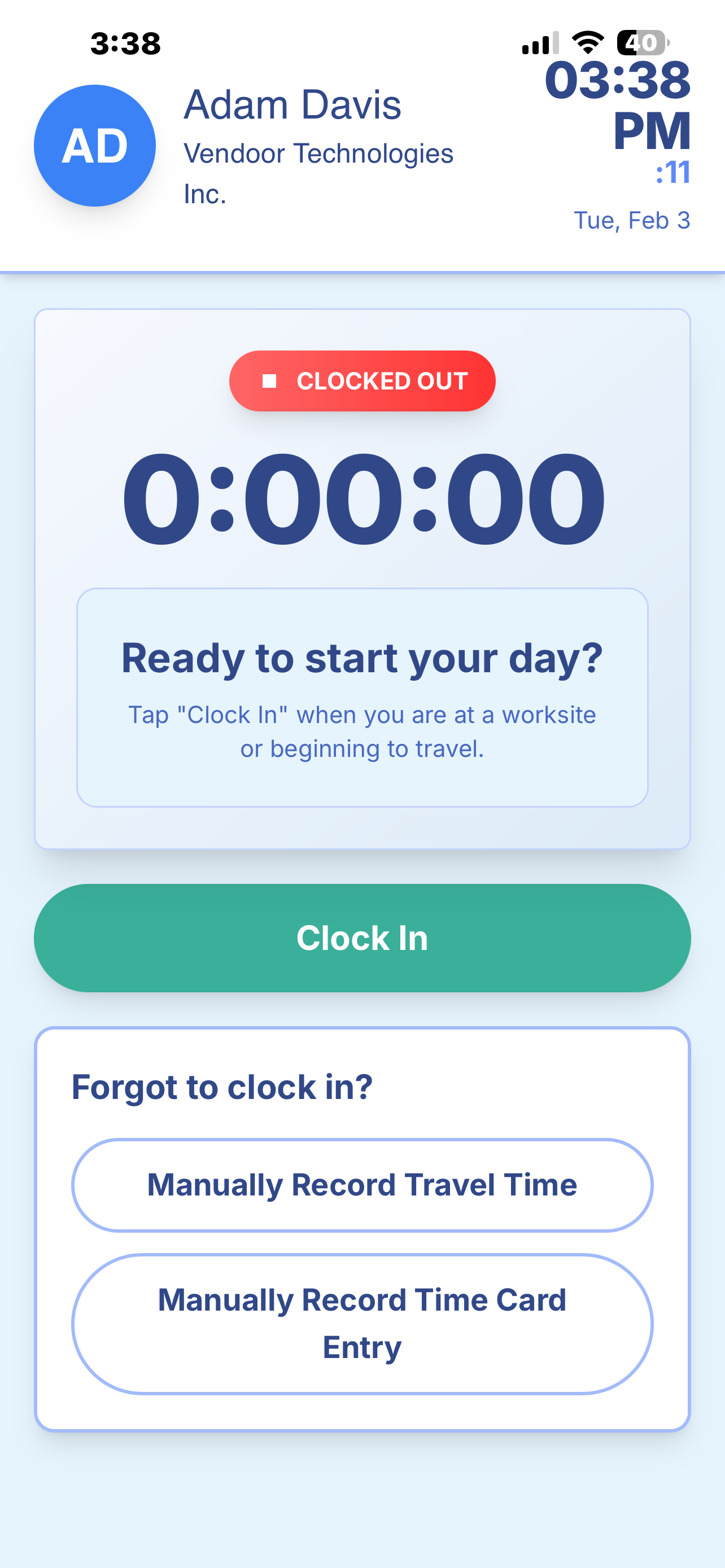
Next Steps
Now that you've added configured vTime, you're ready to begin clocking in and out to track your work or travel time, depending on your organization!
Was this article helpful?
That’s Great!
Thank you for your feedback
Sorry! We couldn't be helpful
Thank you for your feedback
Feedback sent
We appreciate your effort and will try to fix the article