vTime works best from an icon on your phone: it keeps you signed in, opens faster, and lets you clock in when phone service is spotty. These steps add it using the Chrome browser, which comes with most Android phones. You only do this once.
TABLE OF CONTENTS
- Step 1: Open your company link in Chrome
- Step 2: Open Chrome's menu
- Step 3: Tap Install app
- Step 4: Tap Install
- Step 5: Open vTime from your home screen
- Next steps
Step 1: Open your company link in Chrome
When your company adds you to vTime, you get a text message with a link. Tap it, and make sure it opens in Chrome. vTime shows an Install vTime screen.
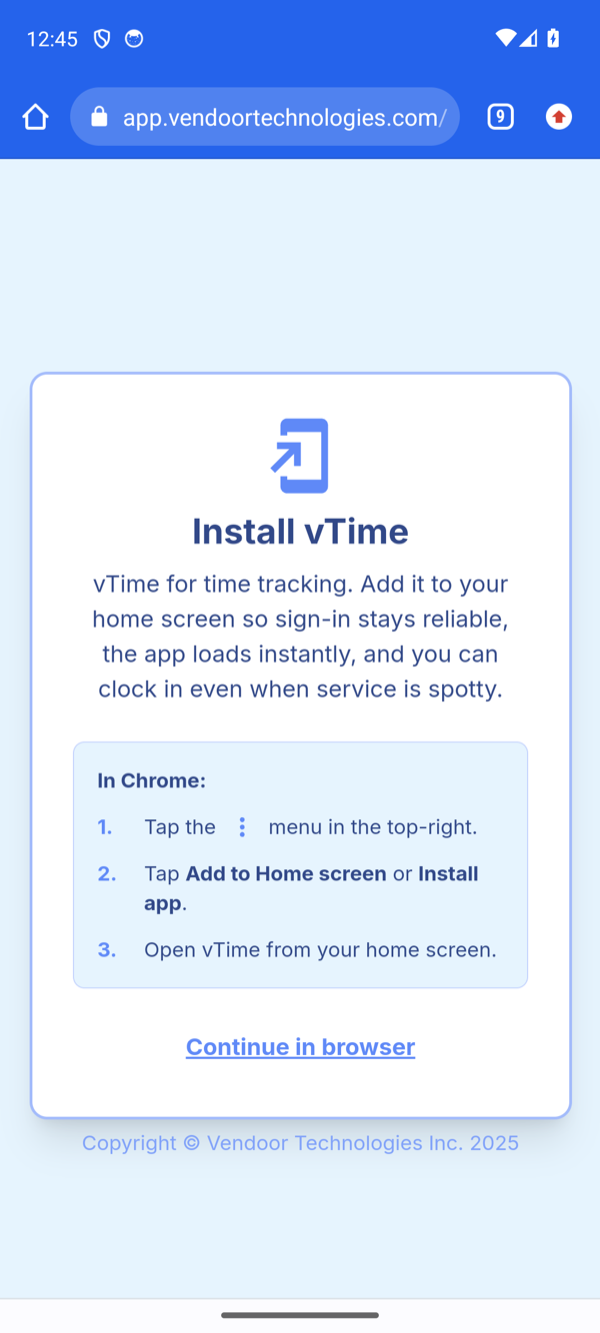
If the Install vTime screen has an Install vTime button, tap it and skip to Step 4.
Step 2: Open Chrome's menu
Tap the ⋮ menu at the top-right of Chrome.
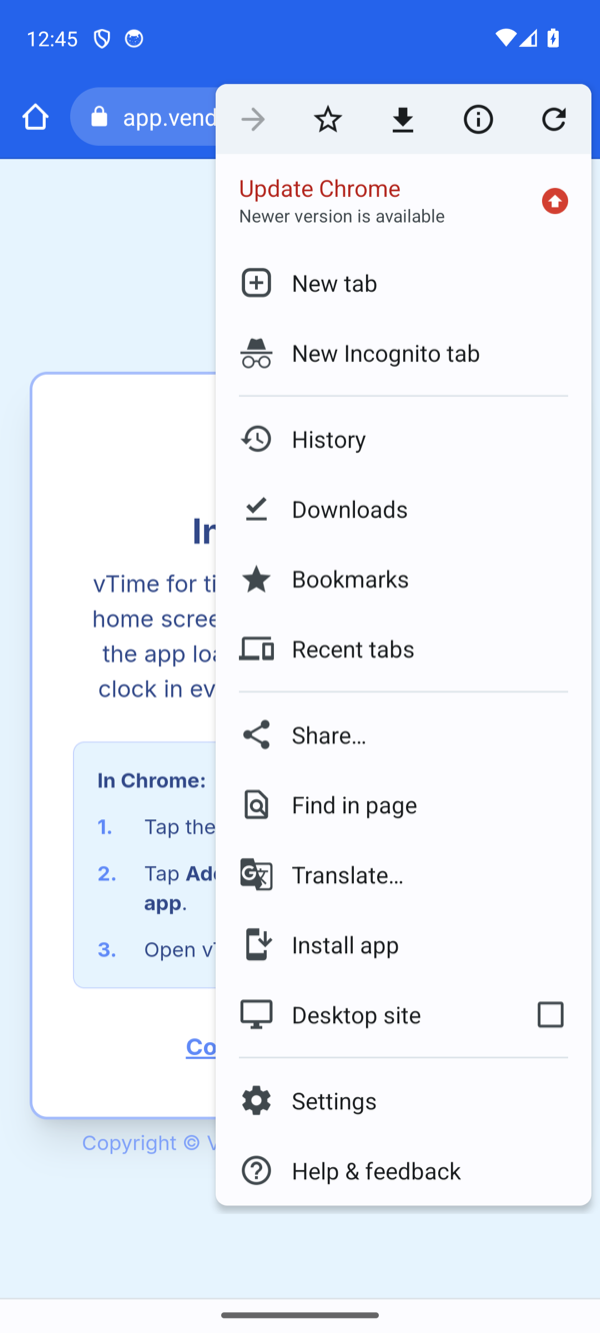
If Chrome needs updating, that button shows a red arrow instead of ⋮, as in these pictures. It is the same menu, so tap it anyway. You can update Chrome later from the Play Store.
Step 3: Tap Install app
Tap Install app. On some phones it says Add to Home screen instead.
Step 4: Tap Install
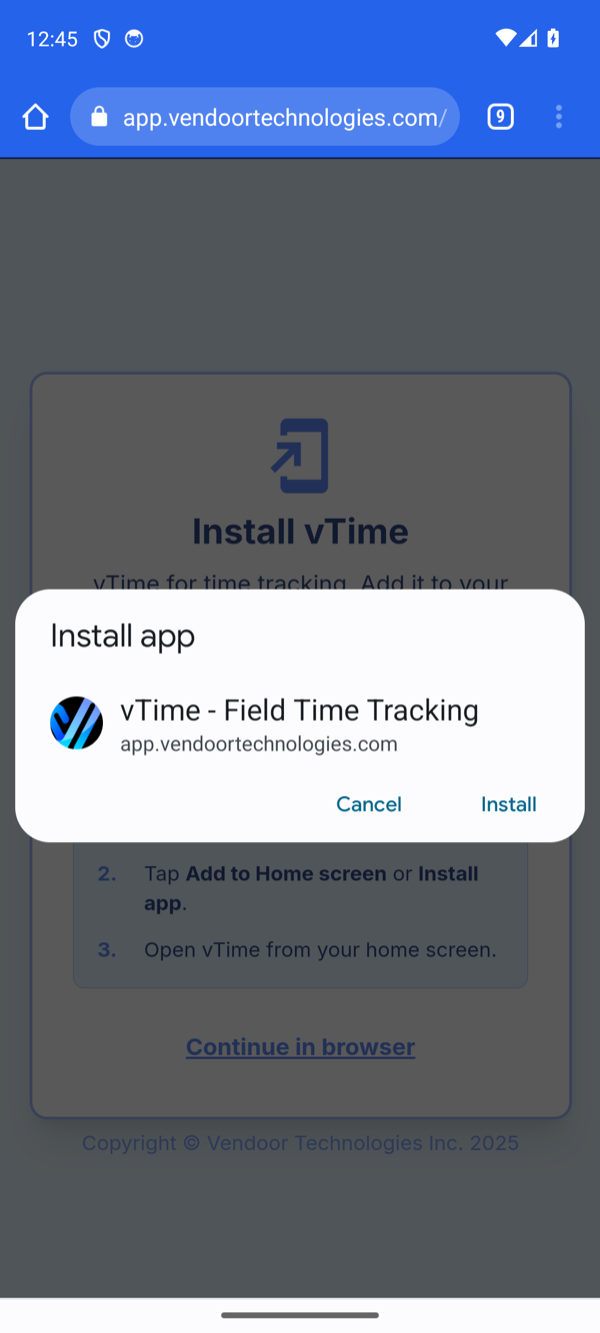
Chrome asks you to confirm. Tap Install.
Step 5: Open vTime from your home screen
vTime shows vTime Installed. Your phone may also show a message about placing the icon. Go to your home screen and tap the vTime icon.
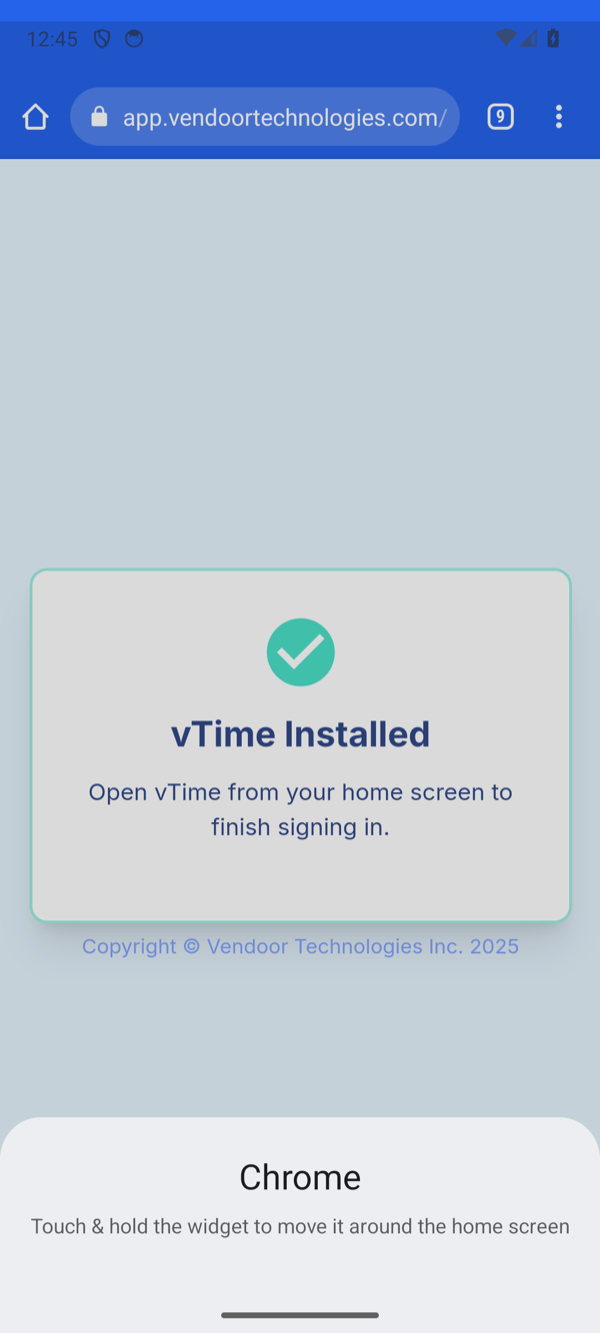
Not on your home screen? Swipe up to open your list of apps and look for vTime. From now on, always open vTime from its icon, not from Chrome.
Next steps
Sign in for the first time: see Using vTime For The First Time (Android).
Can't install it right now? Tap Continue in browser on the Install vTime screen to sign in anyway, and install it as soon as you can. Having trouble? See Trouble Signing In To vTime.
Was this article helpful?
That’s Great!
Thank you for your feedback
Sorry! We couldn't be helpful
Thank you for your feedback
Feedback sent
We appreciate your effort and will try to fix the article